...
- Install the Joget SAML Plugin from the Joget Marketplace.
- In the Joget System Settings > General Settings, set API Domain Whitelist to * (IMPORTANT NOTE: If this is not set, you will get a 400 Forbidden error when performing the SSO)
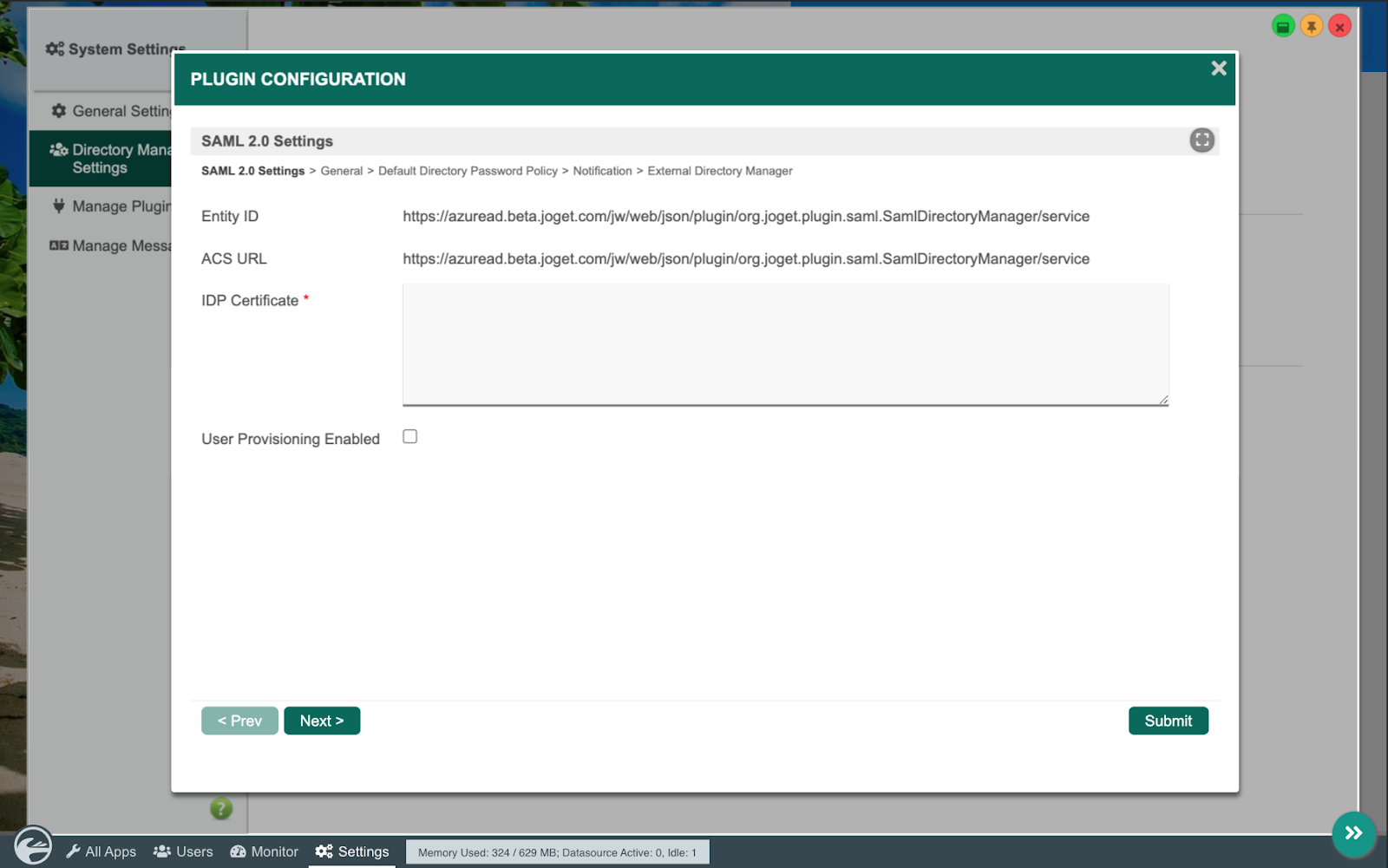
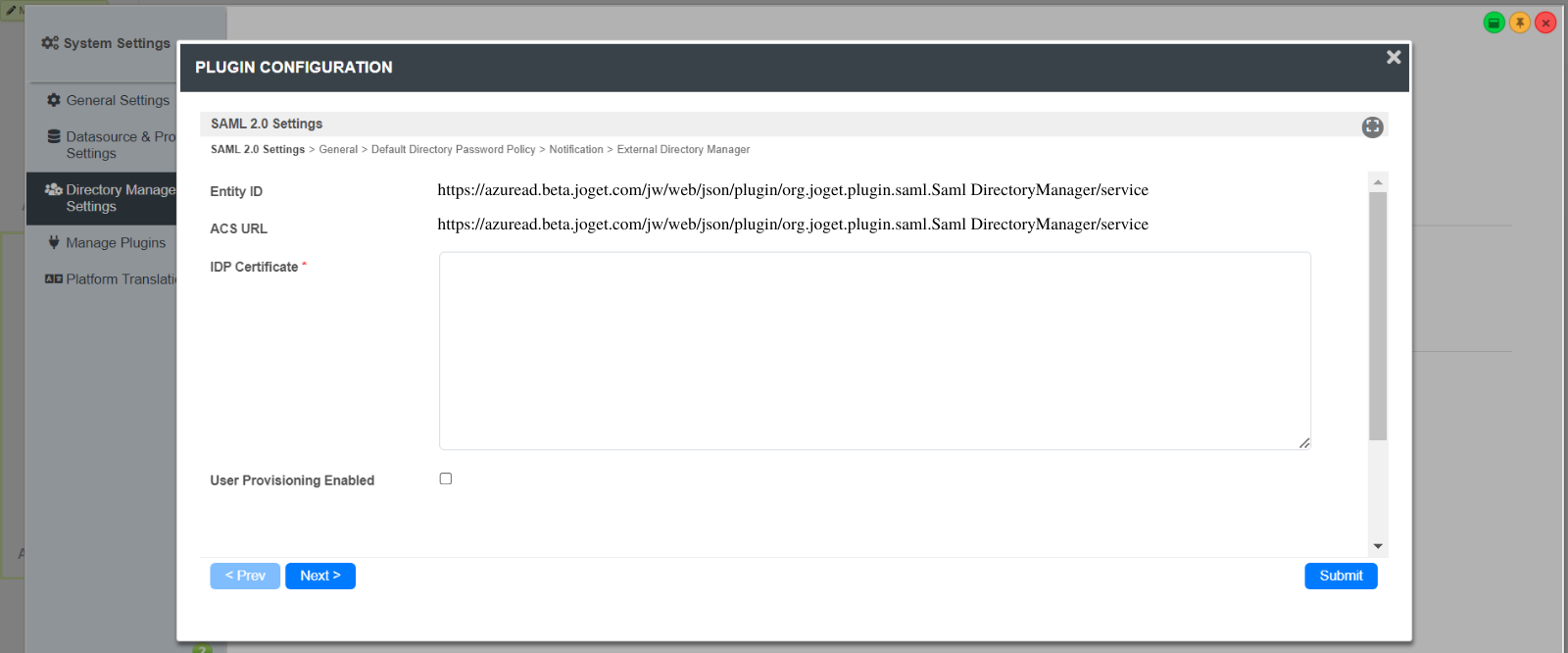
- In the Joget System Settings > Directory Manager, select the Joget SAML Plugin.
- In the Joget SAML Plugin configuration, copy the Entity ID and ACS URL. (IMPORTANT NOTE: Azure AD requires the ACS URL to be HTTPS so your Joget installation must be running under HTTPS )
2. Configure Azure Active Directory for SAML
...
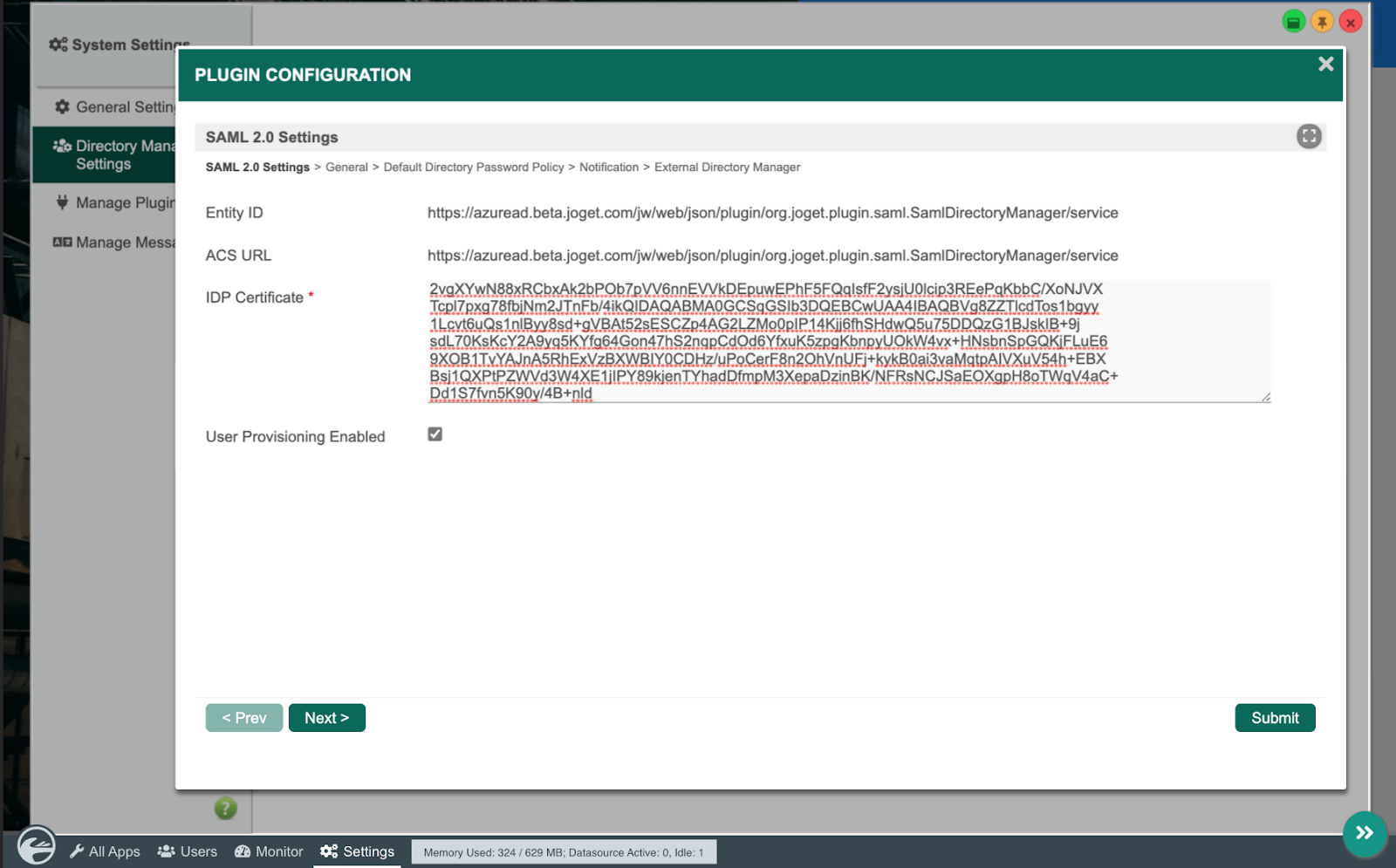
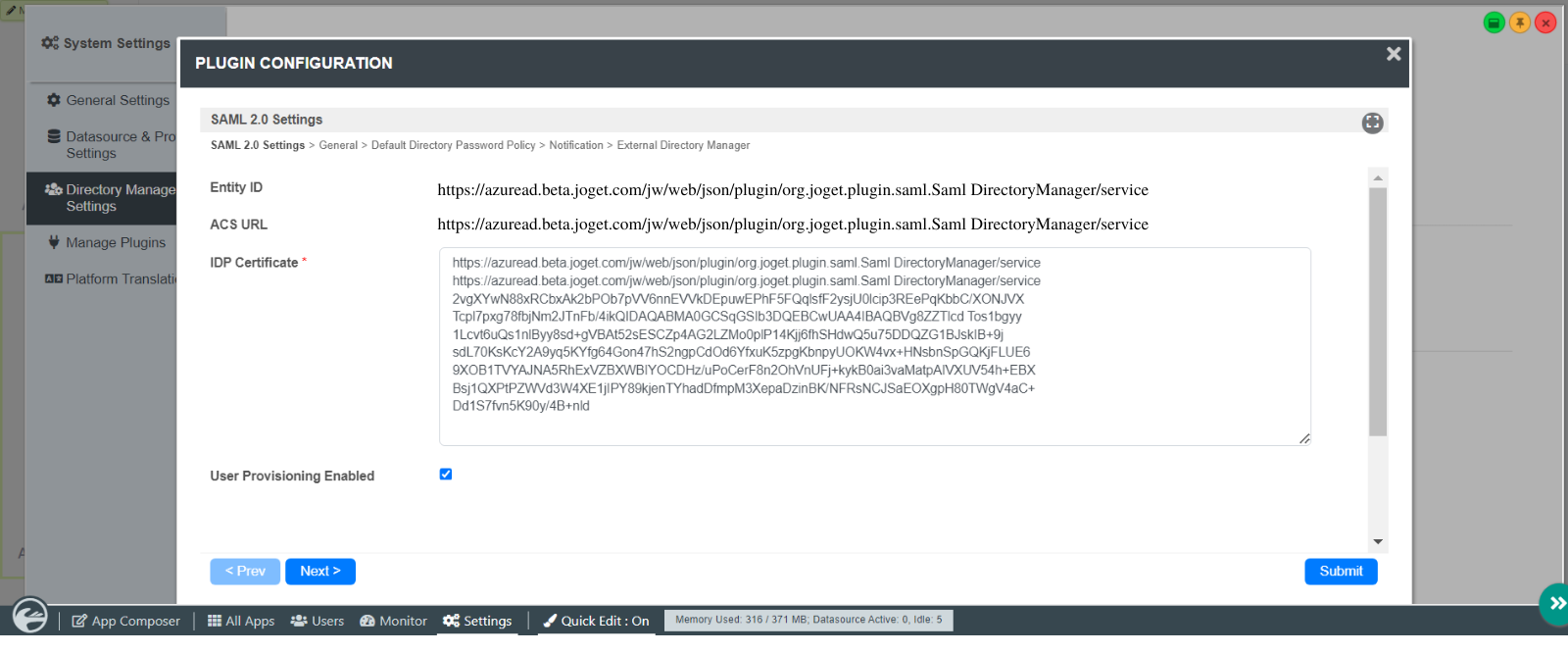
- Open the downloaded certificate file and copy the contents into the IDP Certificate field in the Joget SAML Plugin configuration (NOTE: copy without the -----BEGIN CERTIFICATE----- and -----END CERTIFICATE----- lines)
4. Test the SAML SSO
- Access the Azure My Apps Portal, click on the application, and select the user to perform the SSO.
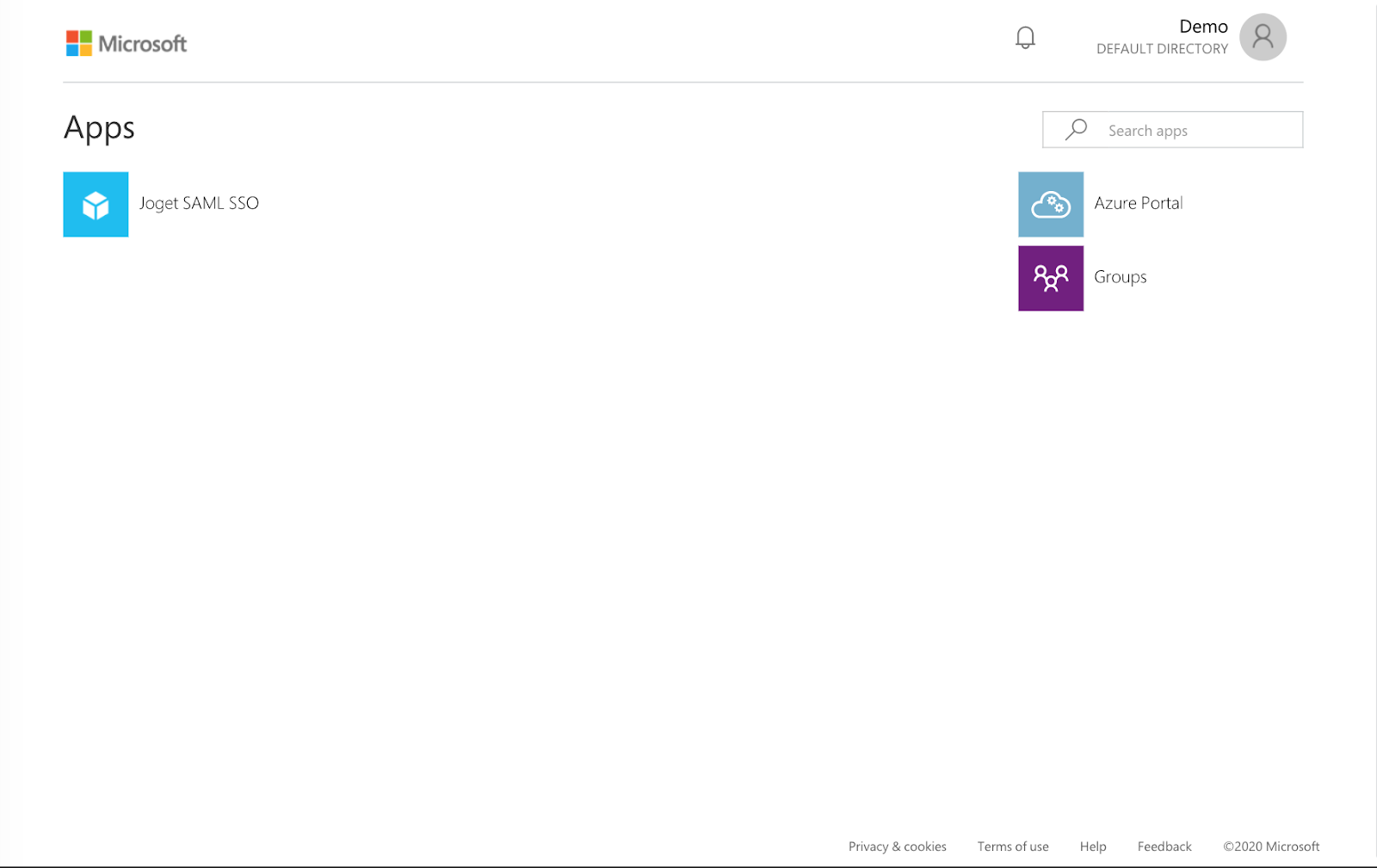
- If the SSO configuration is correct, the current user will be logged into Joget.
...