...
Setting parameters on the URL

Figure 1: Login page URL with the parameters set for admin view.

Figure 2: Login page URL with the parameters set for non-admin view.
...
To have different results based on the parameters, write a JavaScript code into the UI Builder > Settings > Configure Layout > Advanced, scroll down until the Custom JavaScript section.
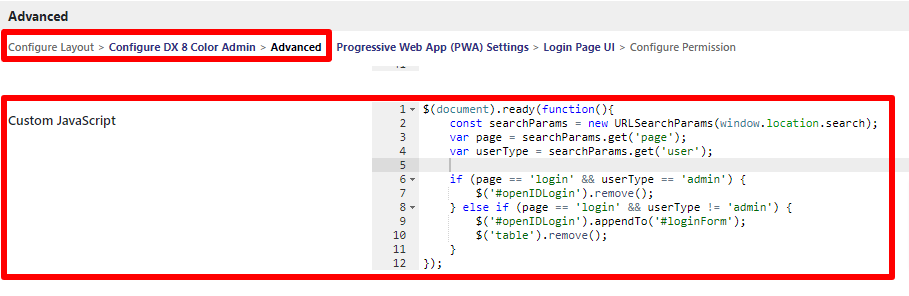
Figure 3: Custom JavaScript section on UI Builder Advanced Settings.
...
| Code Block | ||
|---|---|---|
| ||
#openIDLogin {
    background: blue;
    padding: 10px 20px;
    border-radius: 3px;
    text-align: left;
    display: block;
    width: fit-content;
    color: white;
    margin: auto;
}
#icon {
padding-right: 20px;
} |
Results
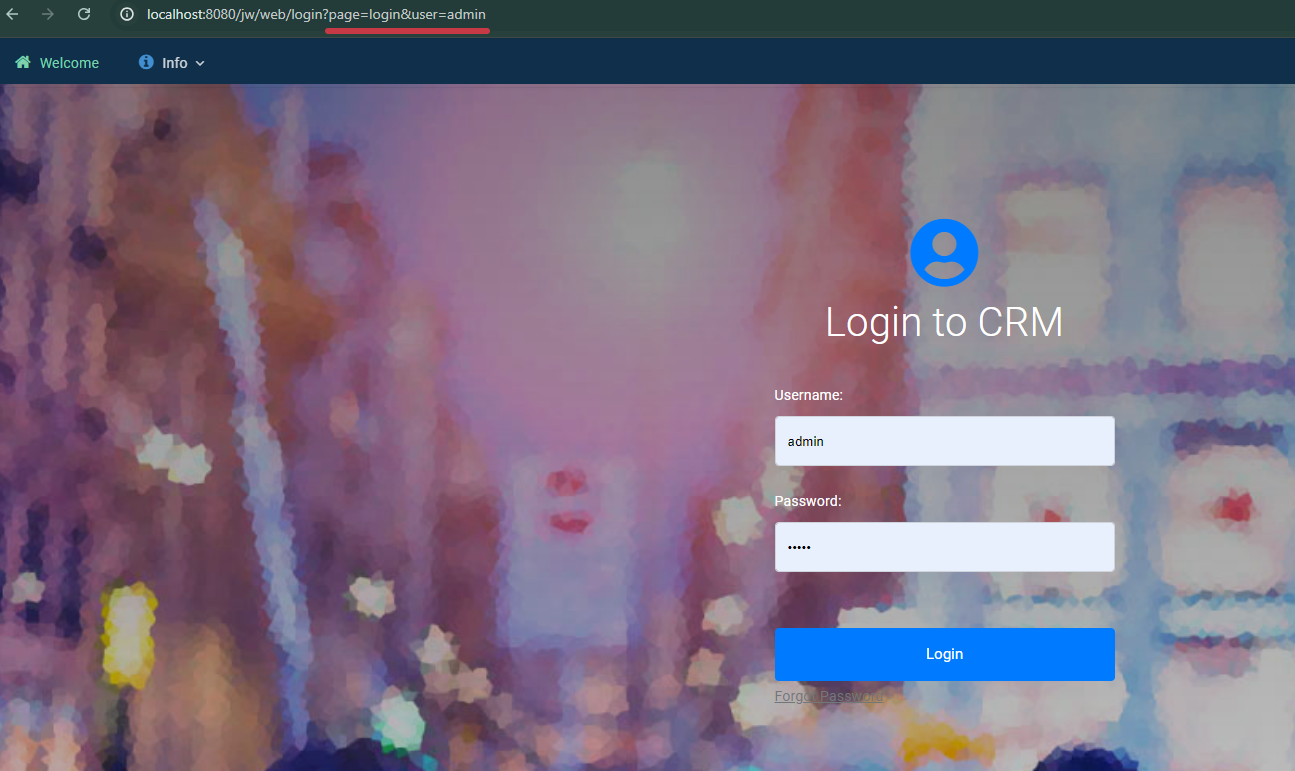
Figure 4: Admin login page, with username and password fields displayed.
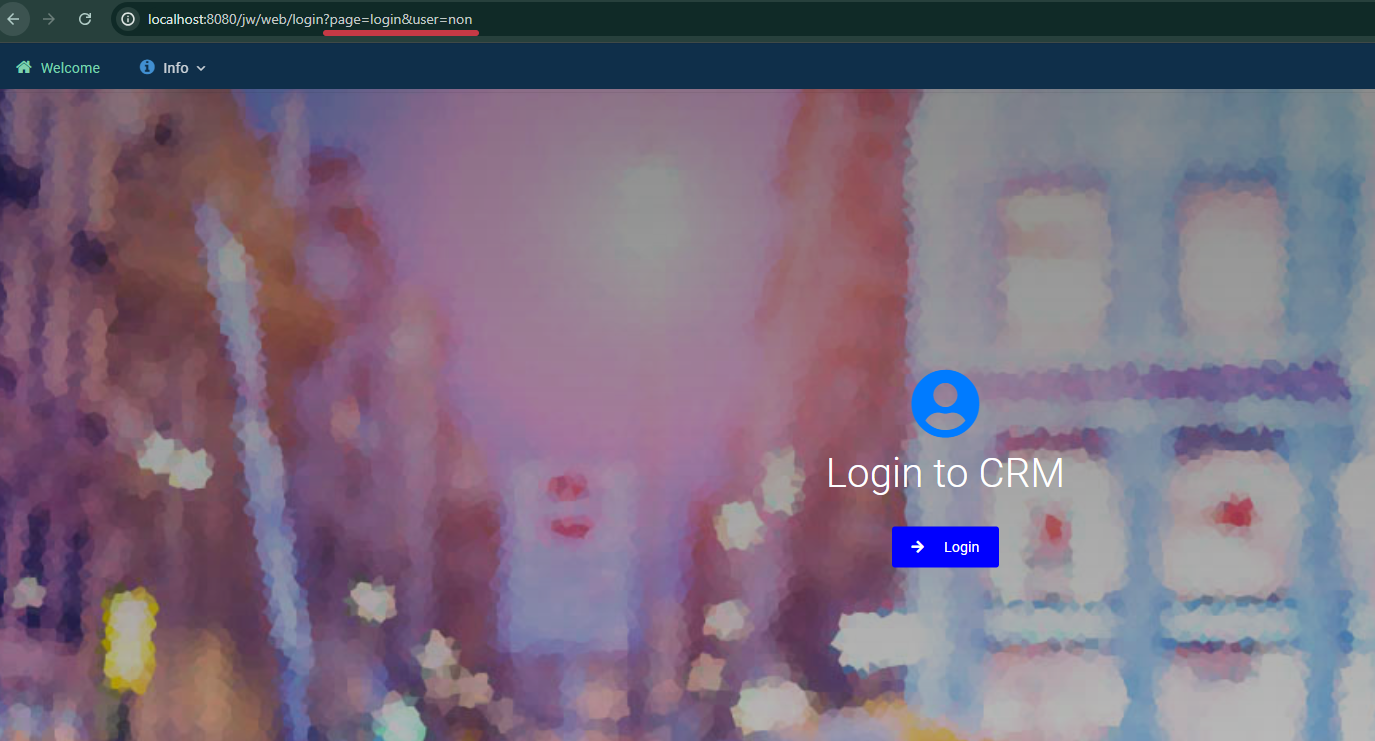
Figure 5: Non-admin login page, with only the cloud login button displayed.
...