| Info | ||
|---|---|---|
| ||
Make sure that you have first completed the previous tutorial - Designing a New App
|
| Widget Connector | ||||
|---|---|---|---|---|
|
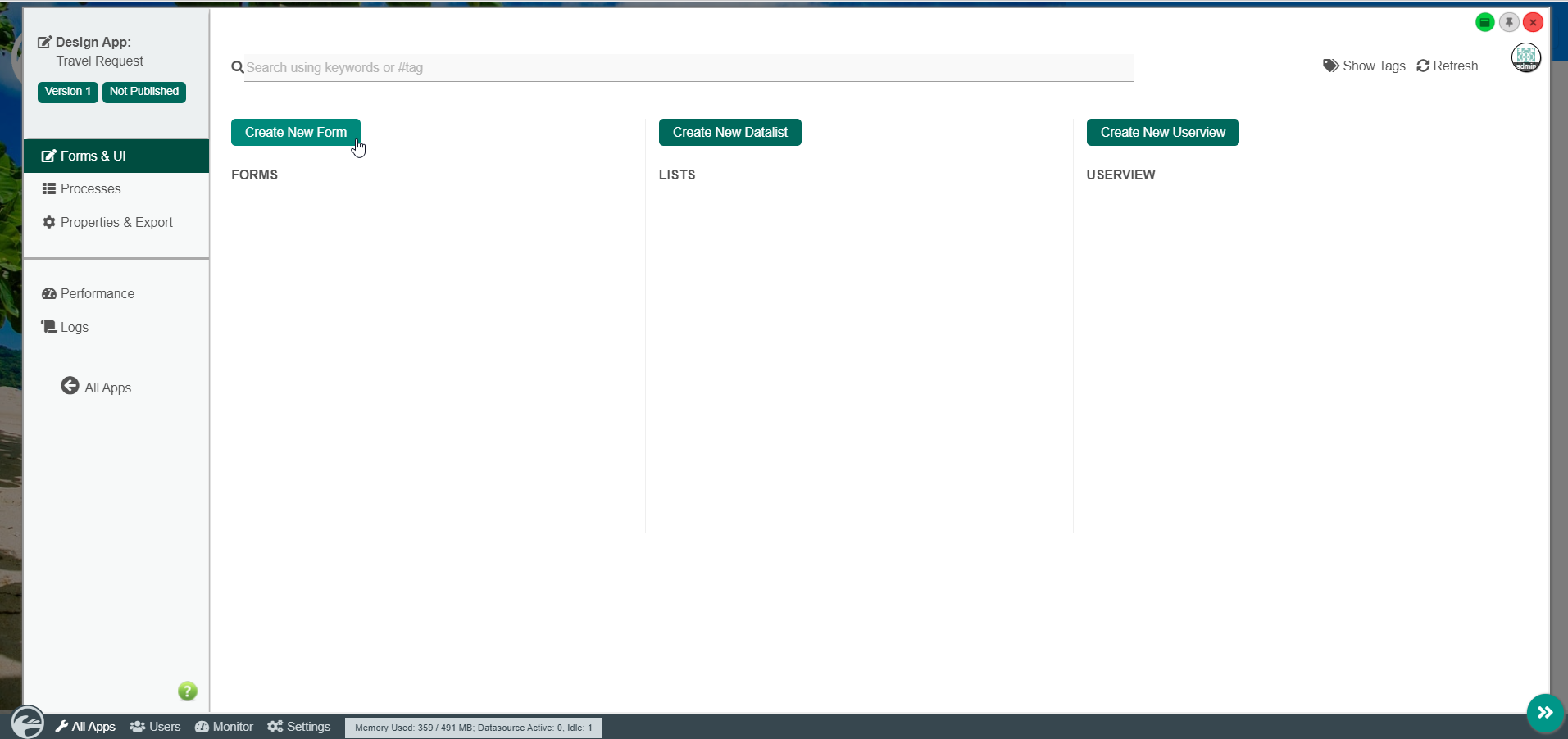
In the Design App page, click on the Create New Form button along the top.
Thai ในหน้า Design App คลิกที่ Create New Form ด้านบน
Key in the details of the new form.
Thai ใส่รายละเอียดของแบบฟอร์มใหม่

Name Description Form ID Unique ID to represent this entity.
Thai ID ที่ไม่ซ้ำเพื่อแสดงถึงเอกลักษณ์
Info title Naming convention A standard naming convention is highly recommended to be used across the development of your App to maintain consistency and ease maintenance works.
Camel case naming convention is recommended for this field.
Example: travelRequestForm
Thai ขอแนะนำให้ใช้แบบแผนการตั้งชื่อมาตรฐานในการพัฒนาแอพของคุณเพื่อรักษาความสม่ำเสมอและความสะดวกในการบำรุงรักษา แนะนำให้ใช้หลักการตั้งชื่อเคสสำหรับฟิลด์นี้
ตัวอย่าง: travelRequestForm
Warning title Reserved IDs Do not use the following reserved IDs as ID of Form, Section and Field. "appId, appVersion, version, userviewId, menuId, key, embed".
Thai อย่าใช้ ID ที่สงวนไว้ต่อไปนี้เป็น ID ของแบบฟอร์มและฟิลด์ "appId, appVersion, version, userviewId, menuId, key, embed"
Form Name Name to represent this entity.
Thai ชื่อที่ใช้แทนเอกลักษณ์
Info title Example Travel Request Form
Table Name The database table name to store the form data.
Thai ชื่อตารางฐานข้อมูลเพื่อเก็บข้อมูลฟอร์ม
Info title Naming convention As the table name is related to the database, we highly recommend the use of database naming conventions, e.g. travel_requests
Thai เนื่องจากชื่อตารางควรเกี่ยวข้องกับฐานข้อมูลเราขอแนะนำให้ใช้แบบแผนการตั้งชื่อฐานข้อมูลเช่น travel_requests
Tip Note that different forms can share data by pointing to the same table name.
Thai โปรดทราบว่าฟอร์มที่แตกต่างกันสามารถแบ่งปันข้อมูลโดยชี้ไปที่ชื่อตารางเดียวกันDescription Entity description.
Thai คำอธิบาย
Duplicate form settings and elements from With the above information filled up, one can choose to clone the design from existing Form entity.
Thai การกรอกข้อมูลข้างต้นคุณสามารถเลือกที่จะโคลนการออกแบบจากเอนทิตีแบบฟอร์มที่มีอยู่Click on Save to save the form and launch the Form Builder in a new window. If your browser blocks the popup, click on the form name to launch it.
Thai คลิก Save เพื่อบันทึกแบบฟอร์มและเปิดตัวสร้างแบบฟอร์มในหน้าต่างใหม่ หากเบราว์เซอร์ของคุณบล็อกป๊อปอัปให้คลิกที่ชื่อฟอร์มเพื่อเปิดใช้งาน
The first step in the Form Builder is the Design Form page. On the left is the palette containing available form elements. In the middle is the canvas containing one or more sections, and each section may contain one or more columns.
Thai ขั้นตอนแรกในตัวสร้างแบบฟอร์มคือหน้า Design Form ด้านซ้ายเป็นจานสีที่มีองค์ประกอบของฟอร์มที่มีอยู่ ตรงกลางคือผืนผ้าใบที่มีส่วนหนึ่งส่วนหรือมากกว่าและแต่ละส่วนอาจมีหนึ่งหรือหลายคอลัมน์
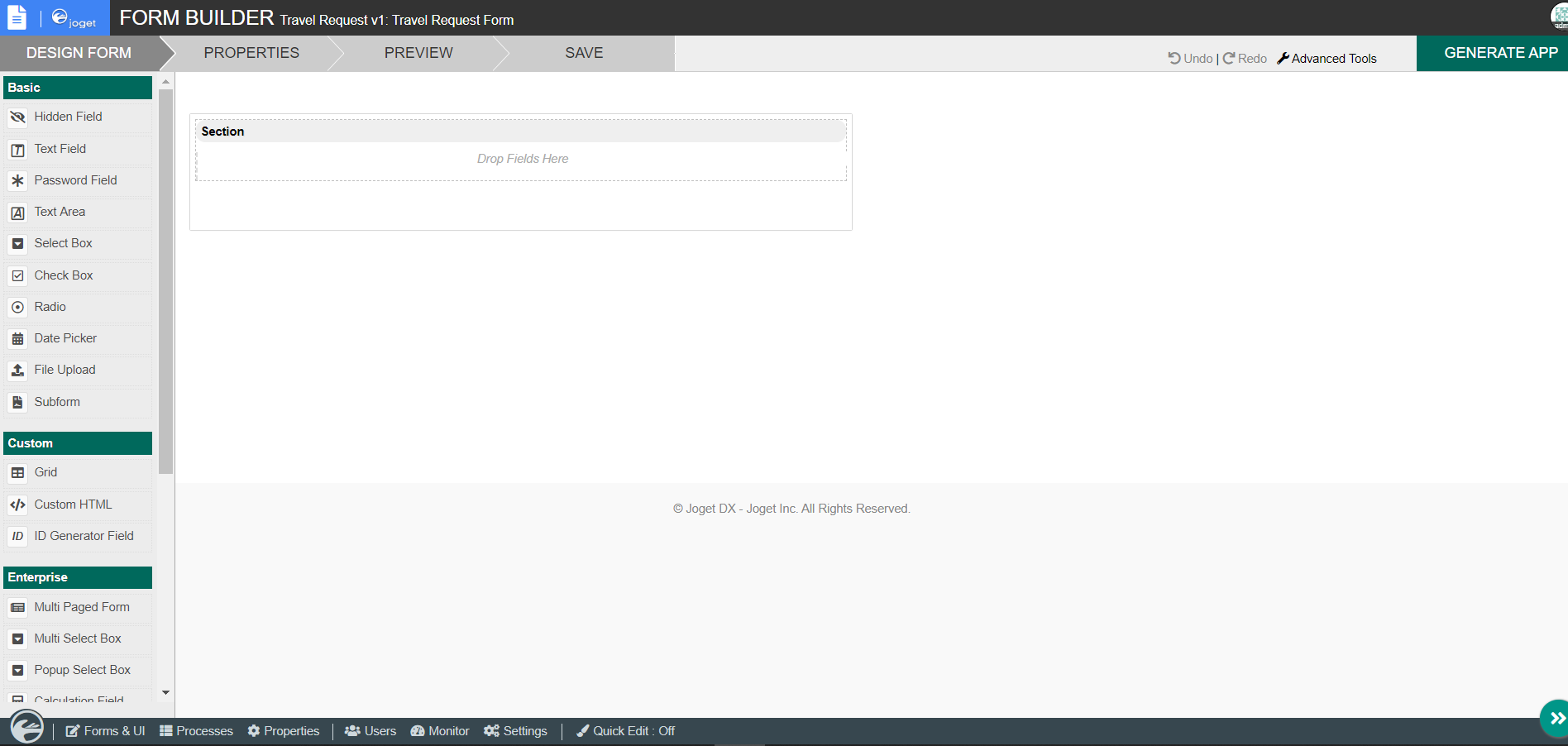
When you mouseover a section header (or any form element), buttons appear giving you options.
Thai เมื่อคุณวางส่วนหัวของส่วน (หรือองค์ประกอบของฟอร์มใด ๆ ) ปุ่มจะปรากฏขึ้นเพื่อให้คุณเลือก

Click on Edit Section. This opens a Property Editor showing properties that you can modify. Each form element has different properties that can be configured.
Thai คลิกที่ Edit Section นี่เป็นการเปิดตัวแก้ไขคุณสมบัติที่แสดงคุณสมบัติที่คุณสามารถปรับเปลี่ยนได้ แต่ละองค์ประกอบของฟอร์มมีคุณสมบัติที่แตกต่างกันซึ่งสามารถกำหนดค่าได้

Click on the OK at the bottom to save the property changes.
Thai คลิกที่ OK ที่ด้านล่างเพื่อบันทึกการเปลี่ยนแปลงคุณสมบัติ
You can add sections using Add Section, and move sections around by dragging.
Thai คุณสามารถเพิ่มส่วนโดยใช้ Add Section และย้ายส่วนต่างๆโดยการลาก
Drag form elements from the palette into any section.
Thai ลากองค์ประกอบแบบฟอร์มจากจานสีลงในส่วนใดก็ได้
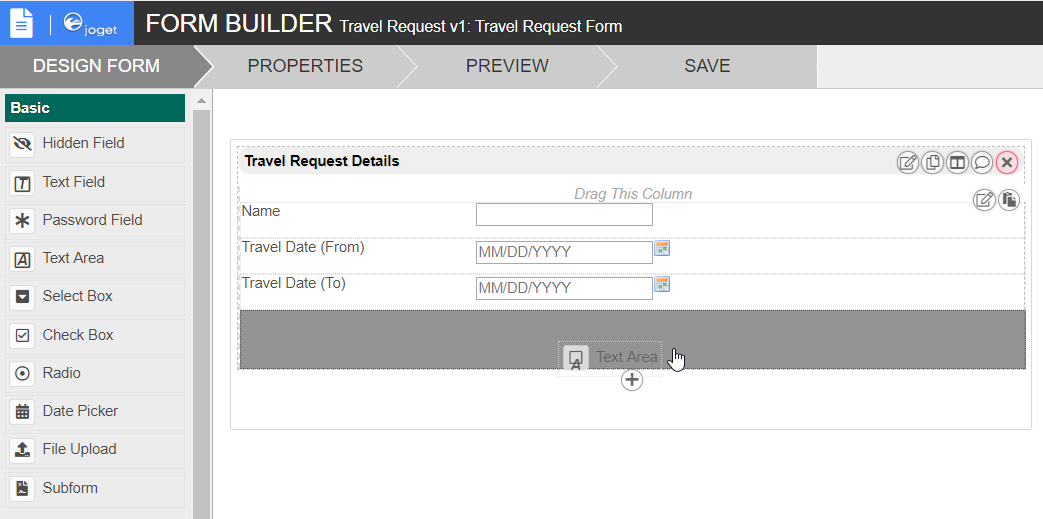
Hover any form element to see the Edit and Delete options. Click on Edit to modify the form element properties.
Thai เลื่อนองค์ประกอบอิลิเมนต์ใด ๆ เพื่อดูตัวเลือกแก้ไขและลบ คลิกที่แก้ไขเพื่อแก้ไขคุณสมบัติองค์ประกอบแบบฟอร์ม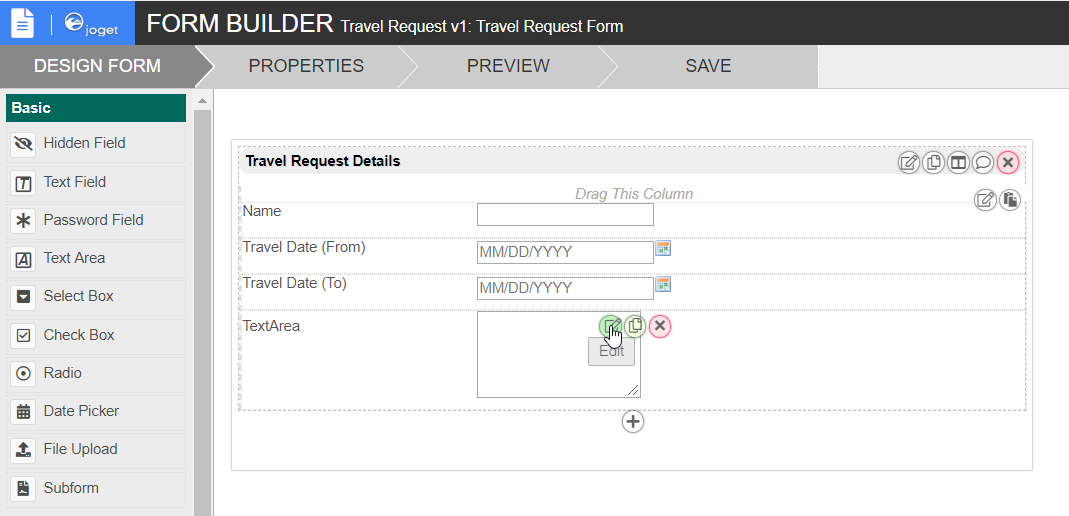
At any time, you may preview the form by clicking on the large Preview button at the top.
Thai คุณสามารถดูตัวอย่างแบบฟอร์มได้ตลอดเวลาโดยคลิกที่ปุ่มแสดงตัวอย่างขนาดใหญ่ที่ด้านบน
Once you have finished designing the form, click on the large Save button at the top and you will receive confirmation that the form is saved. You may then continue to design the form, or close the Form Builder window.
Thai เมื่อคุณออกแบบฟอร์มเสร็จแล้วให้คลิกที่ปุ่ม Save ขนาดใหญ่ที่ด้านบนและคุณจะได้รับการยืนยันว่าฟอร์มนั้นถูกบันทึก จากนั้นคุณสามารถออกแบบฟอร์มต่อไปหรือปิดหน้าต่างตัวสร้างแบบฟอร์ม