Table of Contents
| English |
|---|
SAML SSO Configuration Steps |
1. Install Joget SAML Plugin and Obtain ACS URL
- Install the Joget SAML Plugin from the Joget Marketplace.
- In the Joget System Settings > General Settings, set API Domain Whitelist to * (IMPORTANT NOTE: If this is not set, you will get a 400 Forbidden error when performing the SSO)
Code Block theme Emacs title Important Note If this is not set, you will get a 400 Forbidden error when performing the SSO. - In the Joget System Settings > Directory Manager, select the Joget SAML Plugin.
- In the Joget SAML Plugin configuration, copy the Entity ID and ACS URL. (IMPORTANT NOTE: Azure AD requires the ACS URL to be HTTPS so your Joget installation must be running under HTTPS )
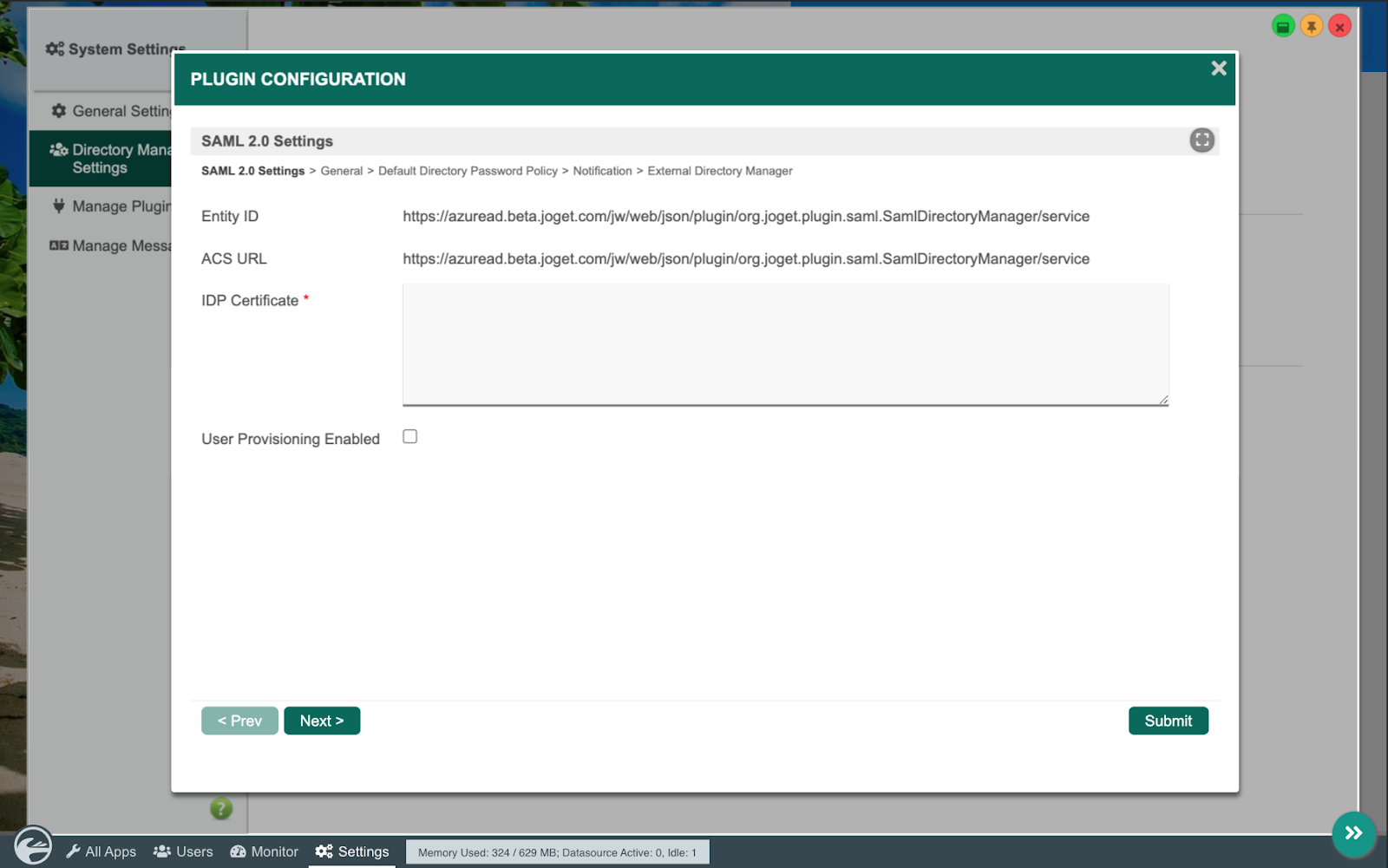
...
Code Block title Important Note Azure AD requires the ACS URL to be HTTPS so your Joget installation must be running under HTTPS.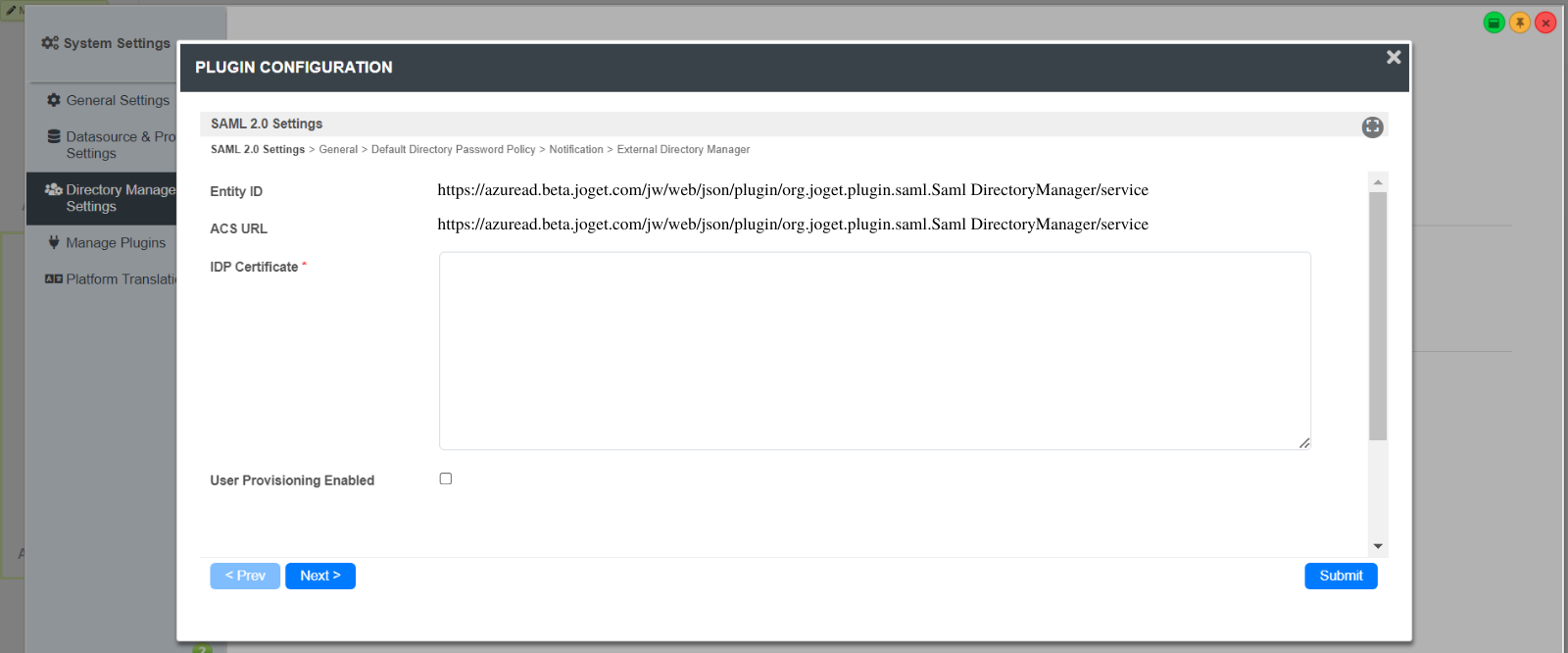
2. Configure Microsoft Entra ID for SAML
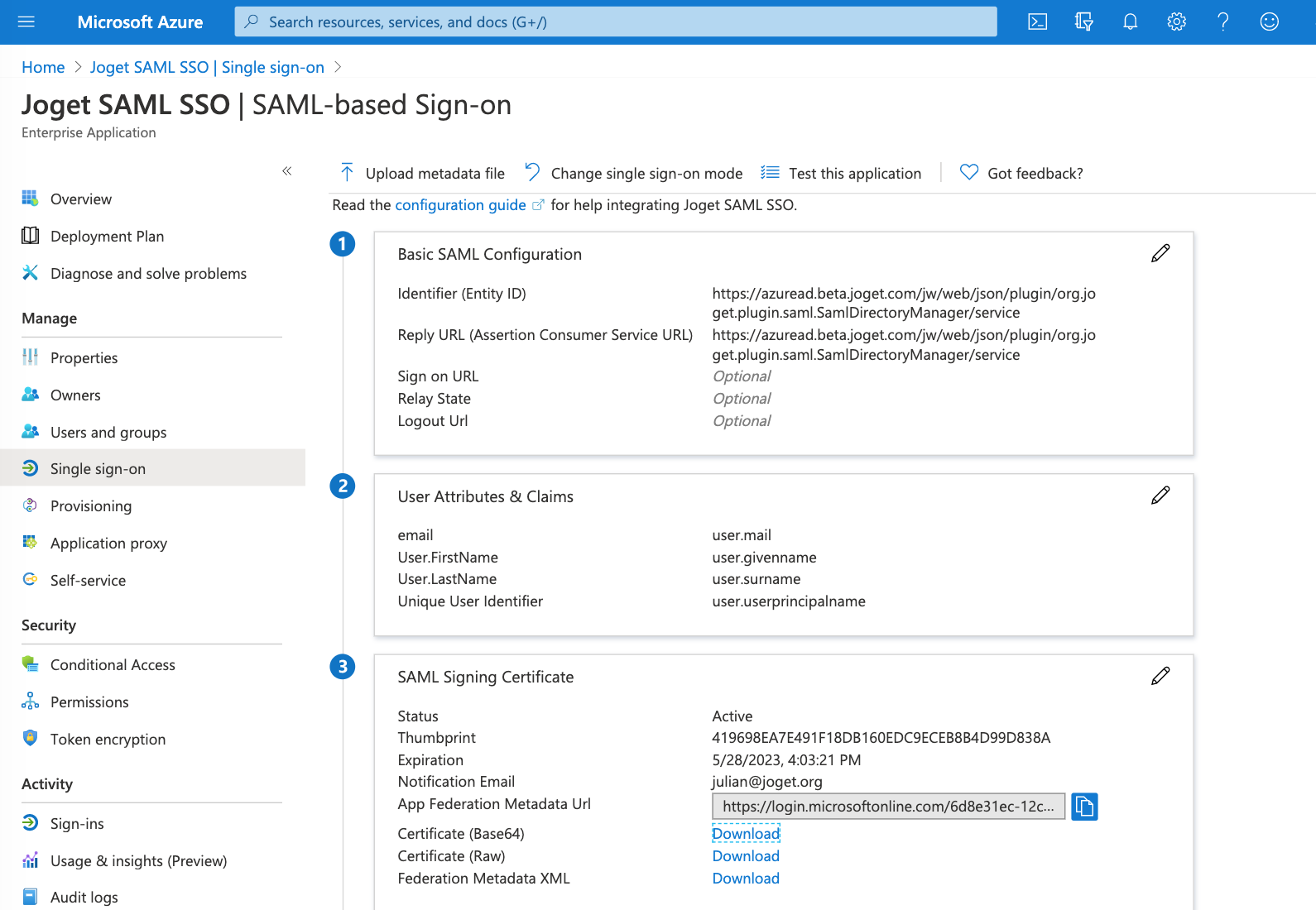
- Sign in to the Azure portal , and navigate navigate to Azure Active Directory > Enterprise applications
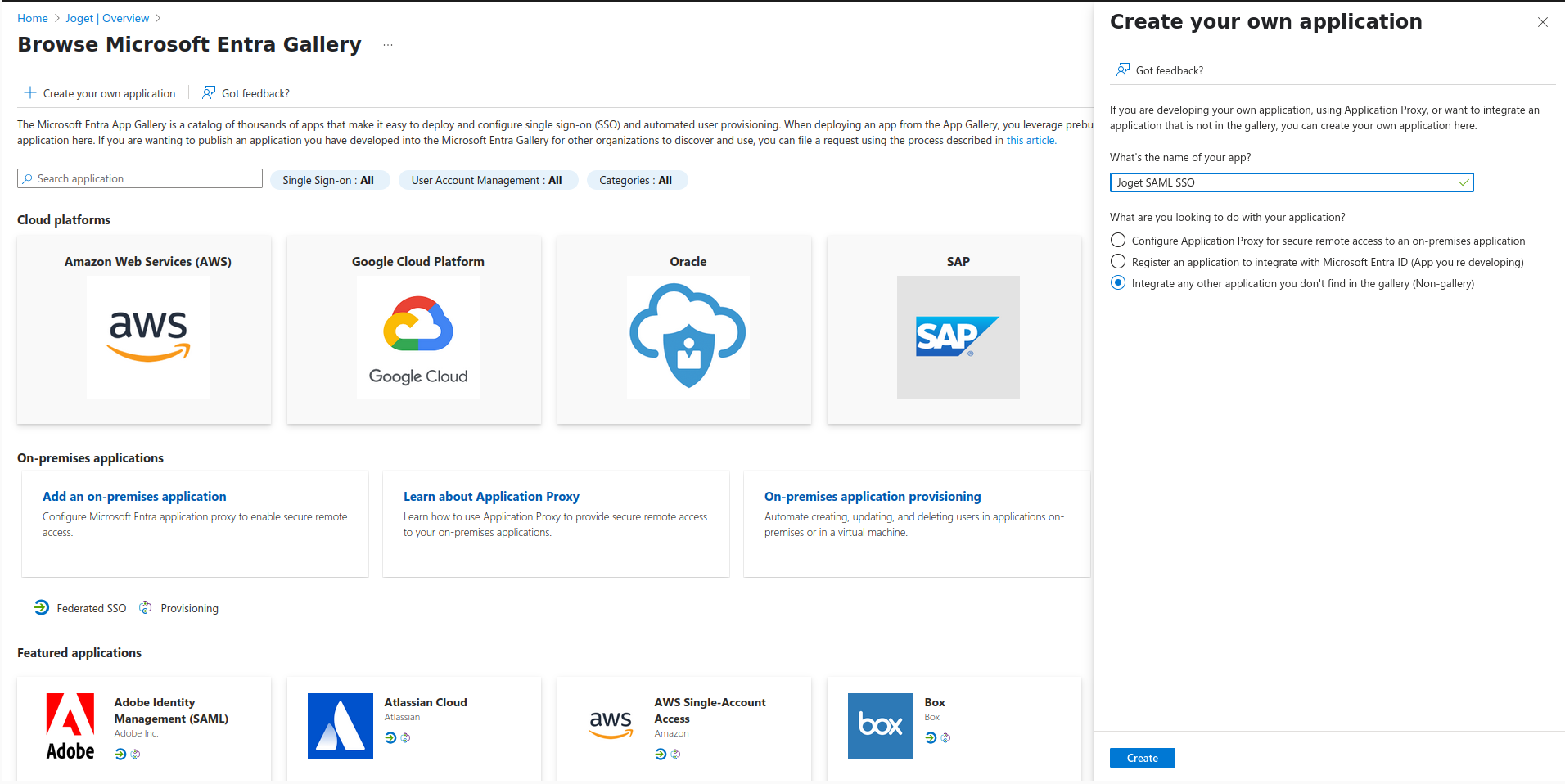
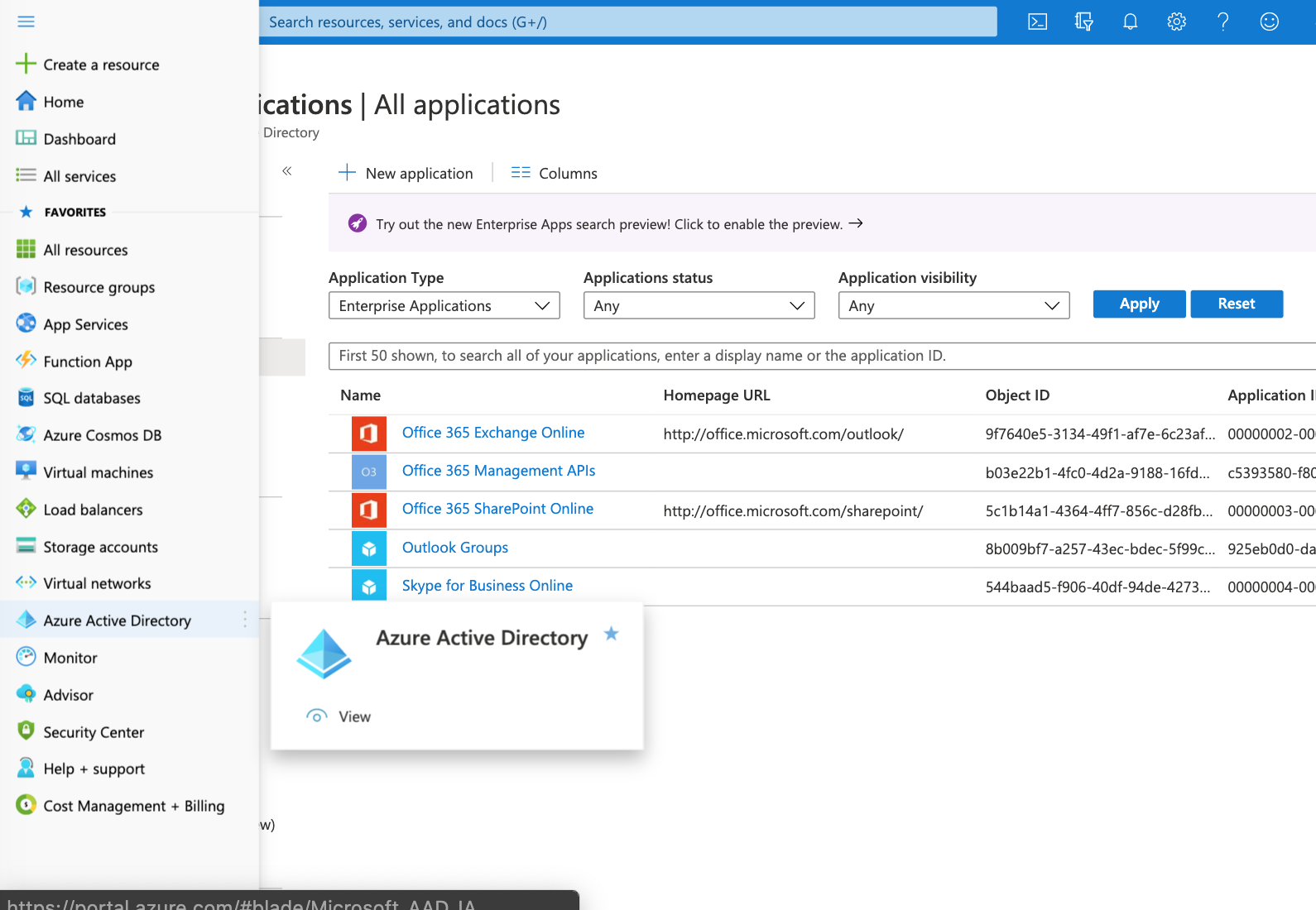 Select New application, Non-gallery application, and > Browse Microsoft Entra Gallery > Create your own application. Name your application and select the Integrate any other application you don't find in the gallery () option and click Create to add an application.
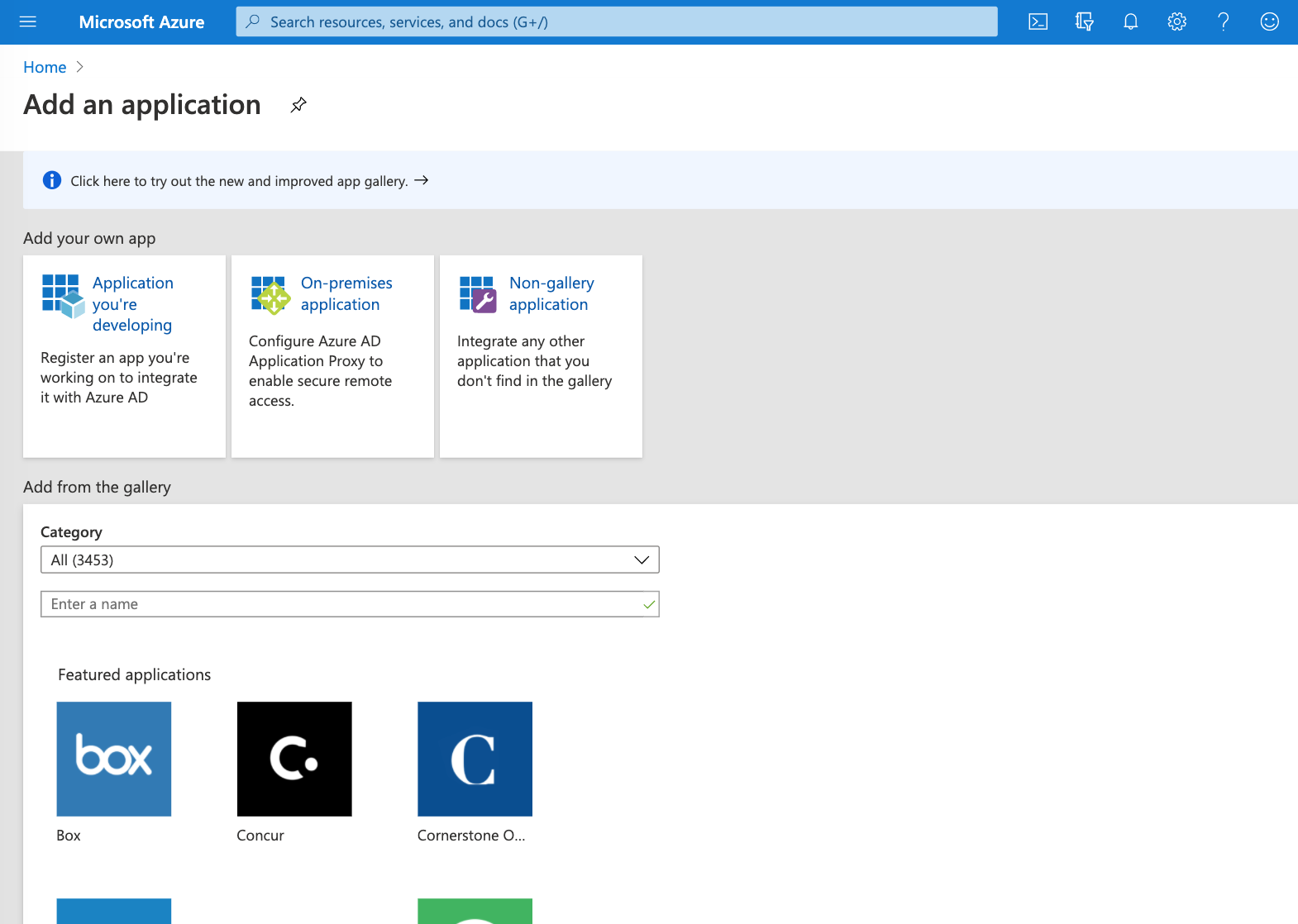
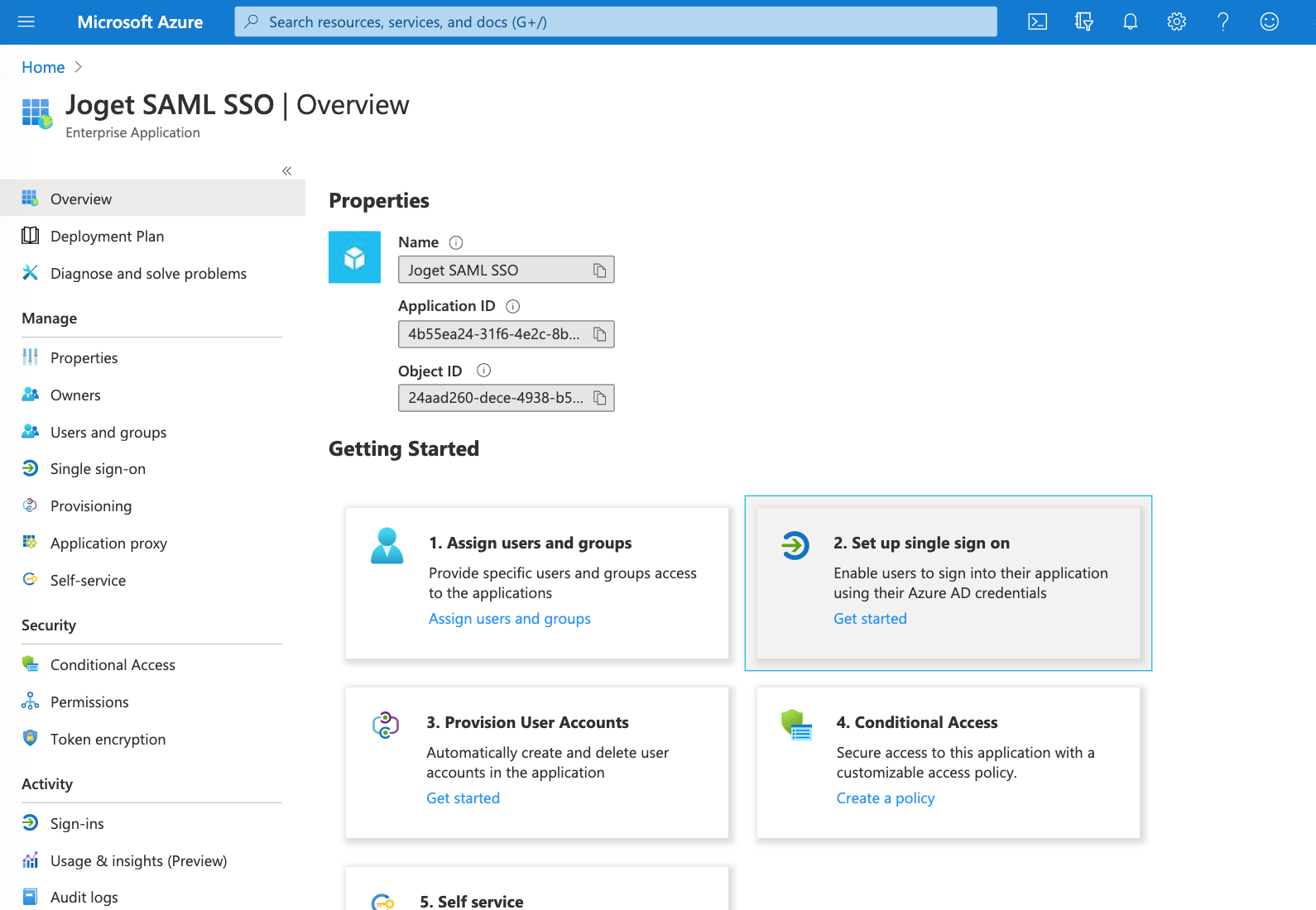
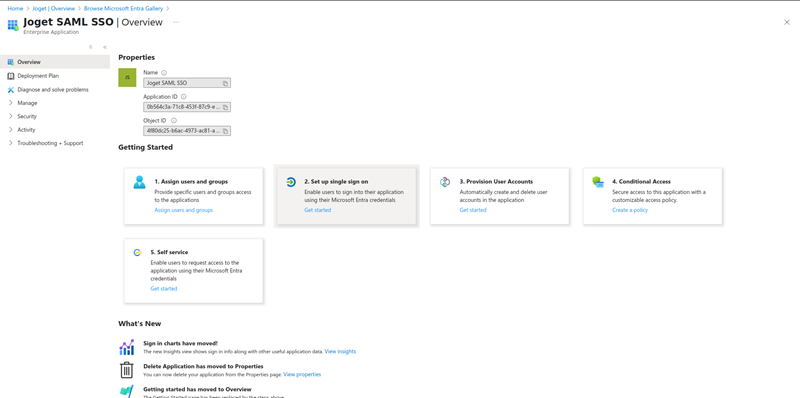
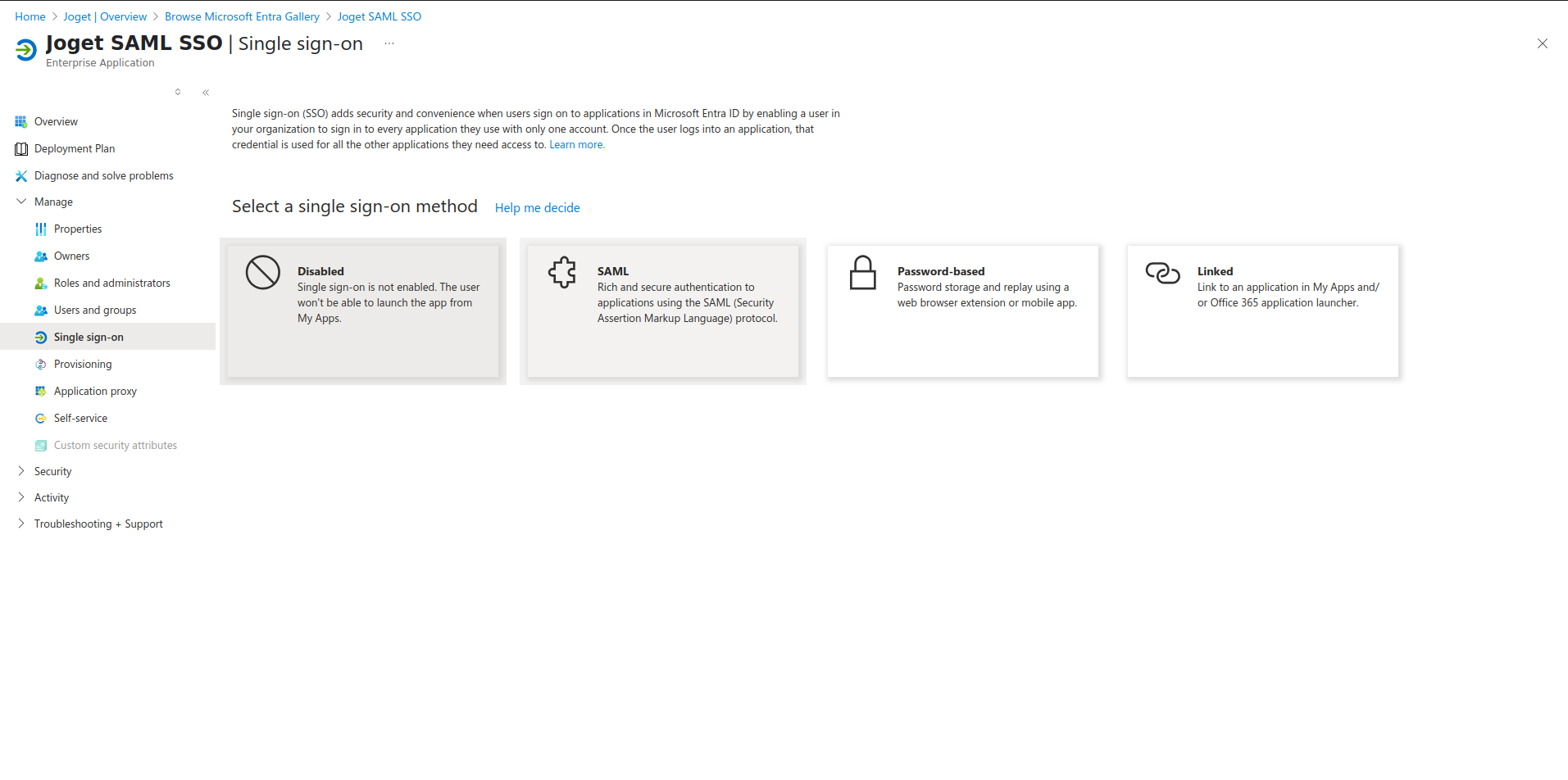
- Select Select the application, select Set up single sign-on, then select SAML.
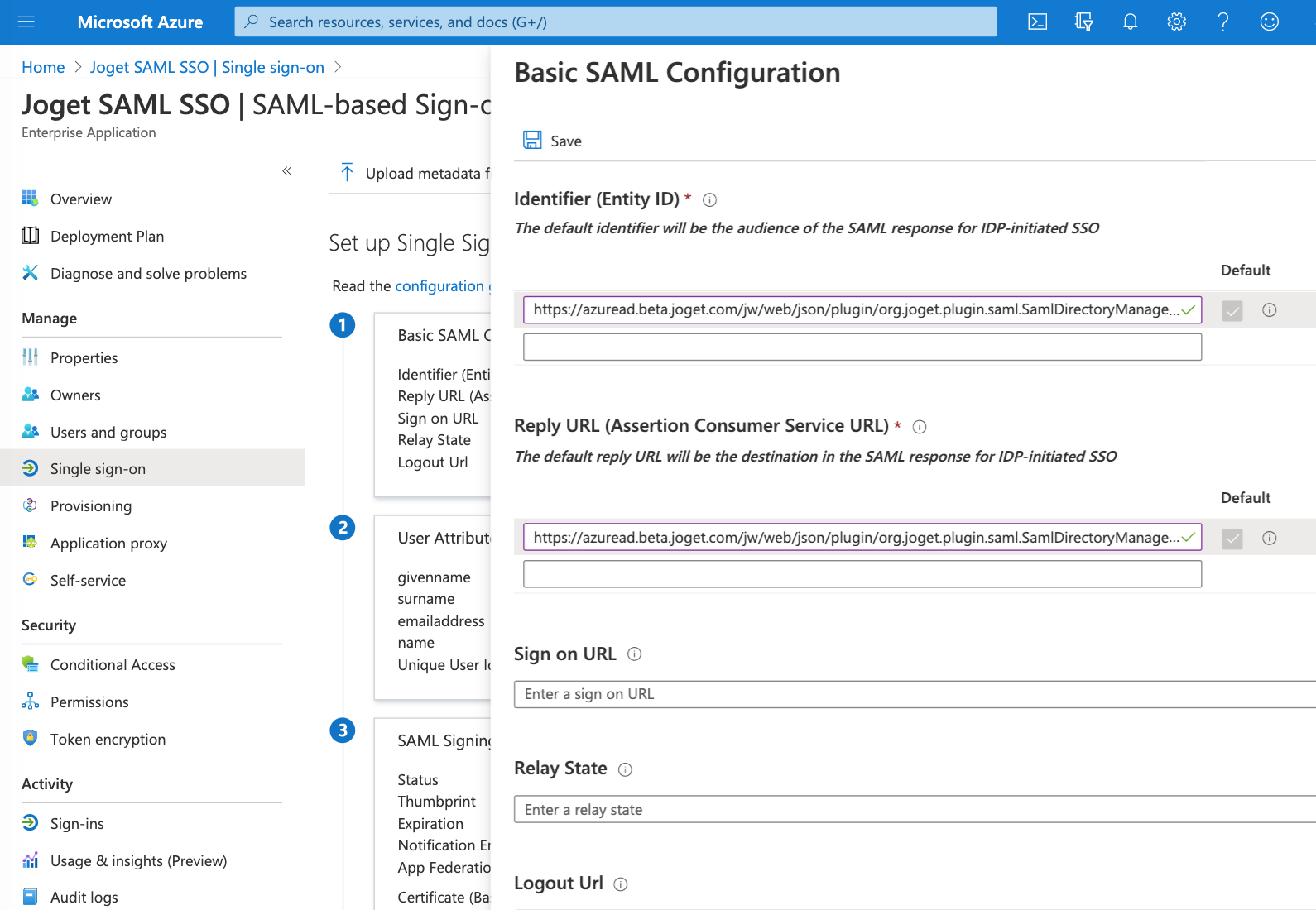
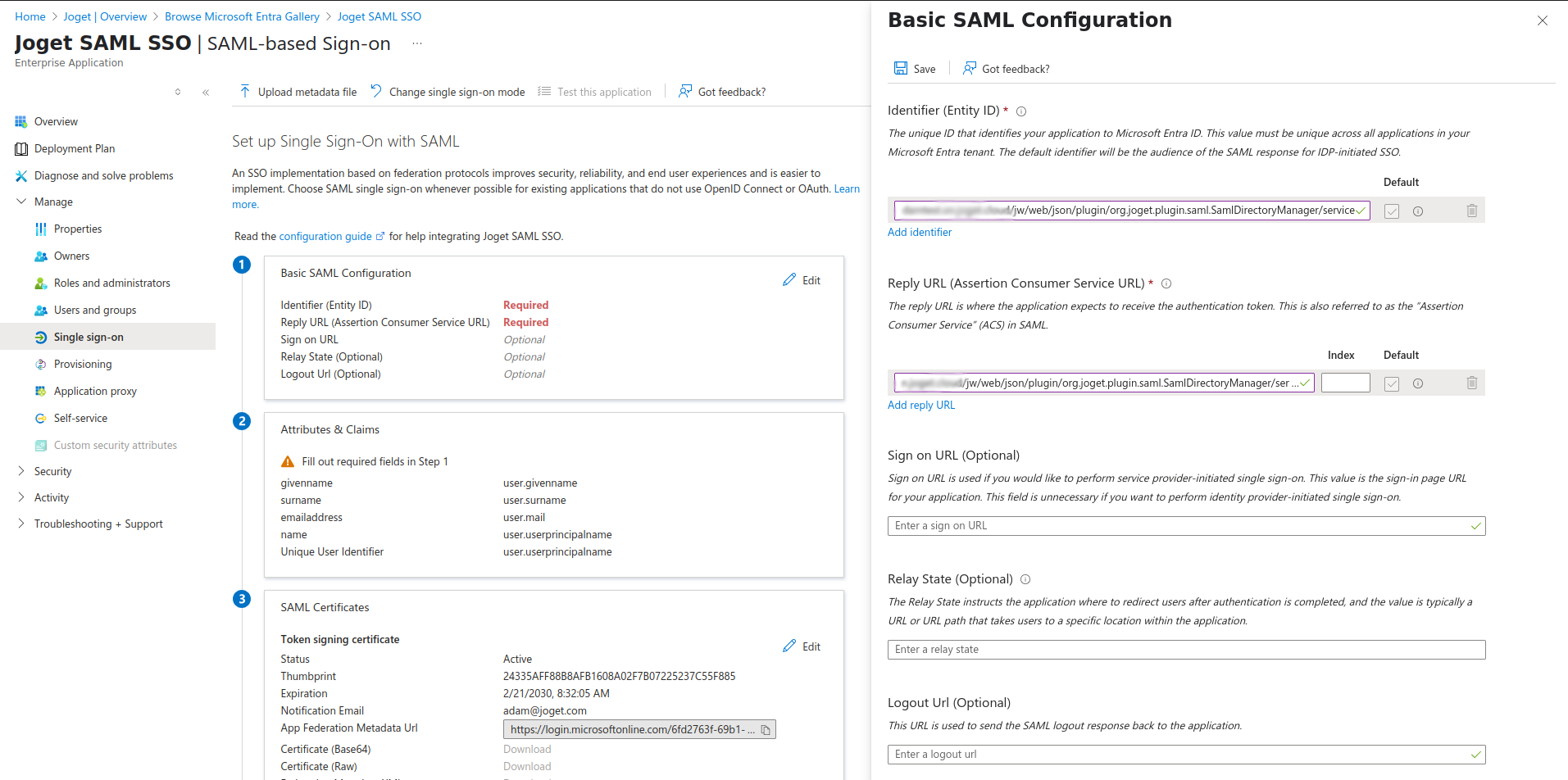
- Under Basic SAML Configuration, select the Edit pencil icon and key in the Joget SAML SAML Identifier (Entity ID) and Reply URL (Assertion Consumer Service (ACS) URL) copied earlier, then Save.
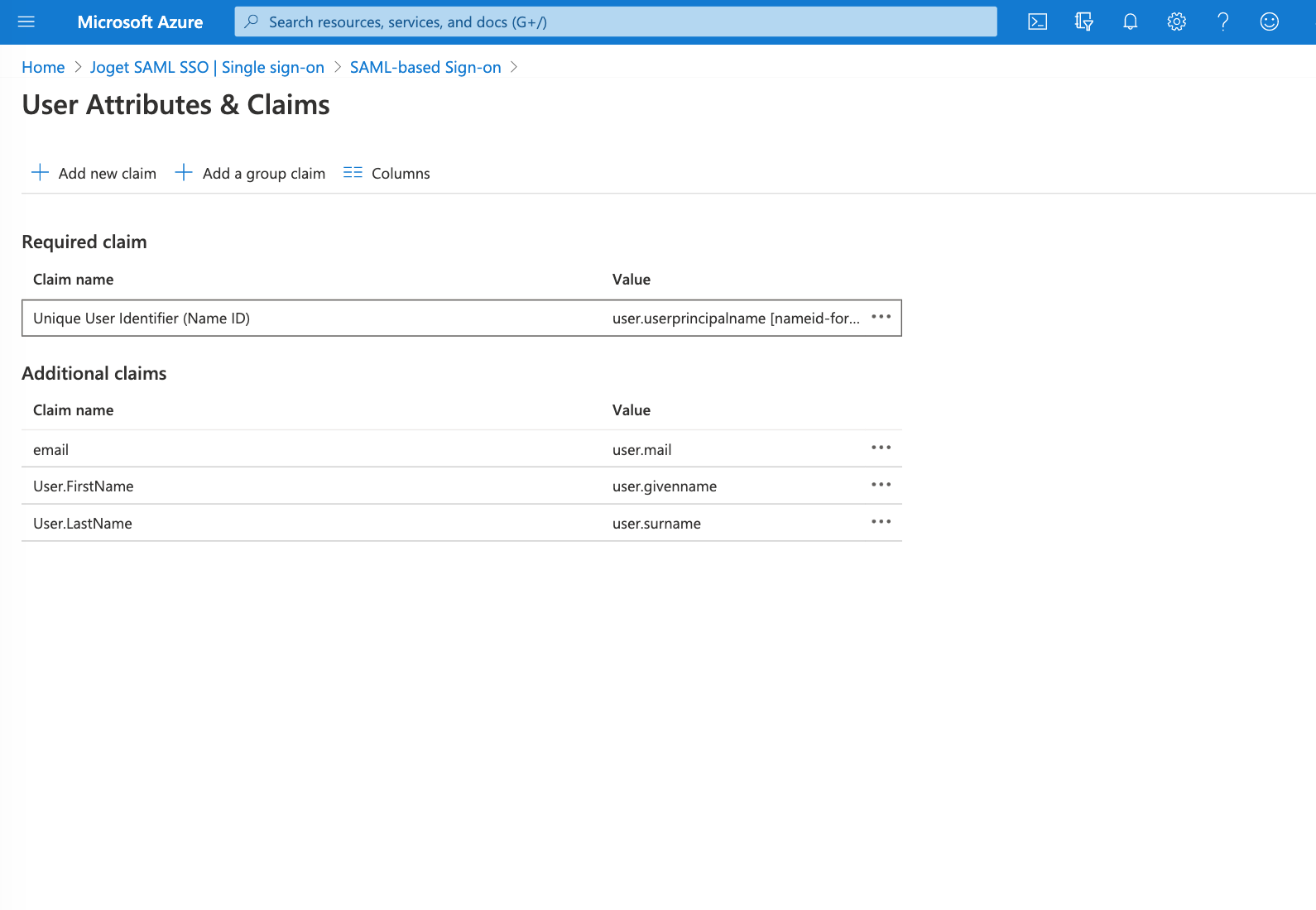
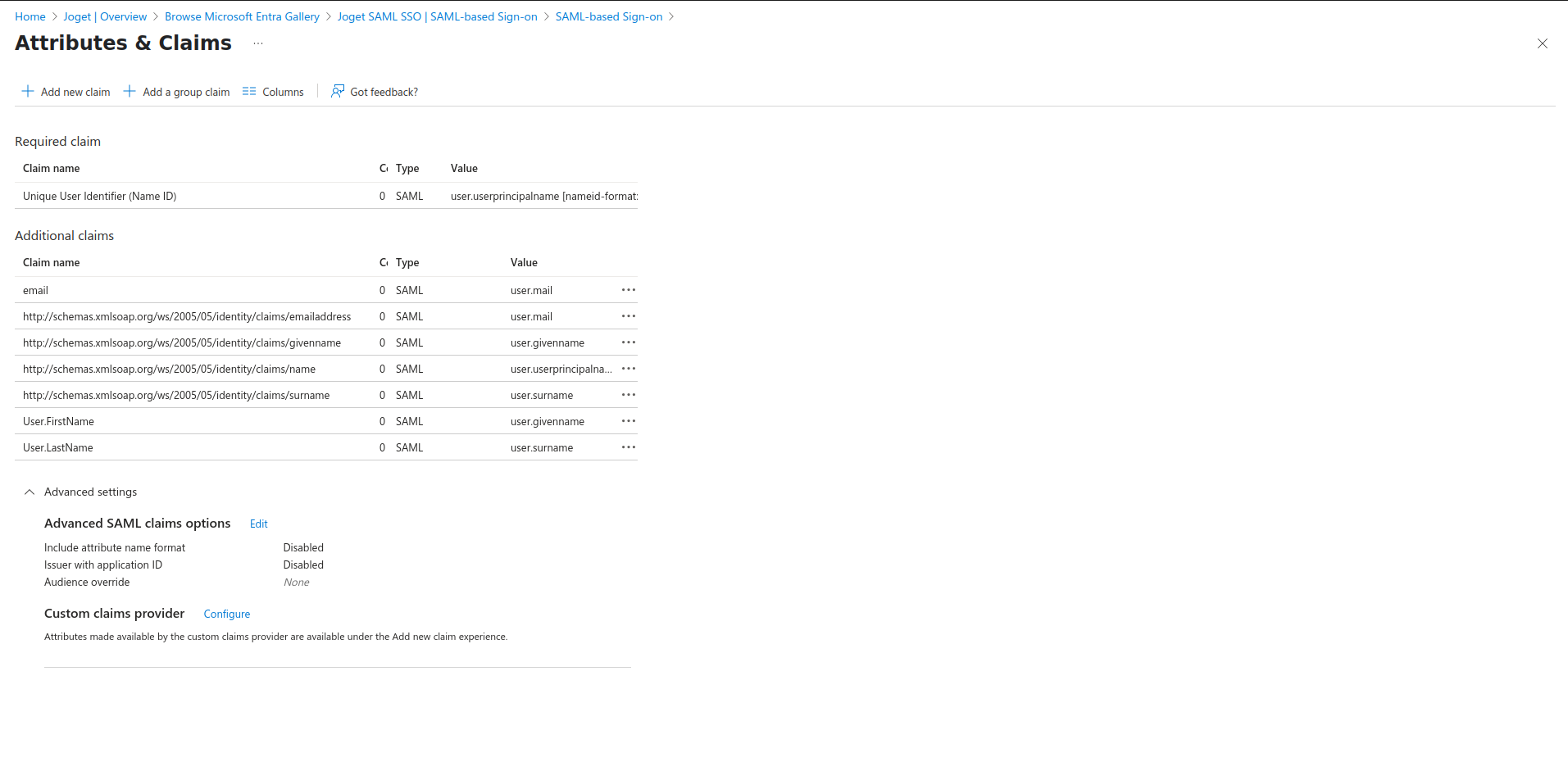
Edit User Attributes & Claims, and configure the claims
Claim Name
Value
Unique User Identifier (Name ID)
user.userprincipalname
email
user.mail
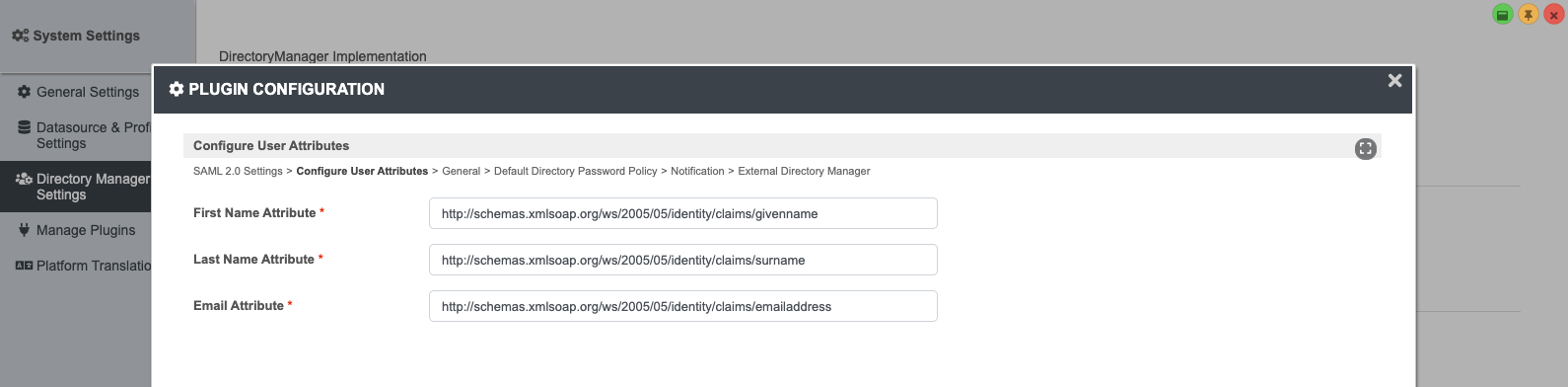
User.FirstName
user.givenname
User.LastName
user.surname
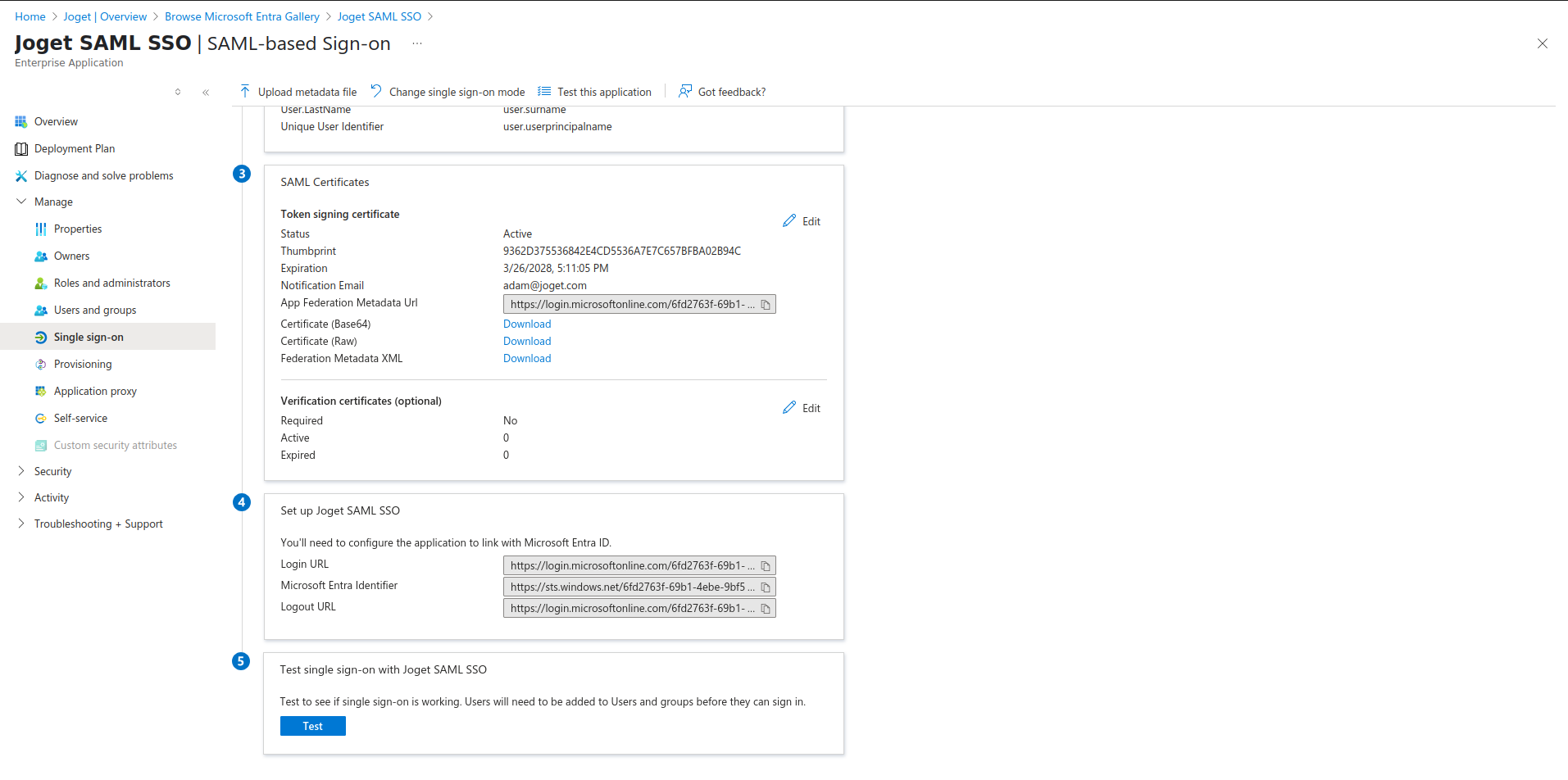
Under SAML Signing CertificateCertificates, download the Certificate (Base64). This certificate file will be used to configure the Joget SAML Plugin later.
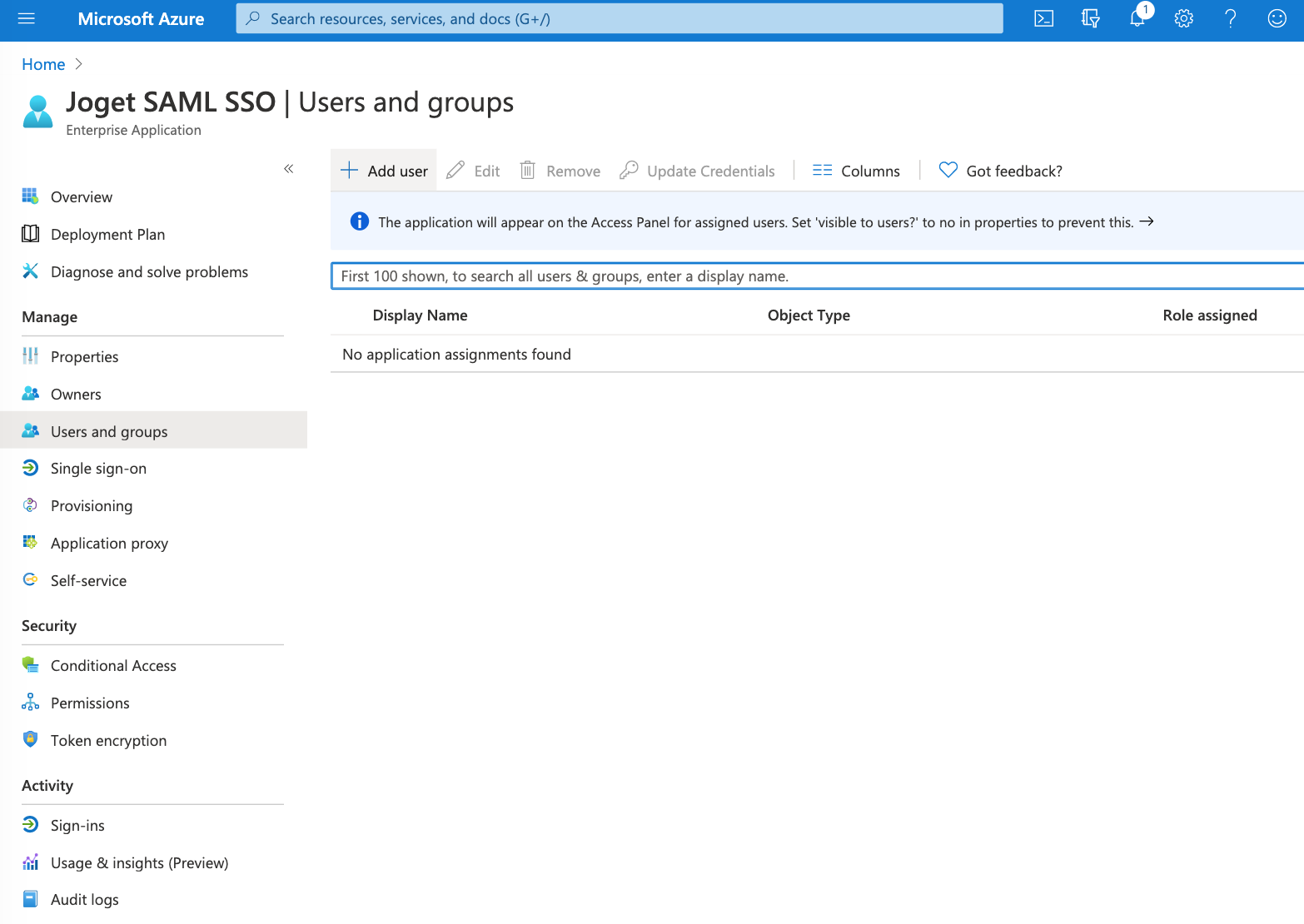
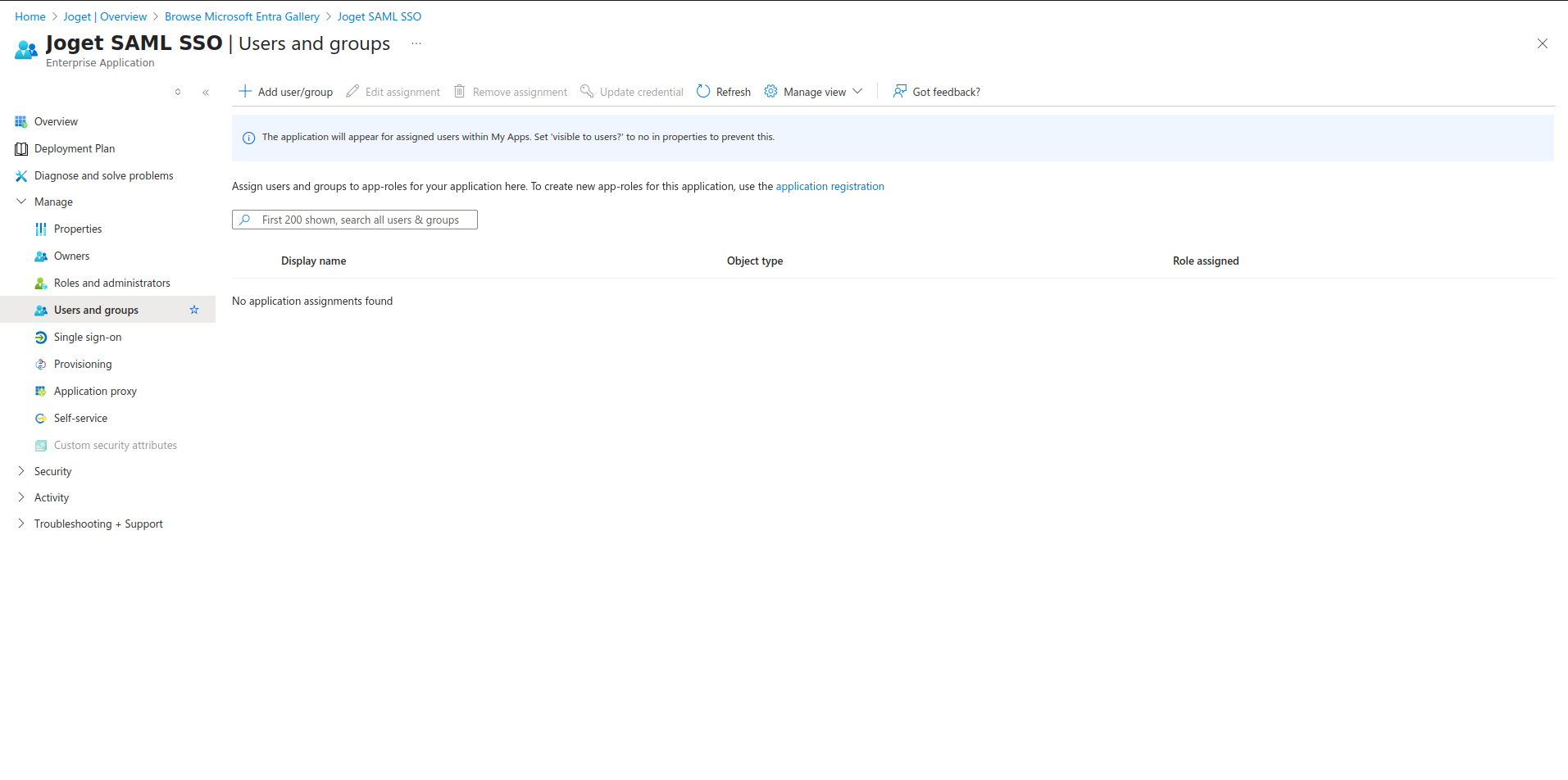
Select the Users and groups menu item on the left, and add the users allowed to access Joget. You may add yourself to the listing so that you can test the login later.
3. Configure SAML IDP Certificate in the Joget SAML Plugin
- Open the downloaded certificate file and copy the contents into the IDP Certificate field in the Joget SAML Plugin configuration (NOTE: copy without the -----BEGIN CERTIFICATE----- and -----END CERTIFICATE----- lines)
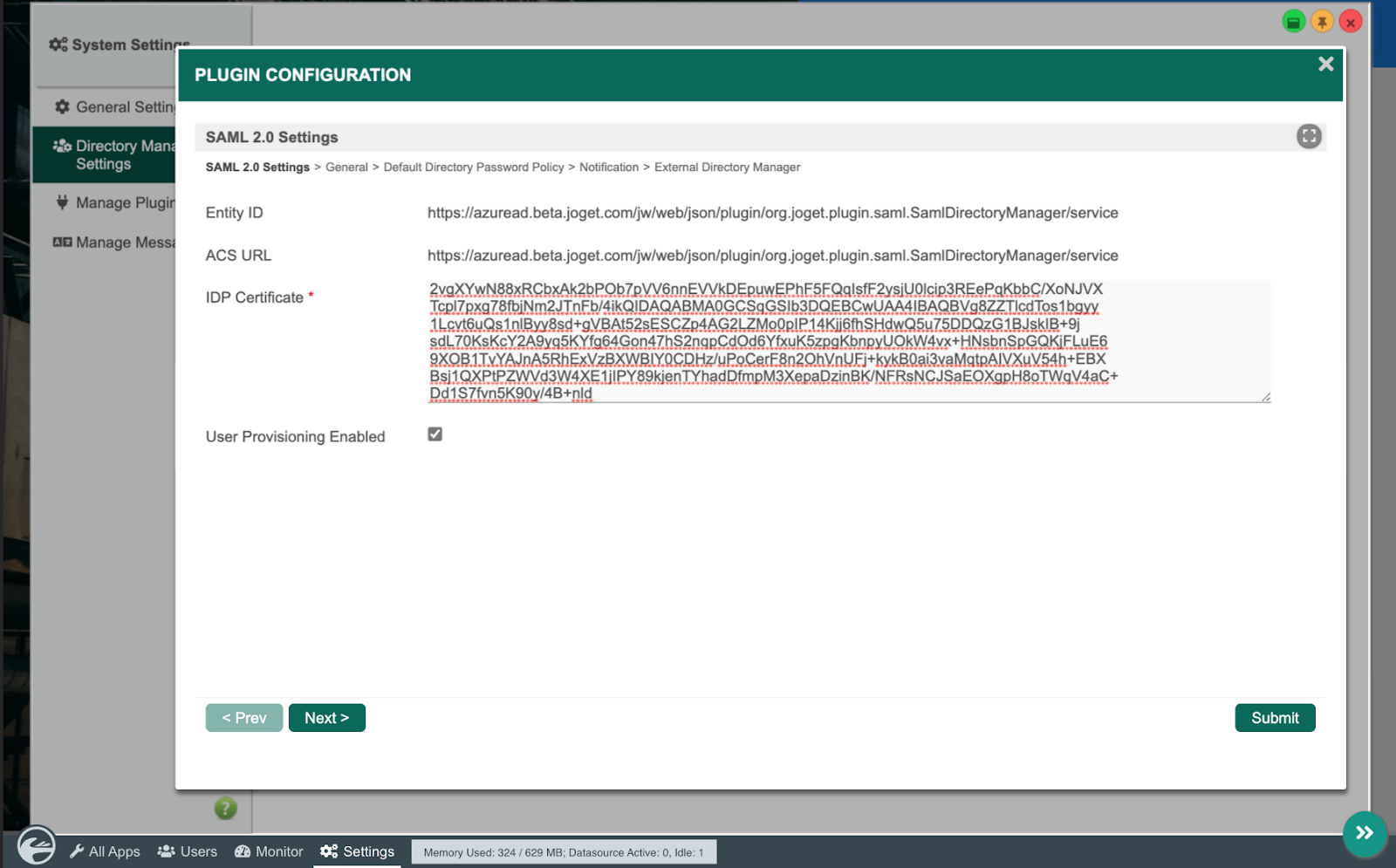
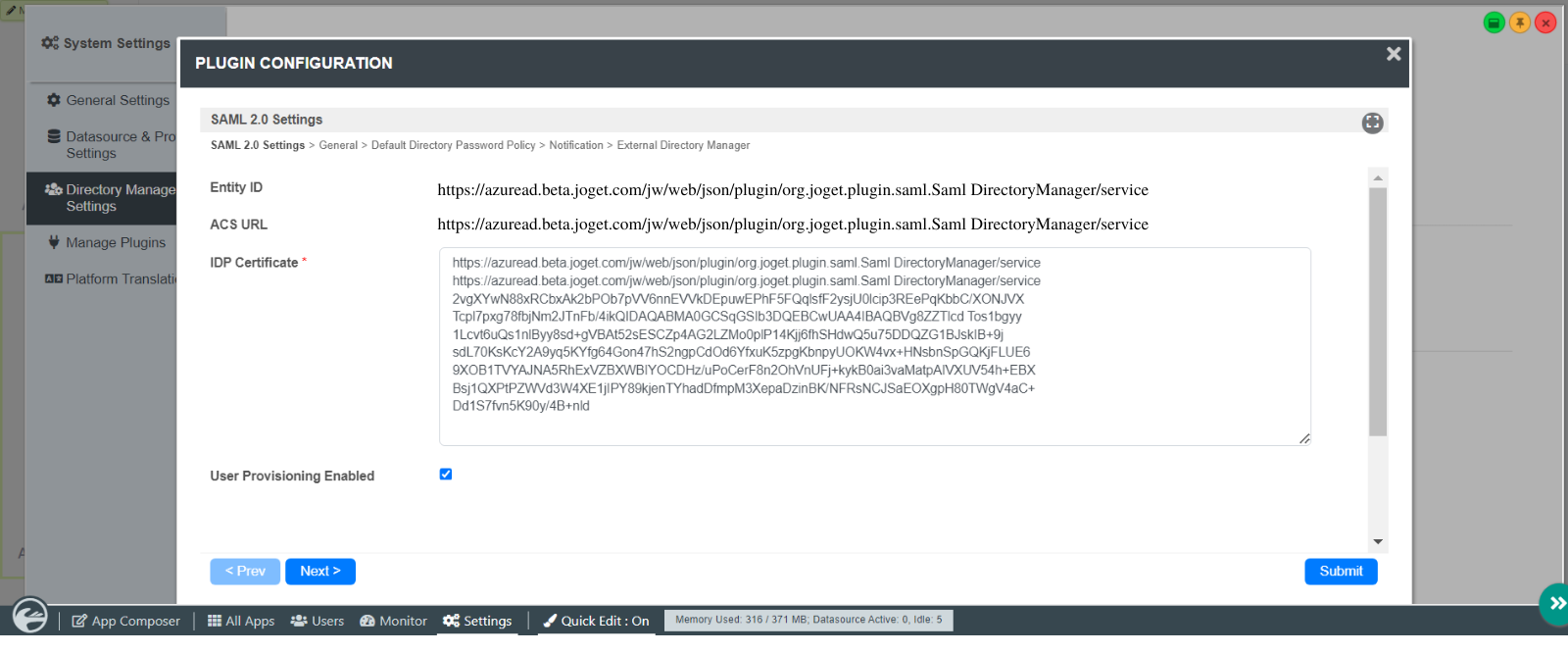
4. Configure Custom User Attributes
- Key in the values of the user attributes
5. Test the SAML SSO
- Access the Azure My Apps Portal, click on the application, and select the user to perform the SSO.
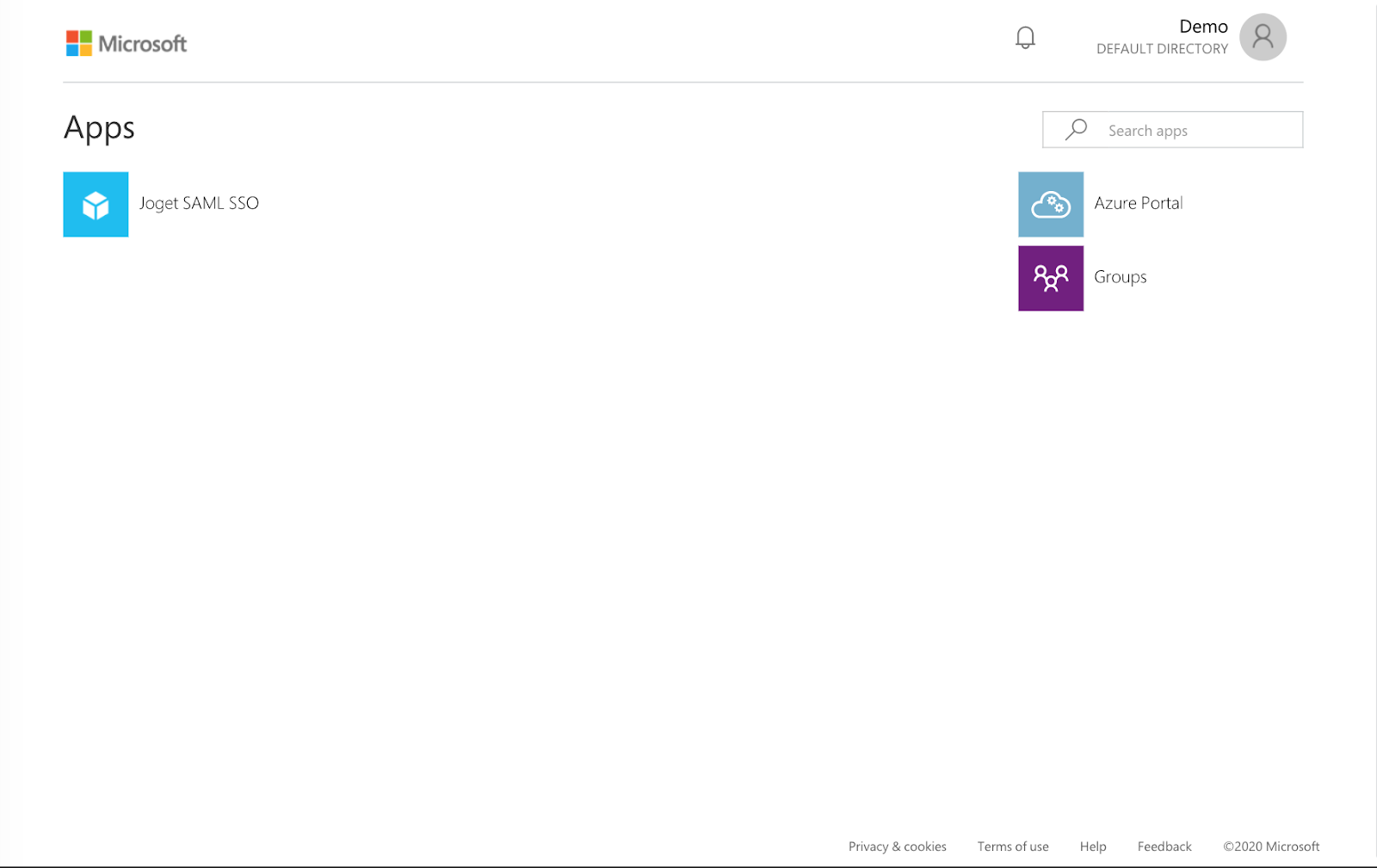
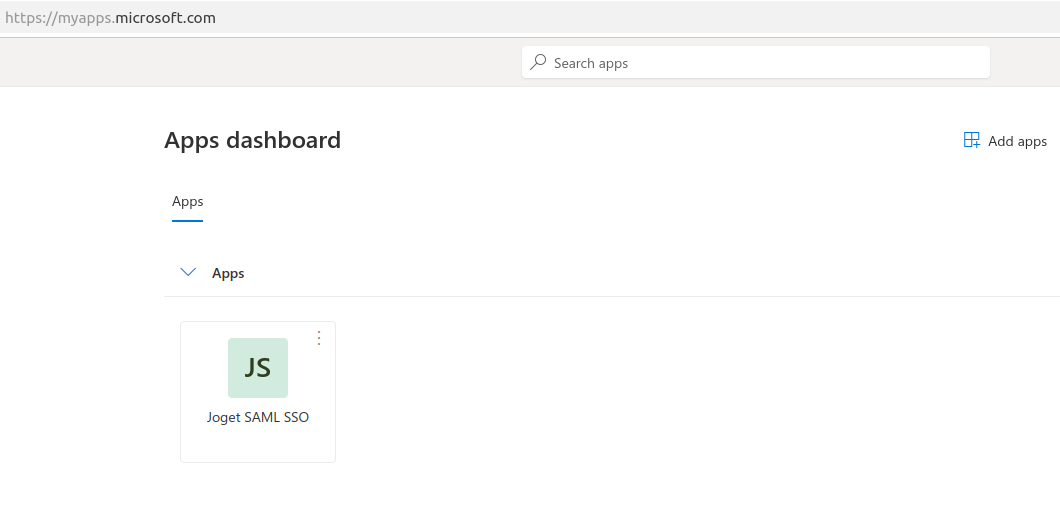
- If the SSO configuration is correct, the current user will be logged into Joget.
Source Code
This plugin source code is available in a new open source repository at https://github.com/jogetoss/. JogetOSS is a community-led team for open source software related to the Joget no-code/low-code application platform. Projects under JogetOSS are community-driven and community-supported, and you are welcome to contribute to the projects.
References
- https://docs.microsoft.com/en-us/azure/active-directory/manage-apps/configure-single-sign-on-non-gallery-applications
- https://dev.joget.org/community/display/DX7/Joget+SharePoint+SSO+Integration
...