| Info | ||||
|---|---|---|---|---|
| ||||
|
| Table of Contents | ||||
|---|---|---|---|---|
|
| Widget Connector | ||||
|---|---|---|---|---|
|
Introducing the new Process Builder
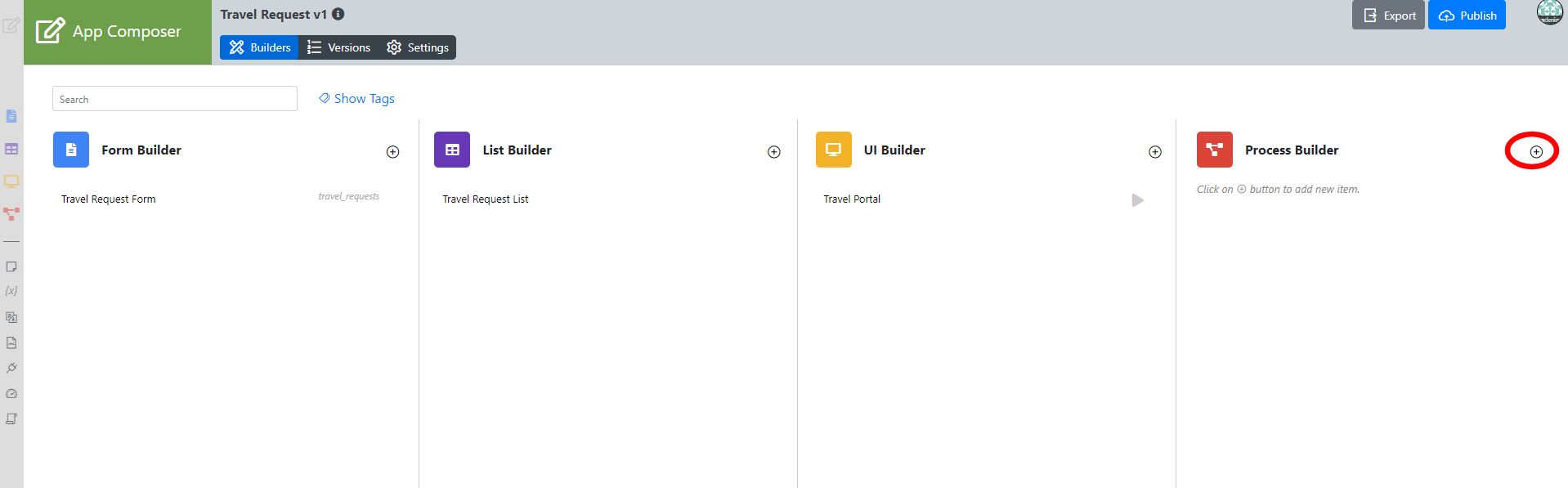
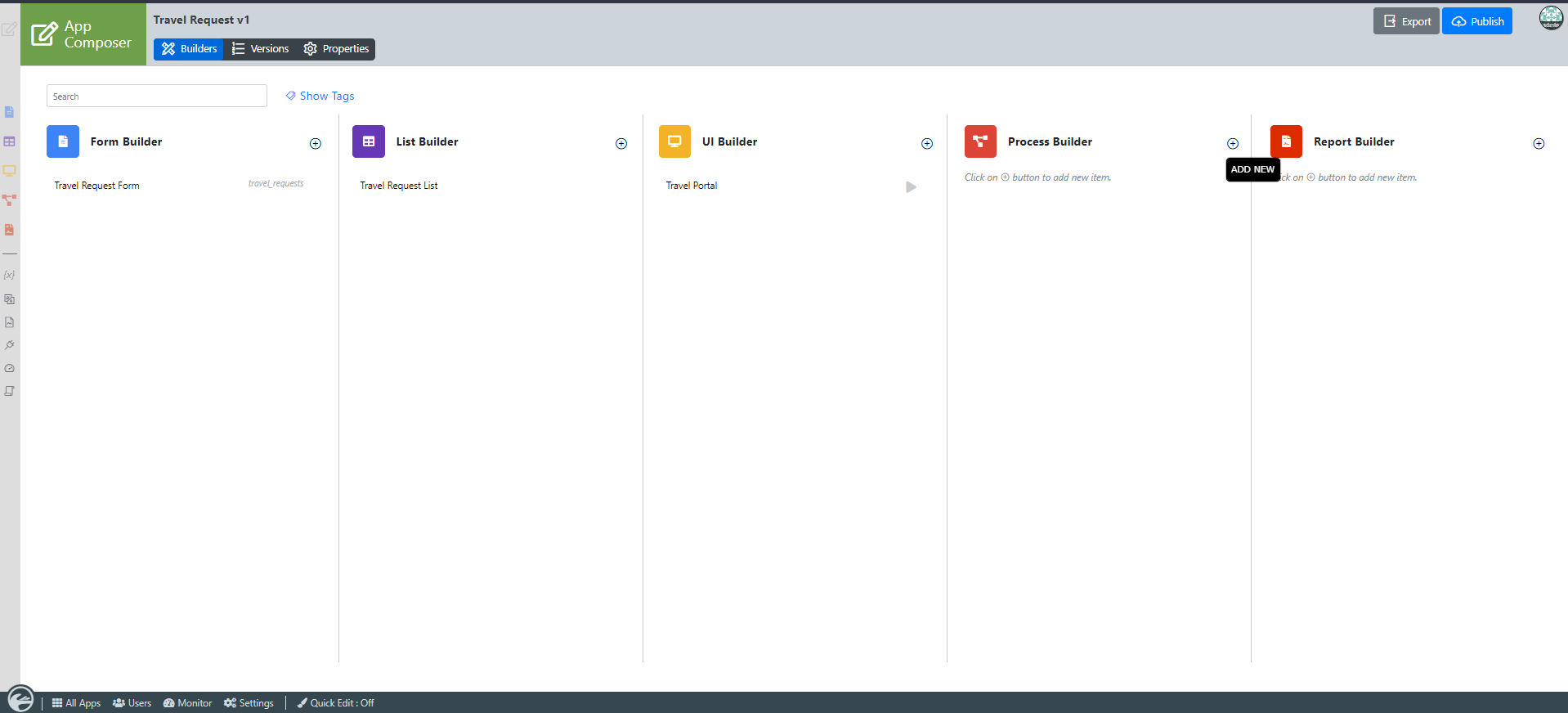
In the App Composer page, click on the add new beside the Process builder.
Thai ในหน้า App Composer คลิกที่เมนู Processes ทางด้านซ้ายจากนั้นคลิกที่ปุ่ม Design Processes ที่อยู่ด้านบน
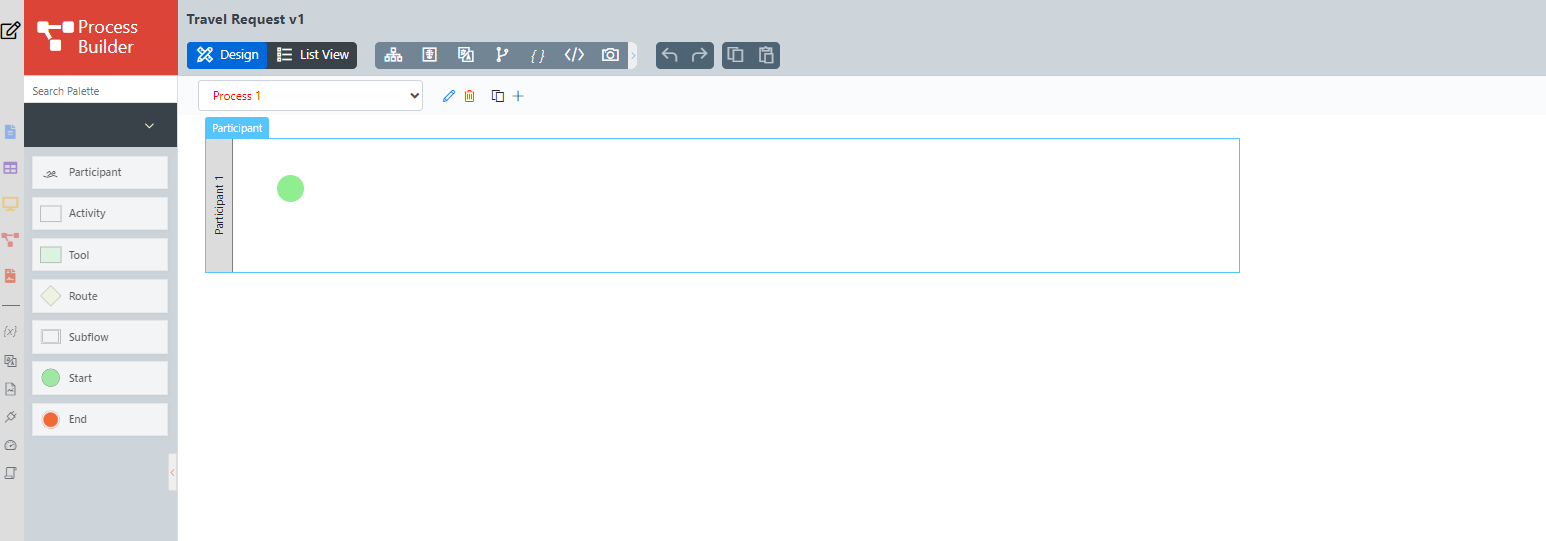
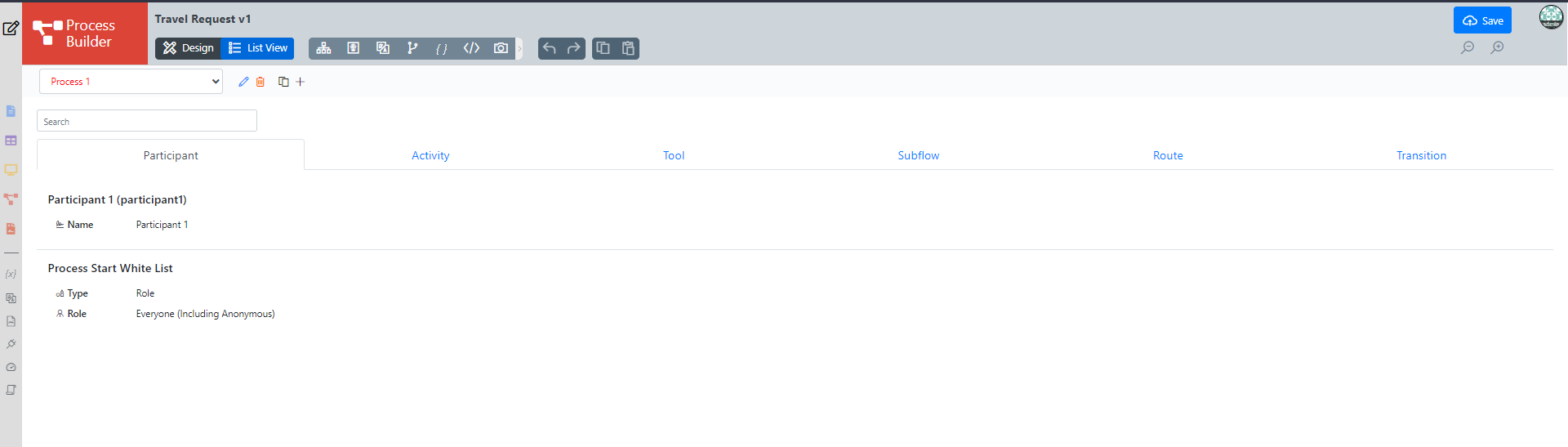
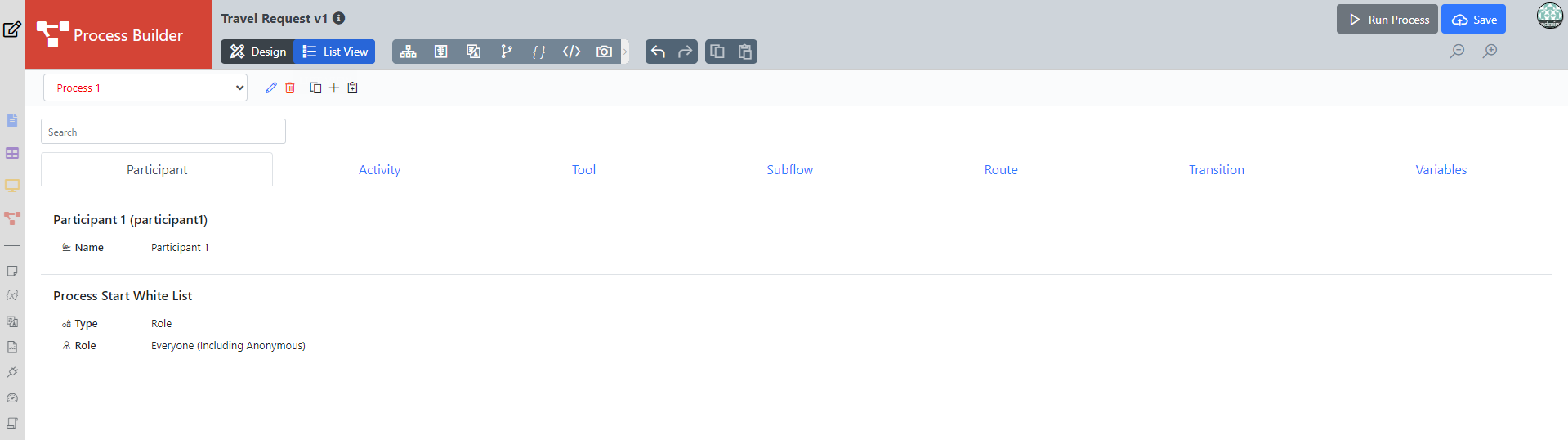
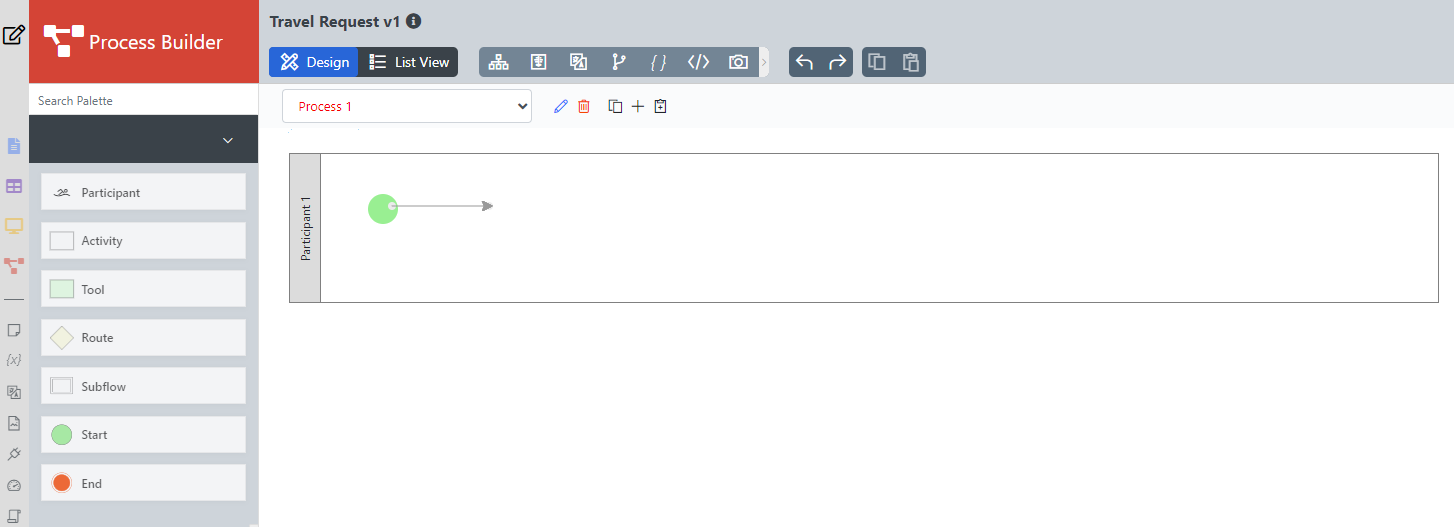
This is the Process Builder. There are 3 main areas in the Process Builder. On the top, the Navigator panel contains Design the process and List View . On the left, this is where the element palette is placed by default. One can move it around to suit one's style. The main panel in the middle is the Graph area that contains the actual process diagram.
Thai นี่คือตัวสร้าง Process Builder มี 3 ส่วนหลักในตัวสร้างกระบวนการ ที่ด้านบน (สีแดง) พาเนล Navigator มีรายการกระบวนการพร้อมกับปุ่มการกระทำทางด้านขวา ทางด้านซ้าย (สีน้ำเงิน) นี่คือตำแหน่งที่วางจานองค์ประกอบตามค่าเริ่มต้น หนึ่งสามารถย้ายไปรอบ ๆ เพื่อให้เหมาะกับสไตล์ของแต่ละคน แผงหลักตรงกลางคือพื้นที่กราฟ (สีเขียว) ที่มีแผนภาพกระบวนการจริง 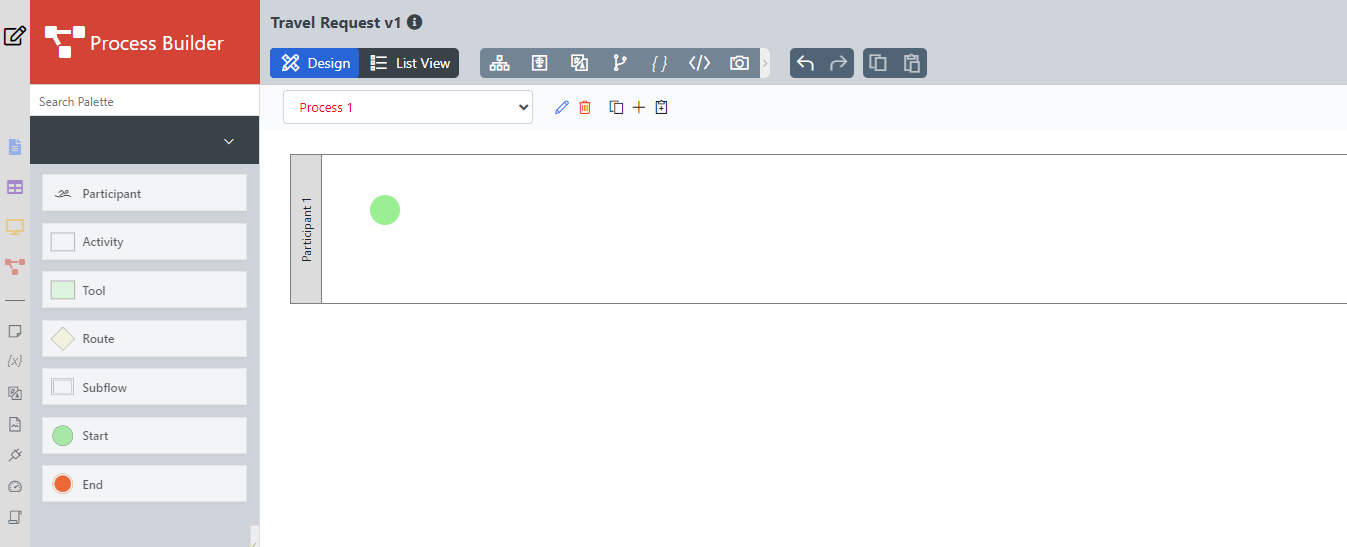
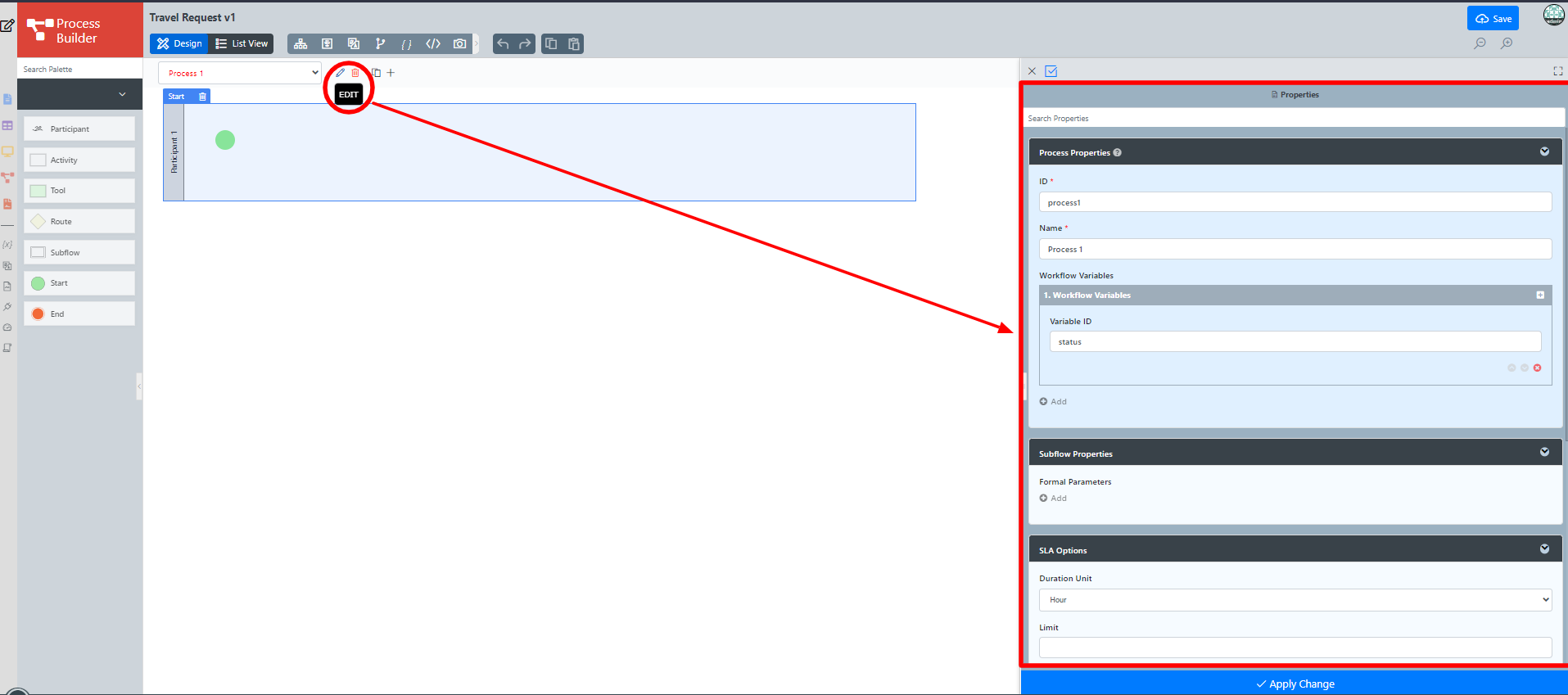
Click on the edit icon beside the process name in the Navigator. This opens up the properties dialog on the right where you can edit the process details.
Thai คลิกที่ไอคอนแก้ไขภายใต้ชื่อกระบวนการใน Navigator สิ่งนี้จะแสดงกล่องโต้ตอบคุณสมบัติที่คุณสามารถแก้ไขรายละเอียดกระบวนการ จดบันทึกเกี่ยวกับตัวแปรเวิร์กโฟลว์เริ่มต้นที่เรียกว่าสถานะ 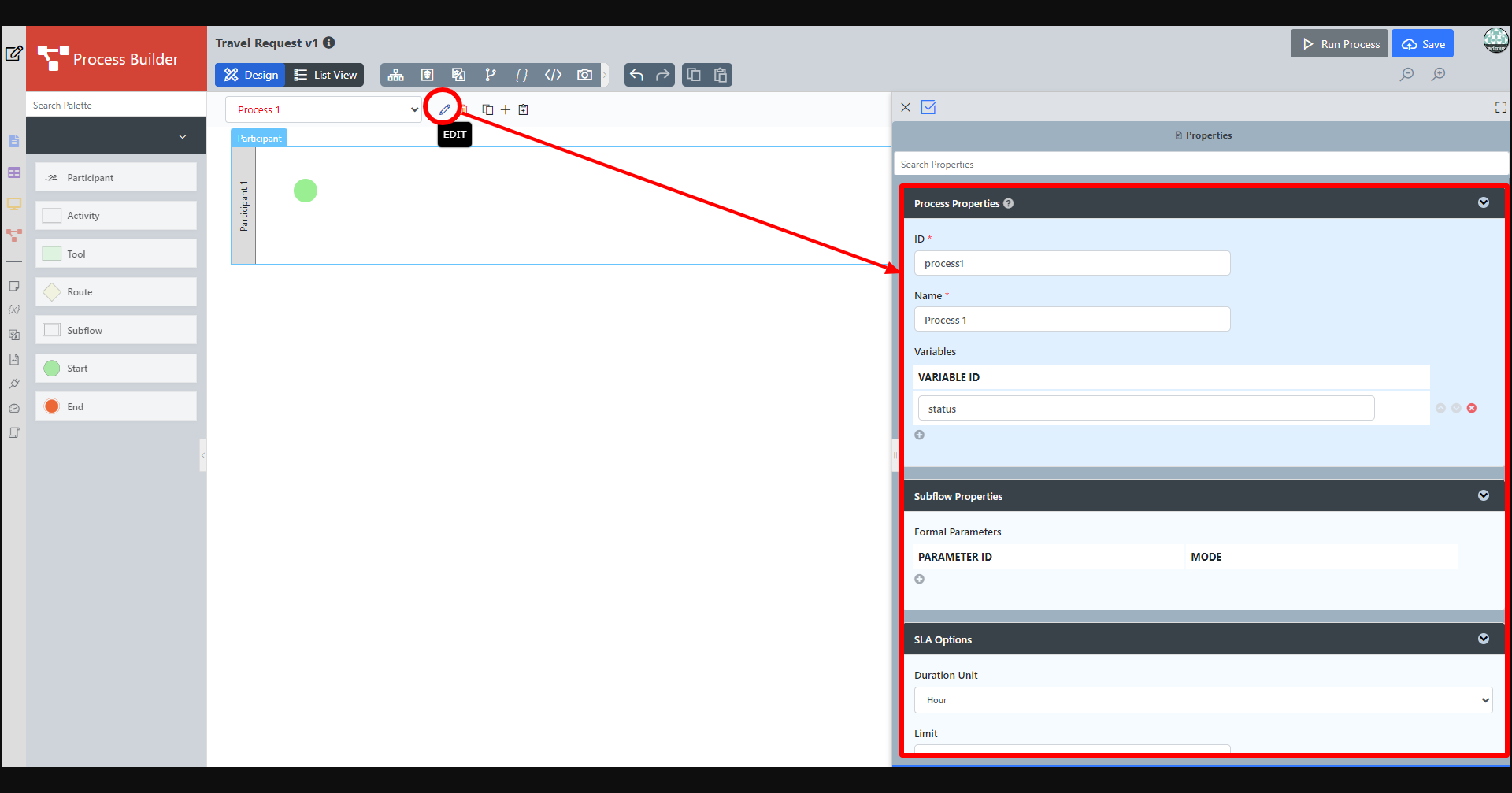
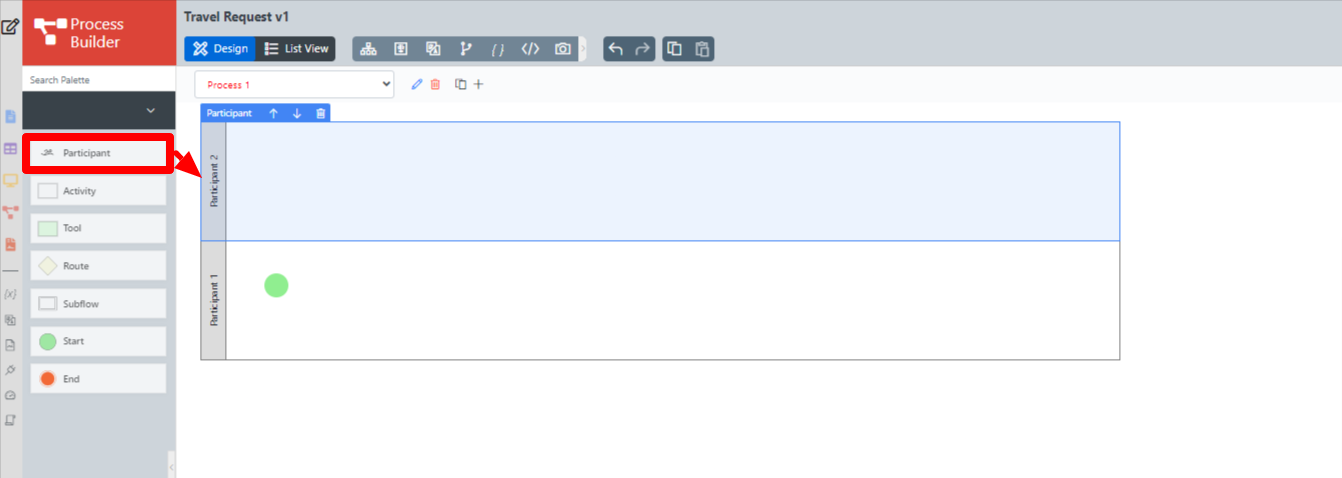
Add Participants into the process by dragging it them from the left palette. Click anywhere on the participant to set its properties.
Thai เพิ่มผู้เข้าร่วมในกระบวนการโดยคลิกที่ปุ่มเพิ่มสีเขียวภายใต้ผู้เข้าร่วมปัจจุบัน ผู้เข้าร่วมแสดงถึงผู้ใช้หรือบทบาทที่ทำงานบางอย่าง คลิกที่ปุ่มแก้ไขในขณะที่โฮเวอร์เหนือชื่อผู้เข้าร่วมเพื่อตั้งค่าคุณสมบัติ 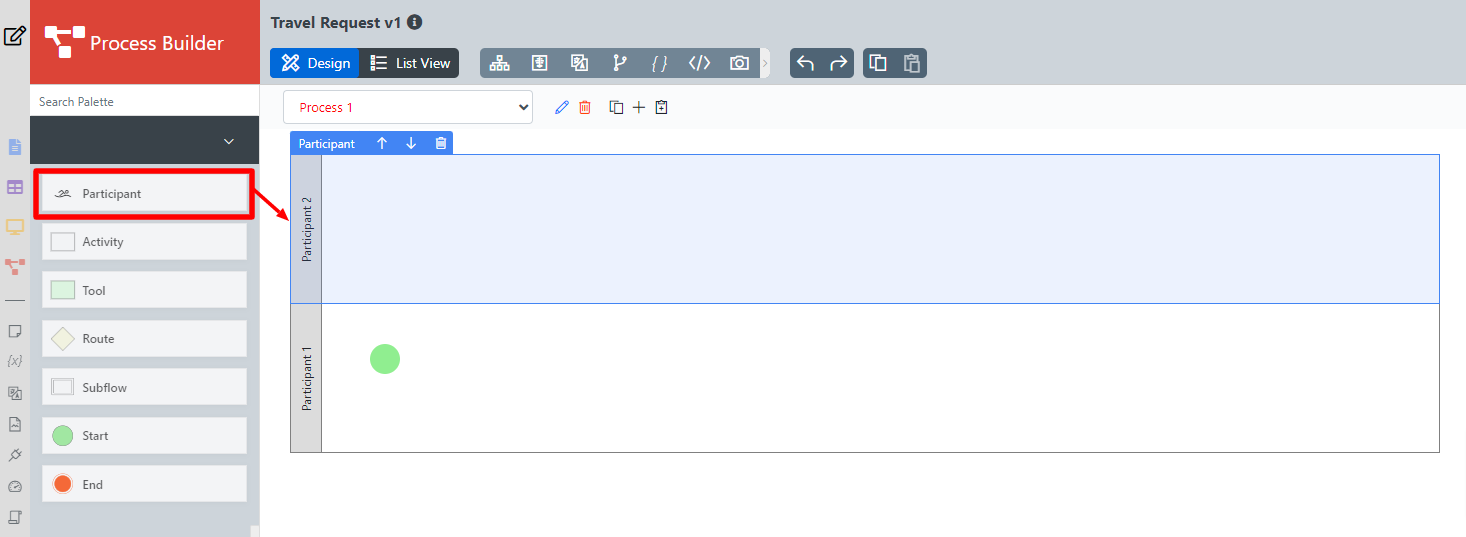
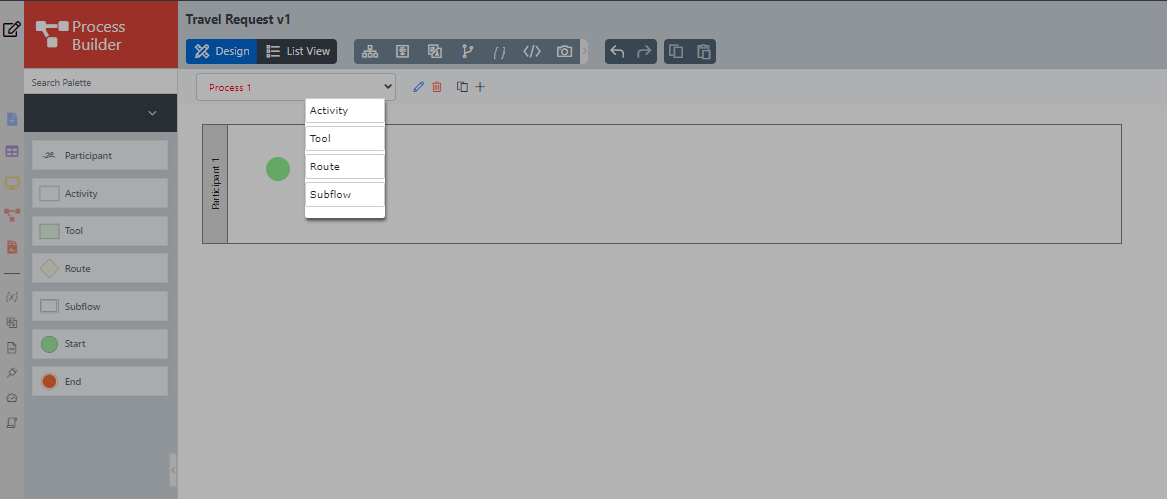
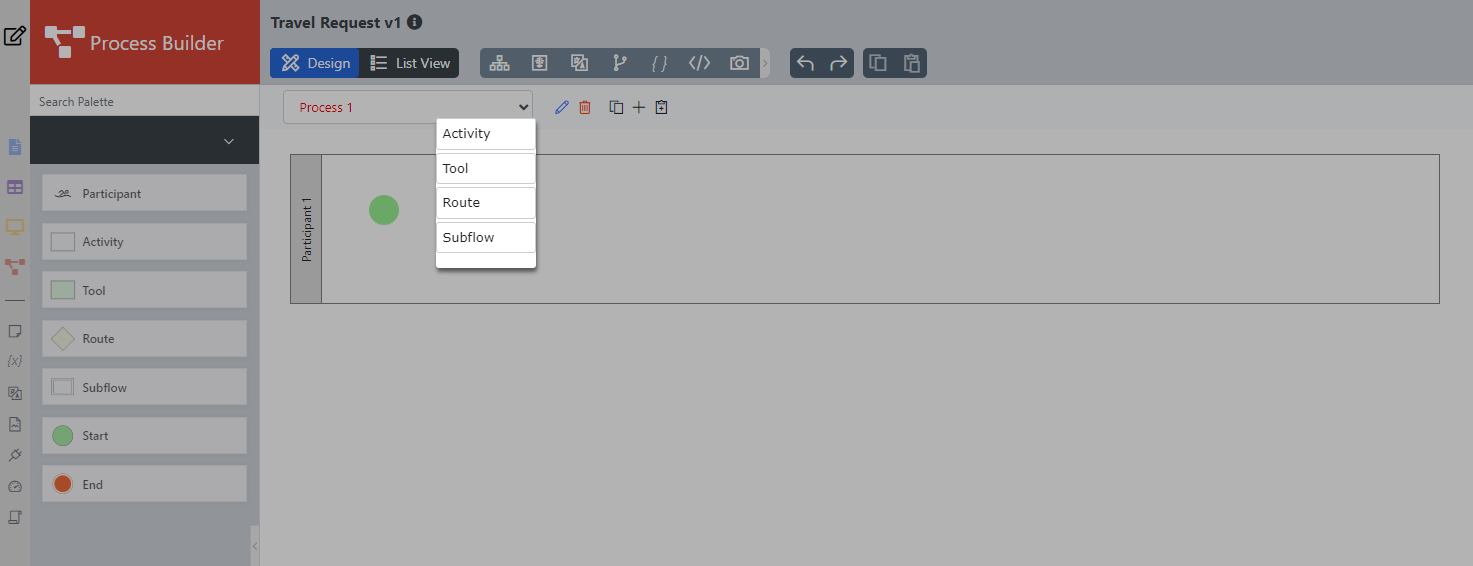
Add Activities, Tools, and Routes into the process diagram by dragging them from the left palette and then connecting them together. Another way is to drag from the end of start/activity/tool/route etc and an add additional option will appear to choose from which will be automatically connected.
Thai เพิ่มกิจกรรมเครื่องมือและเส้นทางลงในแผนภาพกระบวนการ กิจกรรมเป็นตัวแทนของรูปแบบที่ต้องมีปฏิสัมพันธ์กับมนุษย์ เครื่องมือแสดงถึงระบบหรืองานอัตโนมัติและเส้นทางเป็นจุดตัดสินใจ ใช้การเปลี่ยนภาพเพื่อเชื่อมโยงพวกมันทั้งหมดเข้าด้วยกันในโฟลว์ คุณสามารถขยายการออกแบบของคุณโดยการเชื่อมต่อจากโหนดที่มีอยู่หรือโดยการลากโหนดที่ต้องการจากจานสีองค์ประกอบลงในแผนภาพกระบวนการ
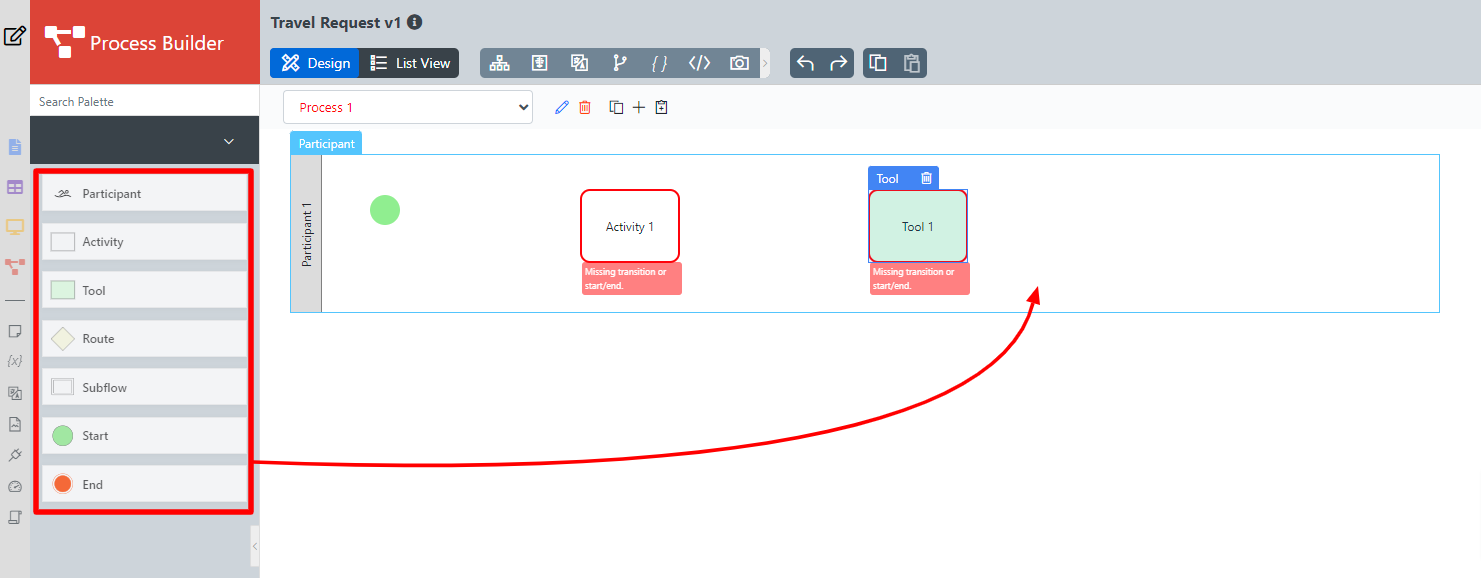
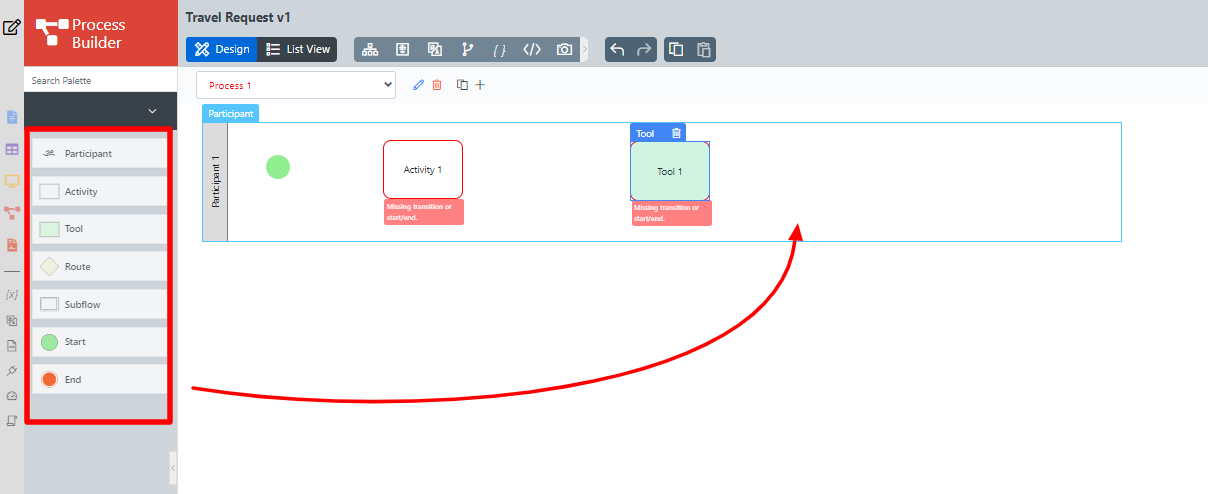
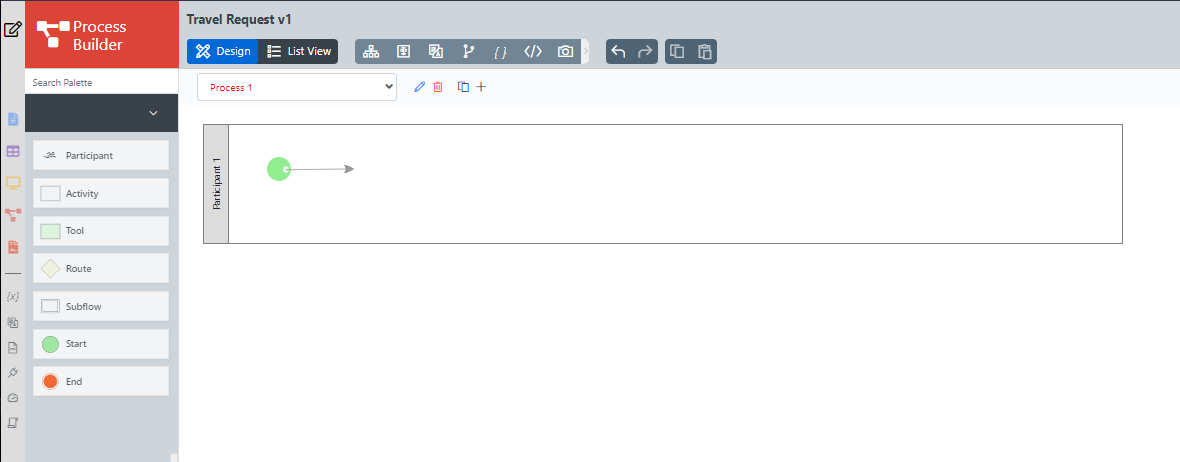
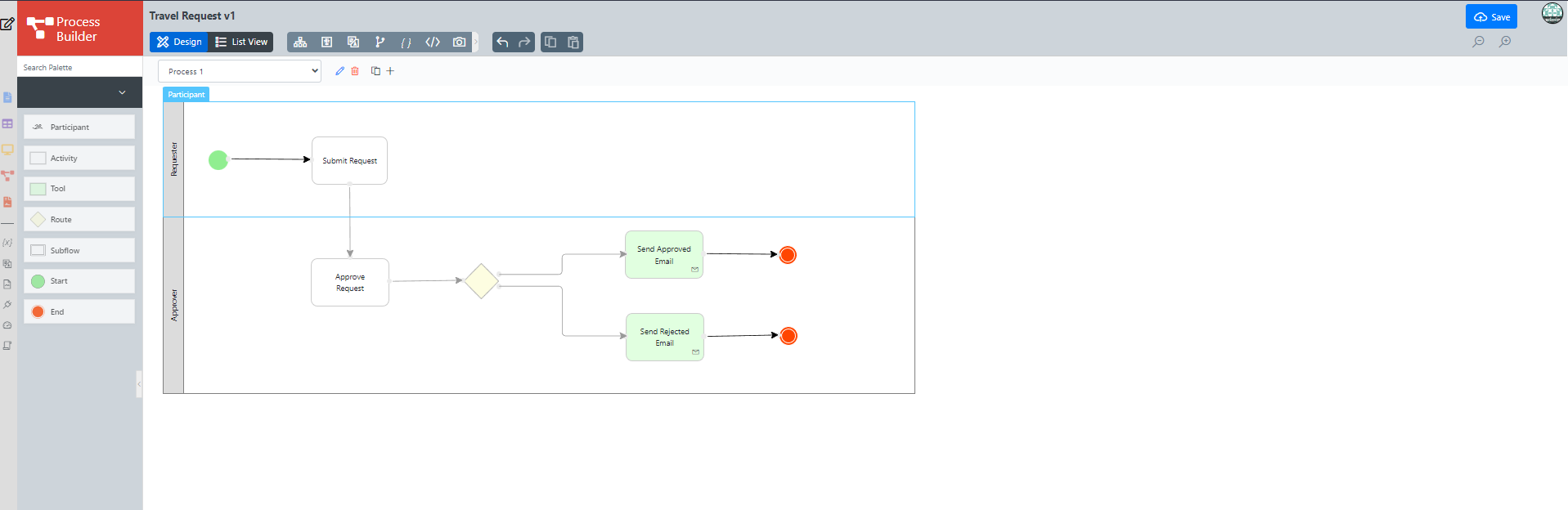
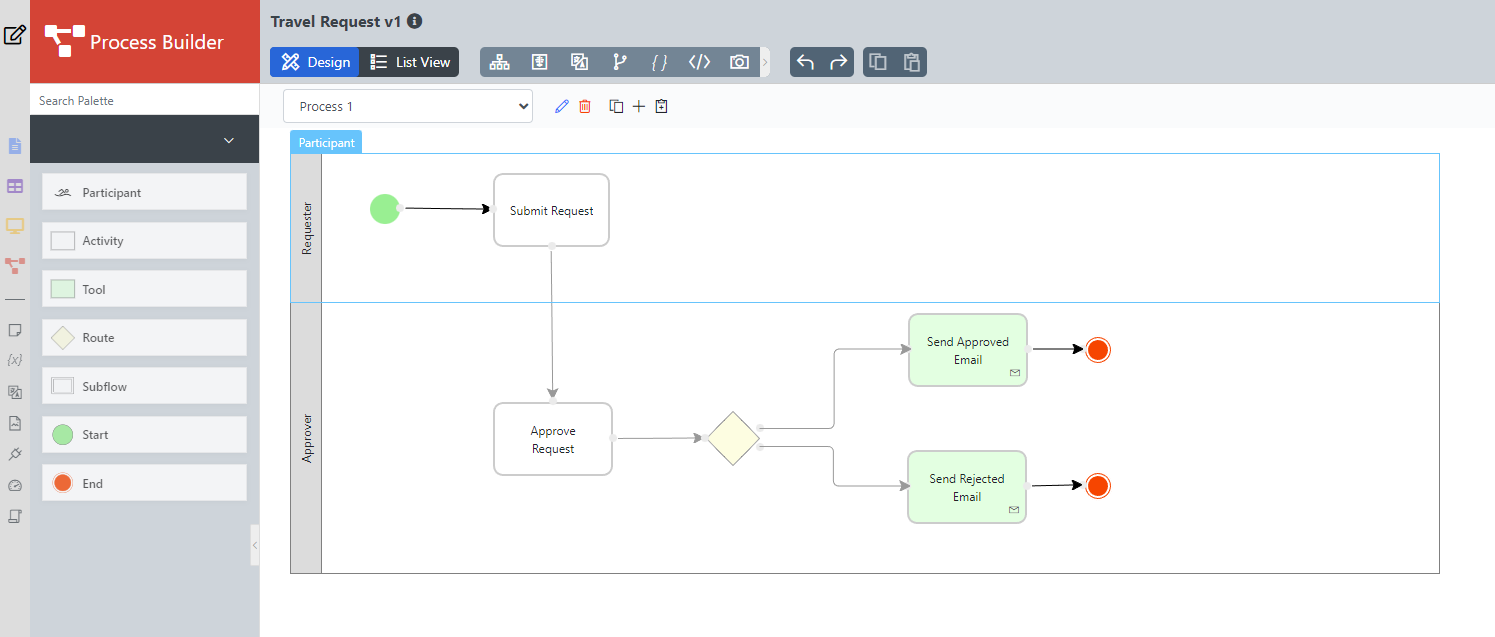
Ensure that the process has a proper Start and End. Click on Save at the top right to deploy the process to the server.
Thai ตรวจสอบให้แน่ใจว่ากระบวนการมีการเริ่มต้นและสิ้นสุดที่เหมาะสม คลิกที่ Deploy ที่ด้านบนขวาเพื่อปรับใช้กระบวนการกับเซิร์ฟเวอร์
...
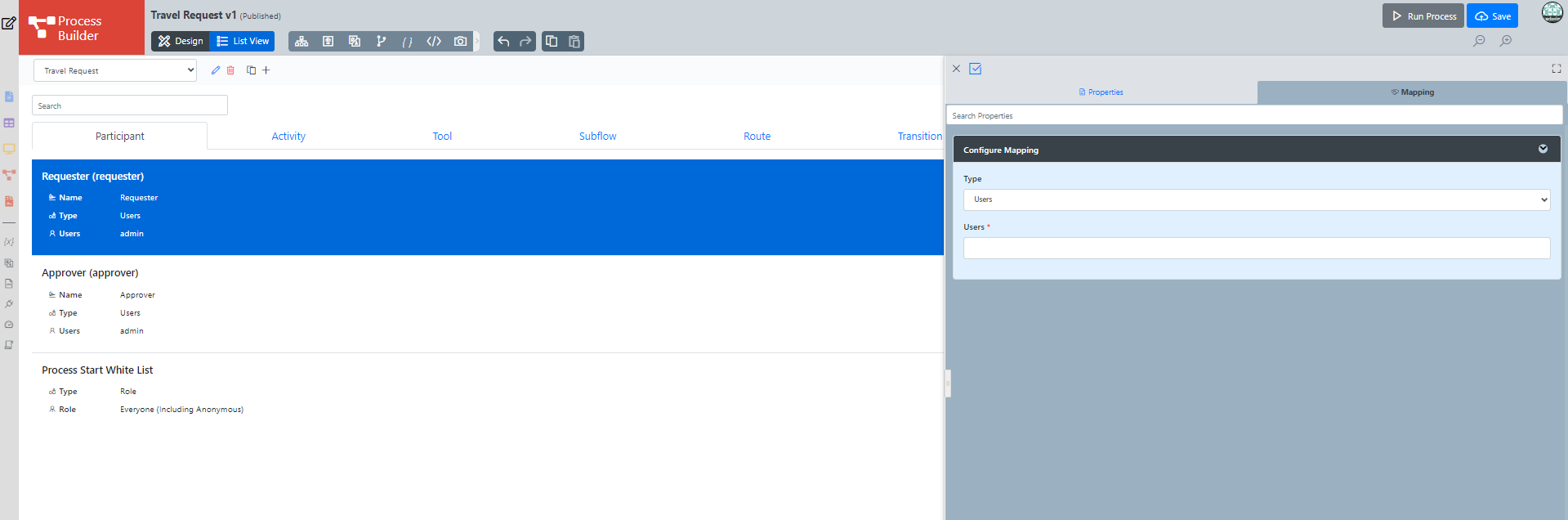
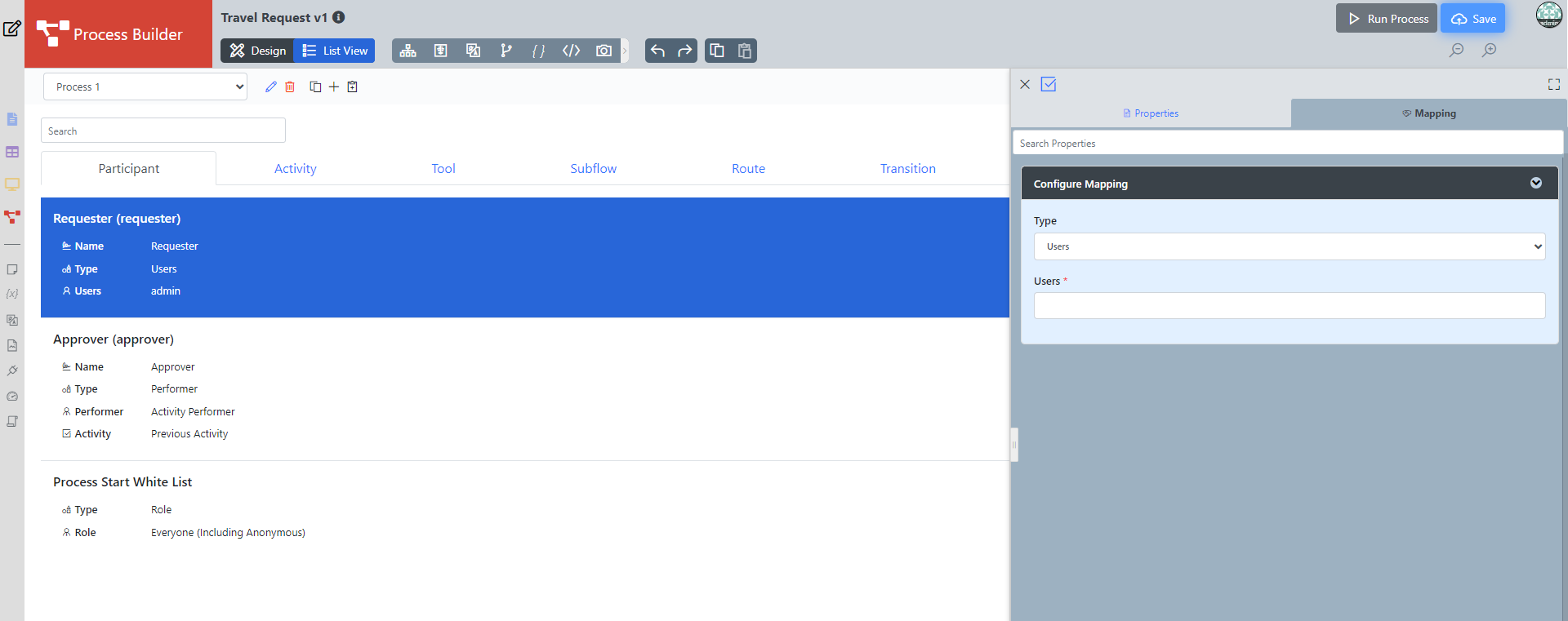
Click on any Participant to open Configure Mapping, choose type user then choose the users from Users.
Thai เมื่อกระบวนการได้รับการปรับใช้เรียบร้อยแล้วให้กลับไปที่แท็บ / หน้าต่างก่อนหน้า แผนภาพกระบวนการใหม่จะถูกสร้างขึ้นหลังจากที่คุณคลิกที่ตกลง Joget จะตีความแผนภาพกระบวนการและโหลดรายละเอียดกระบวนการ
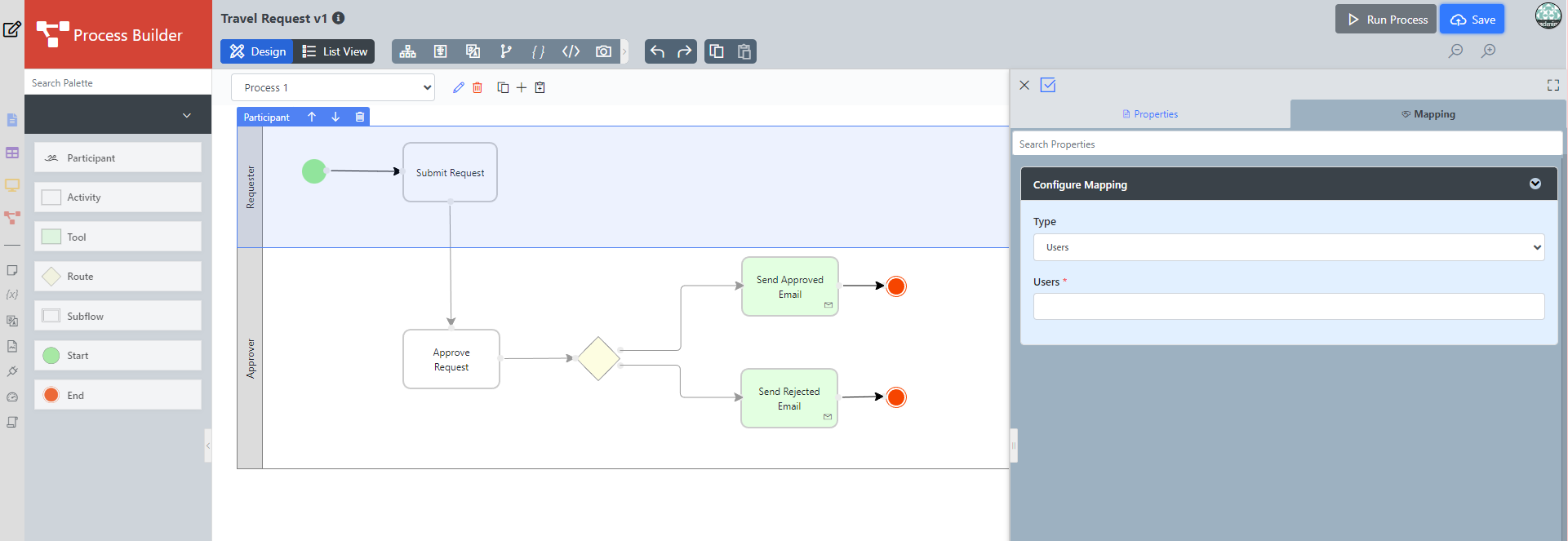
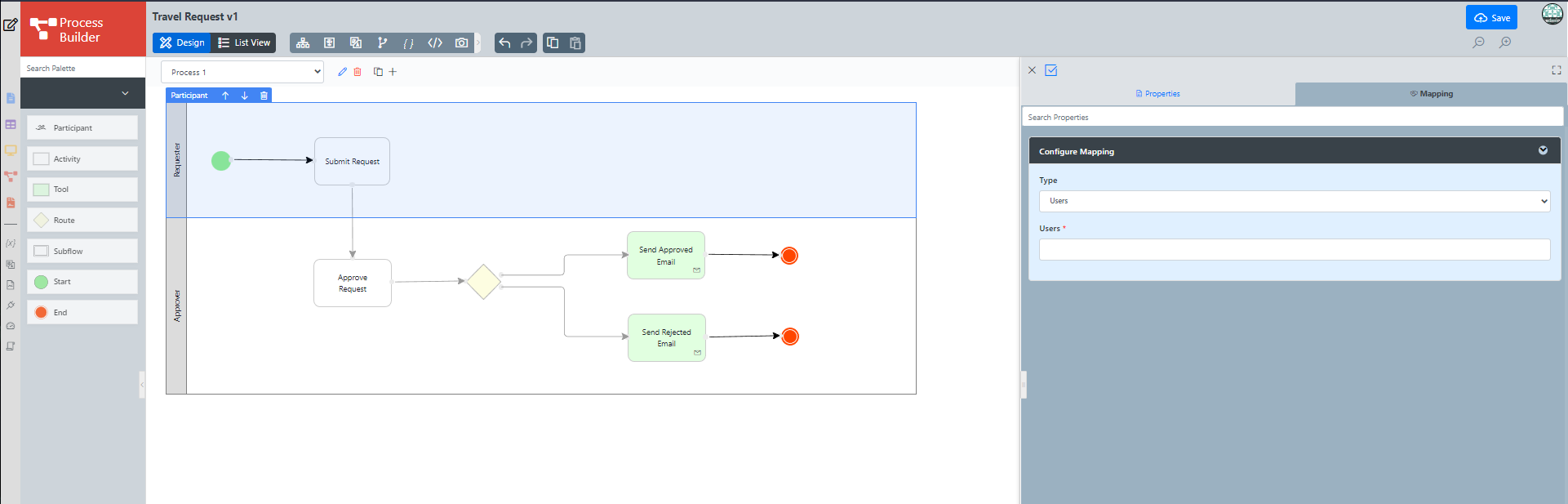
- Another approach is by clicking on the list view button then choose choosing a participant then click clicking on a specific participant to map to users.
Mapping Activities to Forms
In the Process Mapper, click on an Activity to open up the Mapping to Forms.
Thai ใน Process Mapper คลิกที่กิจกรรมเพื่อเปิด Map Activities to Forms
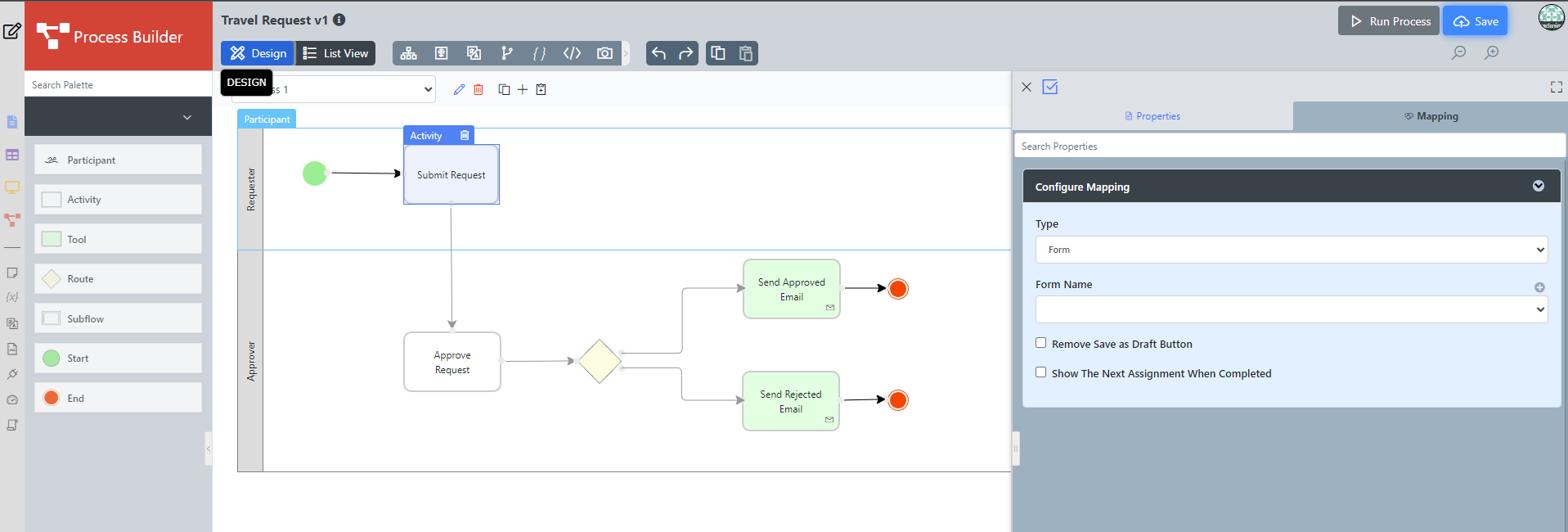
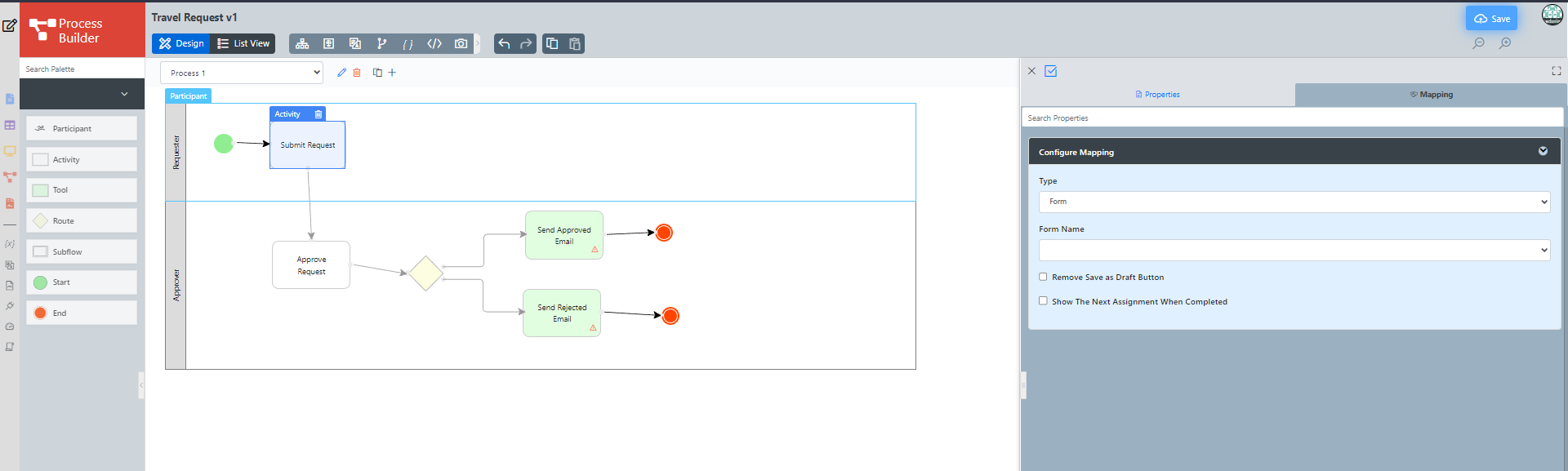
Go to List View and choose Activity, select any activity to do the Mapping to form.
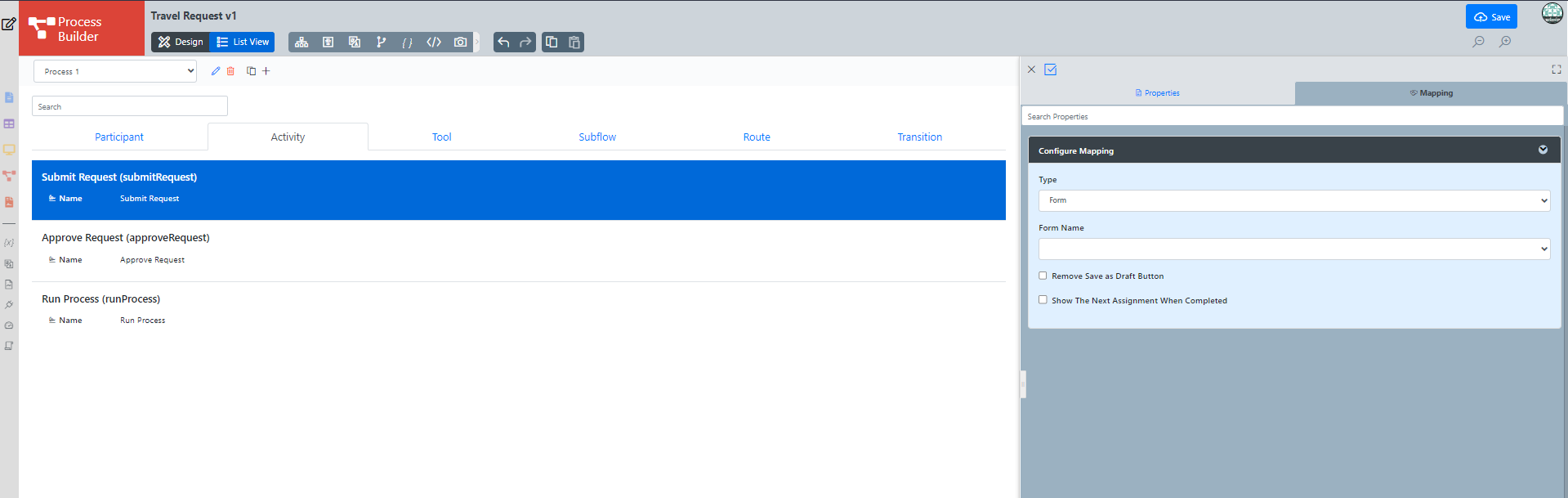
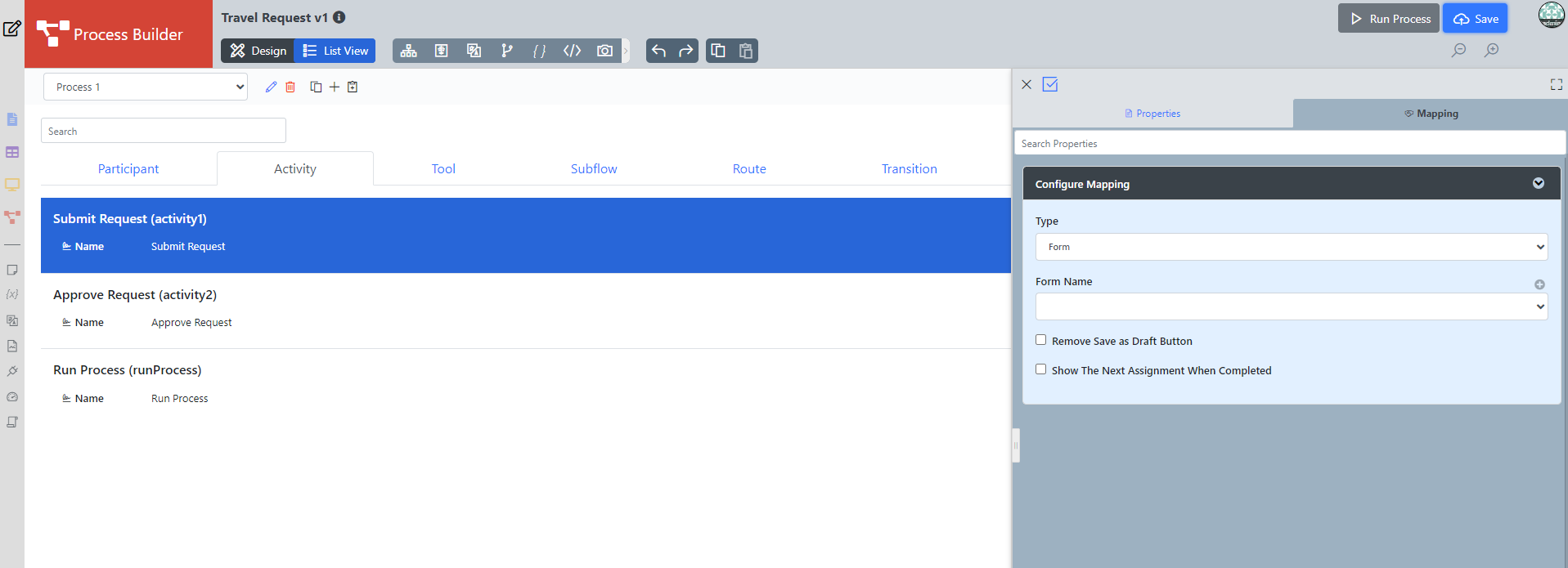
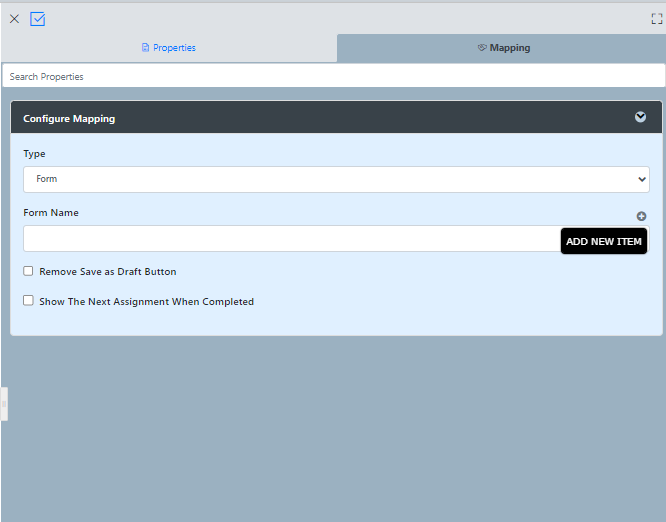
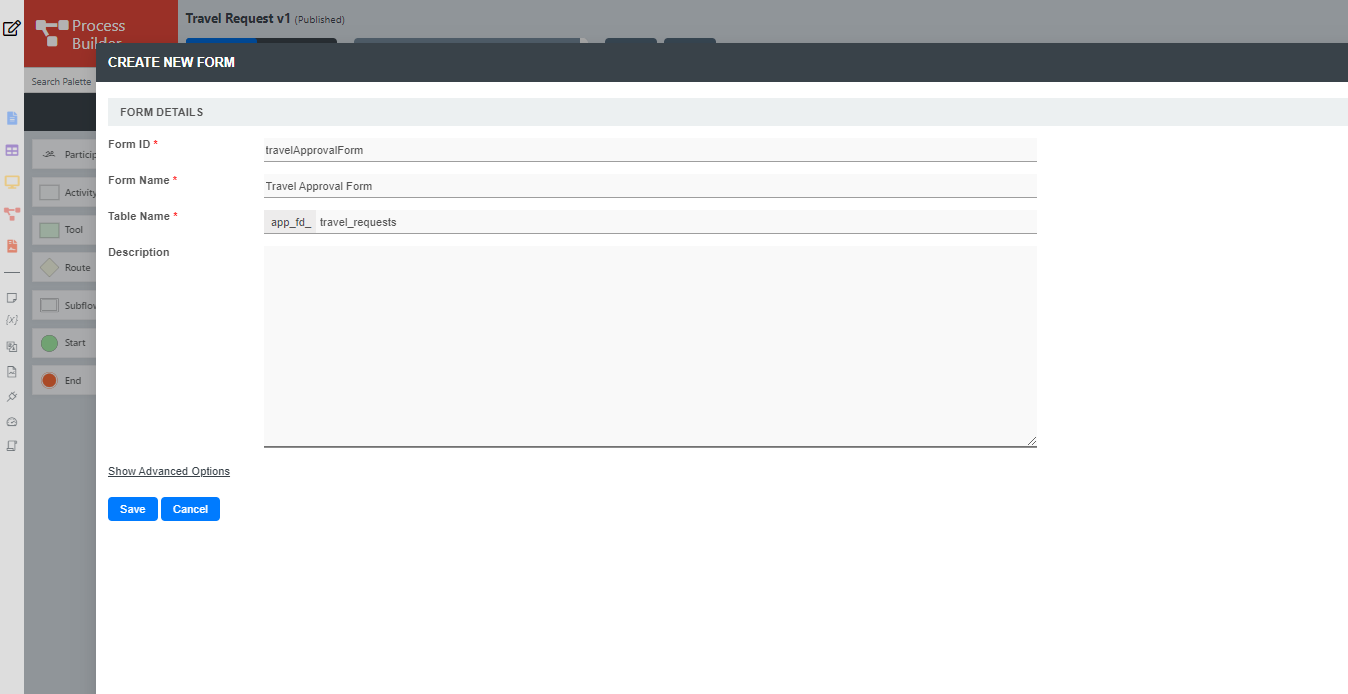
As an example to handle an approval process, click on Create New Form to create a new Travel Approval Form. In this new form, add a Subform that that displays the original originally submitted form, and radio buttons to capture the approval status.
Thai เป็นตัวอย่างในการจัดการกระบวนการอนุมัติคลิกที่ Create New Form เพื่อสร้างแบบฟอร์มอนุมัติการเดินทางใหม่ ในฟอร์มใหม่นี้เพิ่มฟอร์มย่อยที่แสดงฟอร์มที่ส่งเหมือนเดิมและปุ่มตัวเลือกเพื่อจับสถานะการอนุมัติ
Configure this Subform to select the original request form.
Thai กำหนดค่าฟอร์มย่อยนี้เพื่อเลือกแบบฟอร์มคำขอต้นฉบับ
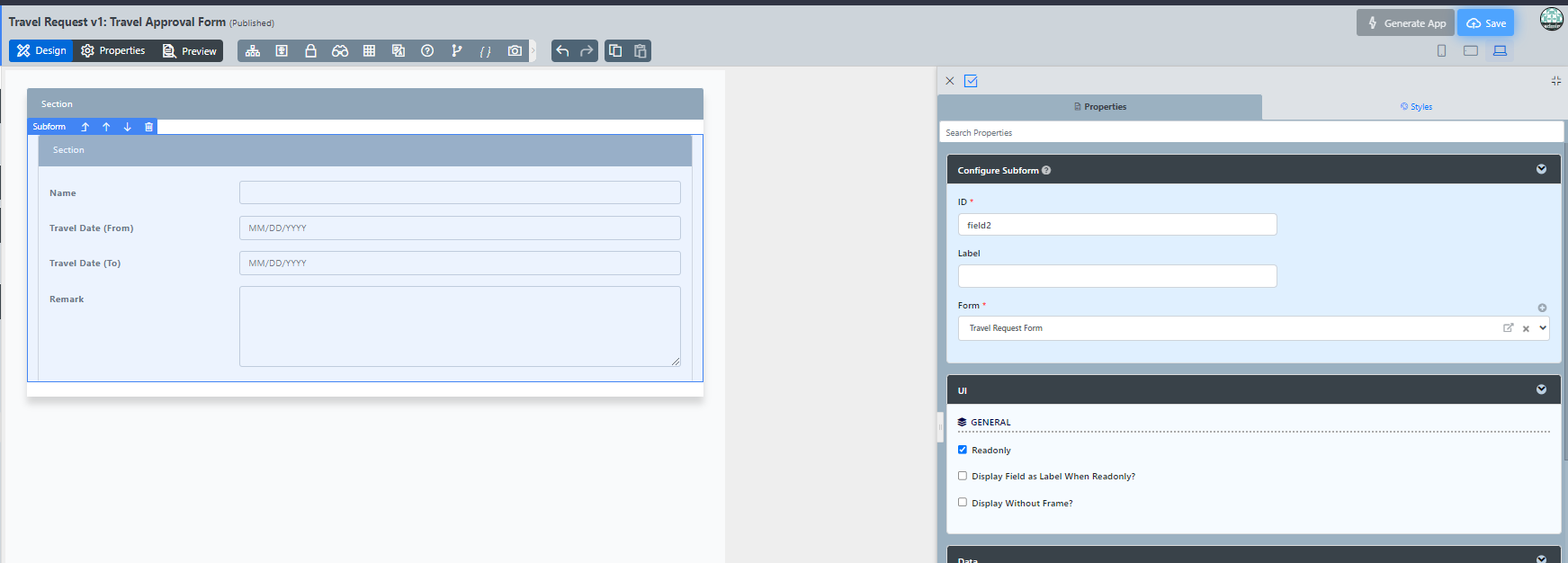
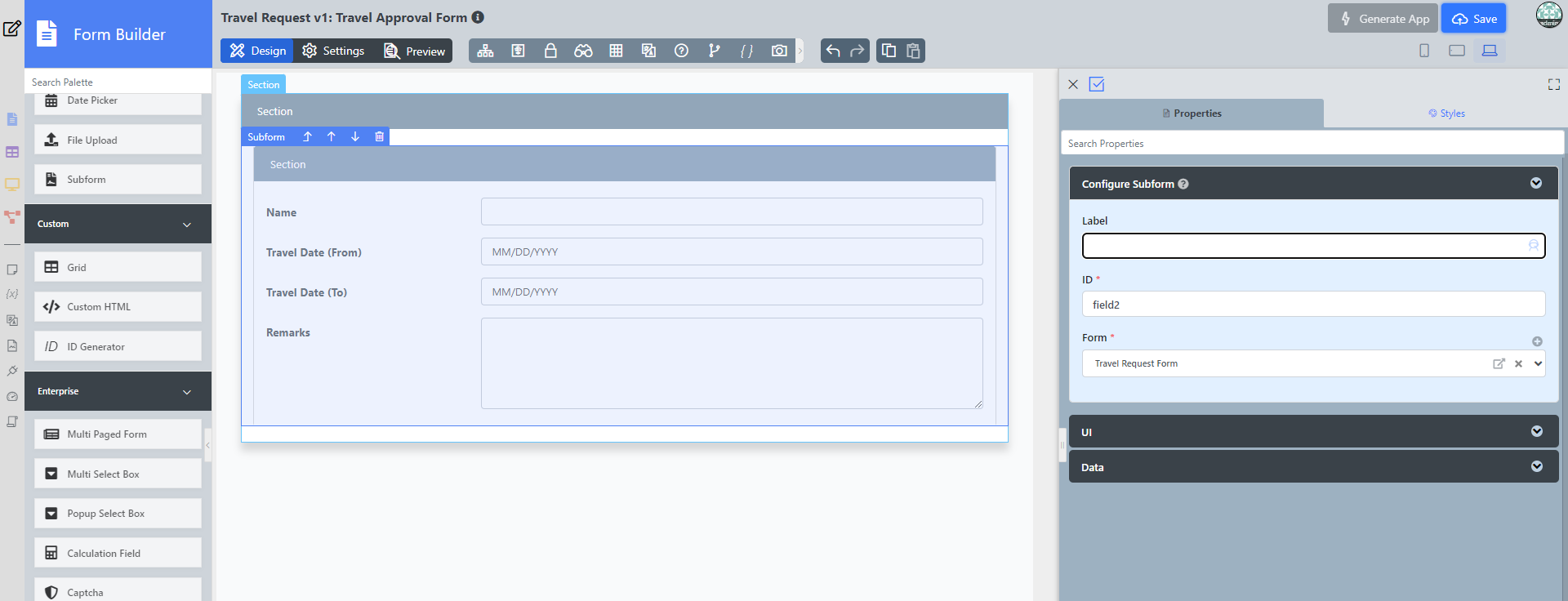
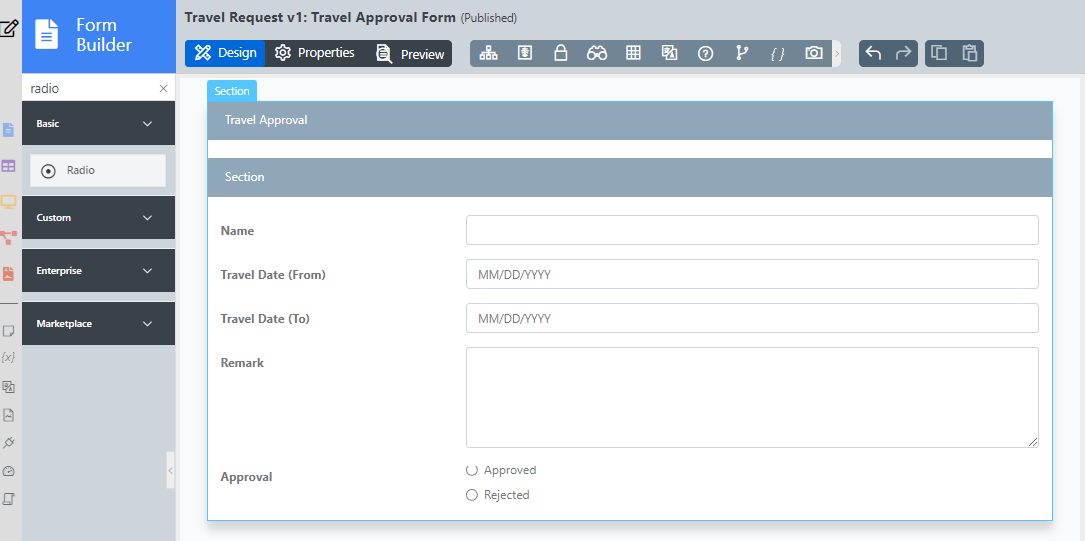
Configure the status radio button to have Approved and Rejected options.
Thai กำหนดค่าปุ่มตัวเลือกสถานะให้มีตัวเลือกอนุมัติและปฏิเสธ
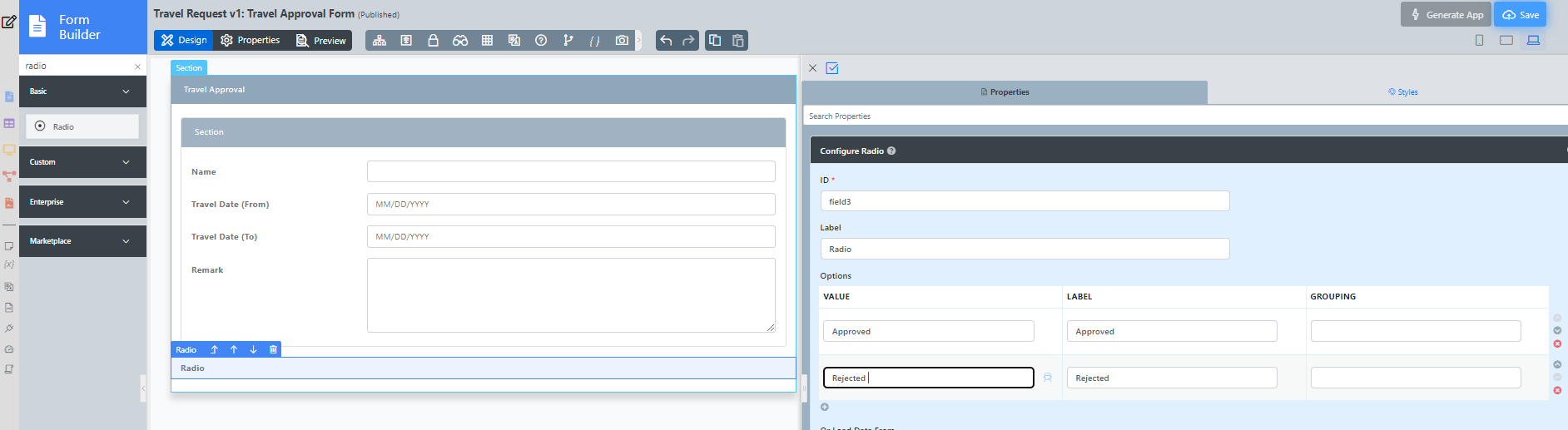
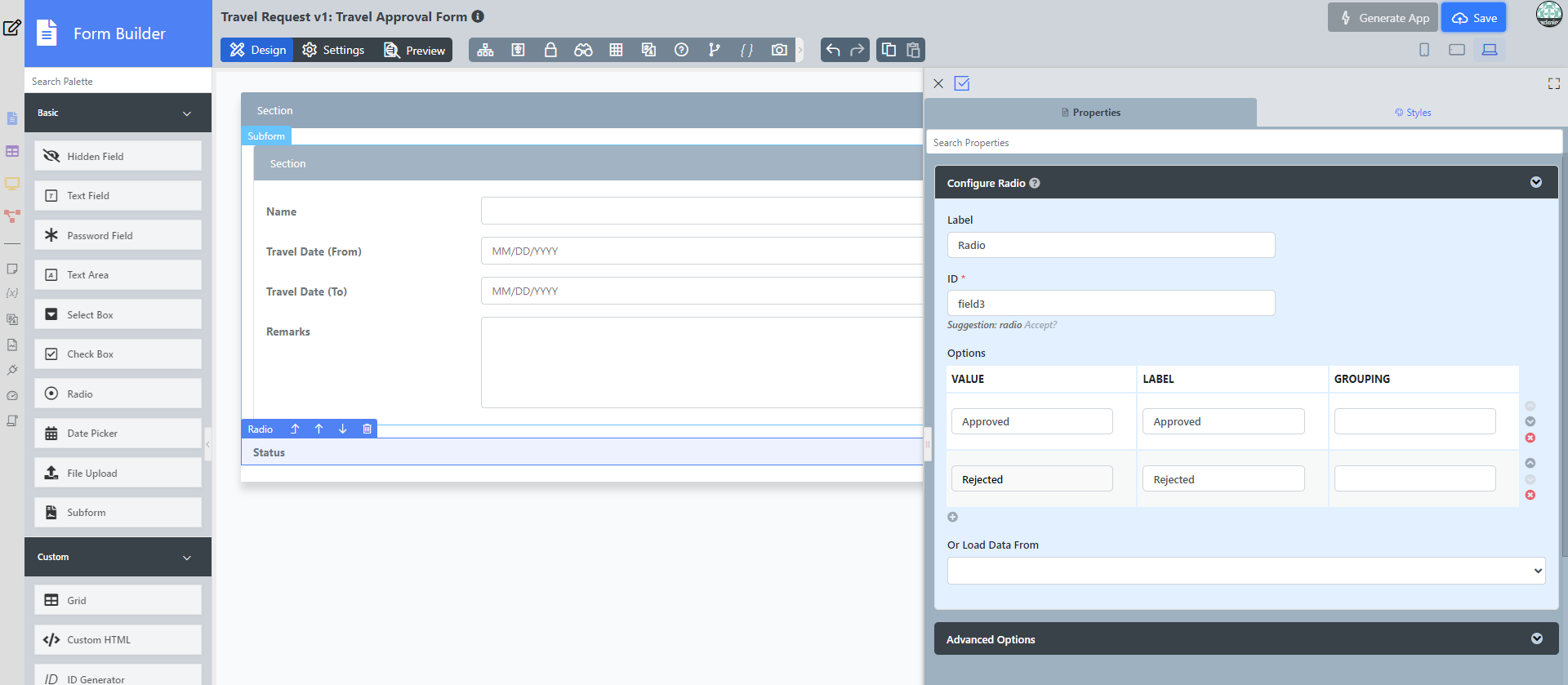
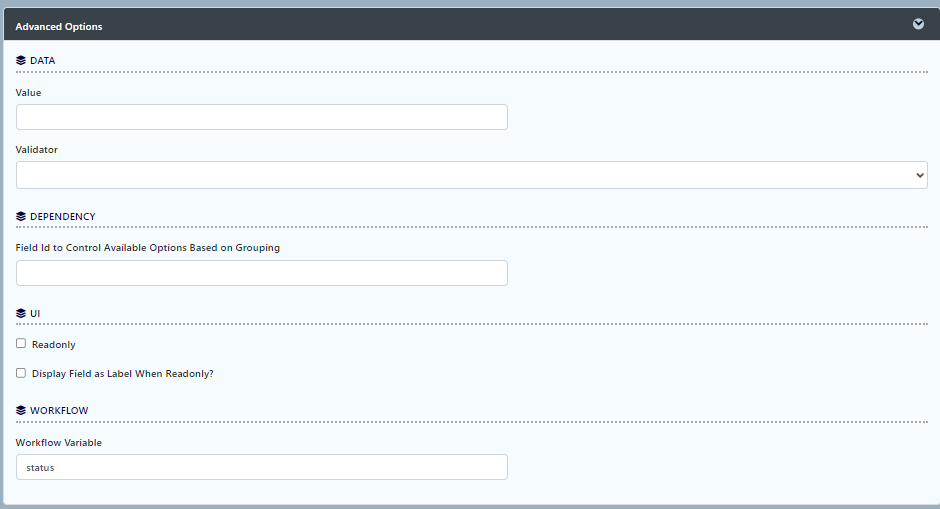
For routing purposes, an important setting in the radio button is the mapping to a workflow variable under Advanced Options. In this case, setting the mapping to status means that the value will be stored in the status workflow variable.
Thai สำหรับการกำหนดเส้นทางการตั้งค่าที่สำคัญในปุ่ม radio button คือการแมปไปยังตัวแปรเวิร์กโฟลว์ภายใต้ตัวเลือกขั้นสูง ในกรณีนี้การตั้งค่าการจับคู่กับสถานะหมายความว่าค่าจะถูกเก็บไว้ในตัวแปรสถานะเวิร์กโฟลว์
After all the configuration, the new approval form should look similar to the following screenshot:
Thai หลังจากการกำหนดค่าทั้งหมดแบบฟอร์มการอนุมัติใหม่ควรมีลักษณะคล้ายกับภาพหน้าจอต่อไปนี้:
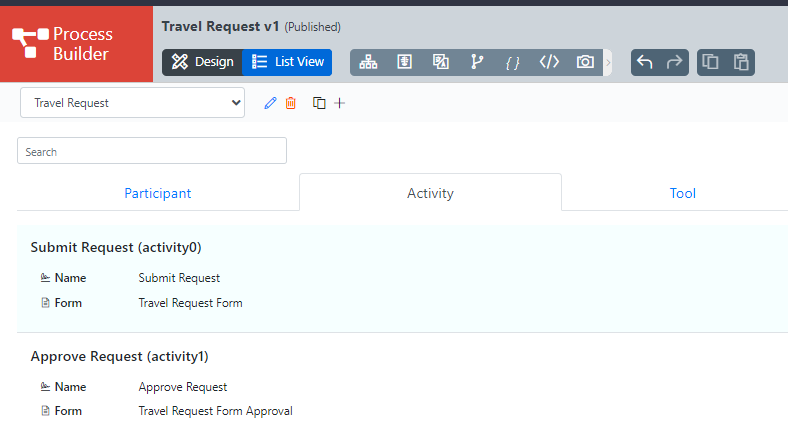
Ensure the Activities are mapped accordingly.
Thai ตรวจสอบให้แน่ใจว่ากิจกรรมถูกแมปอย่างเหมาะสม
...
By clicking on a Tool in the Process Mapper, it will open up the Map Tools to Plugins.
Thai โดยการคลิกที่เครื่องมือใน Process Mapper จะเปิดเครื่องมือ Map Tools to Plugins
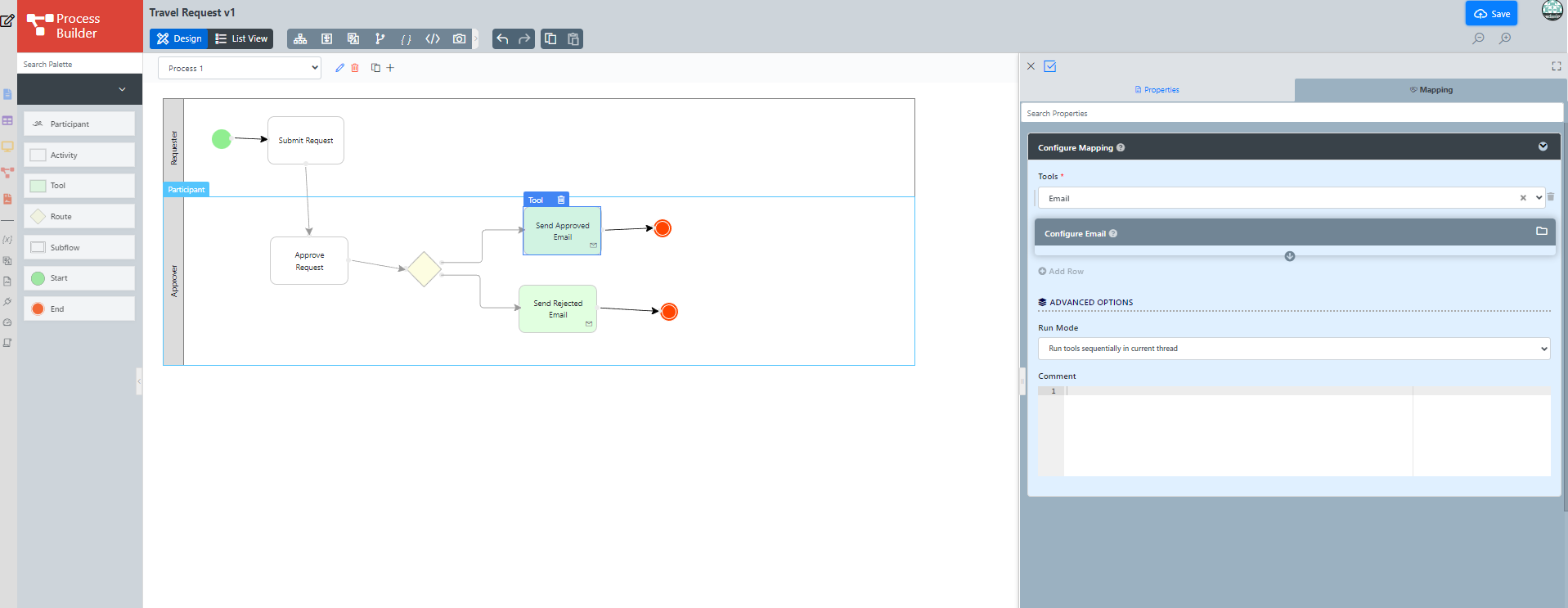
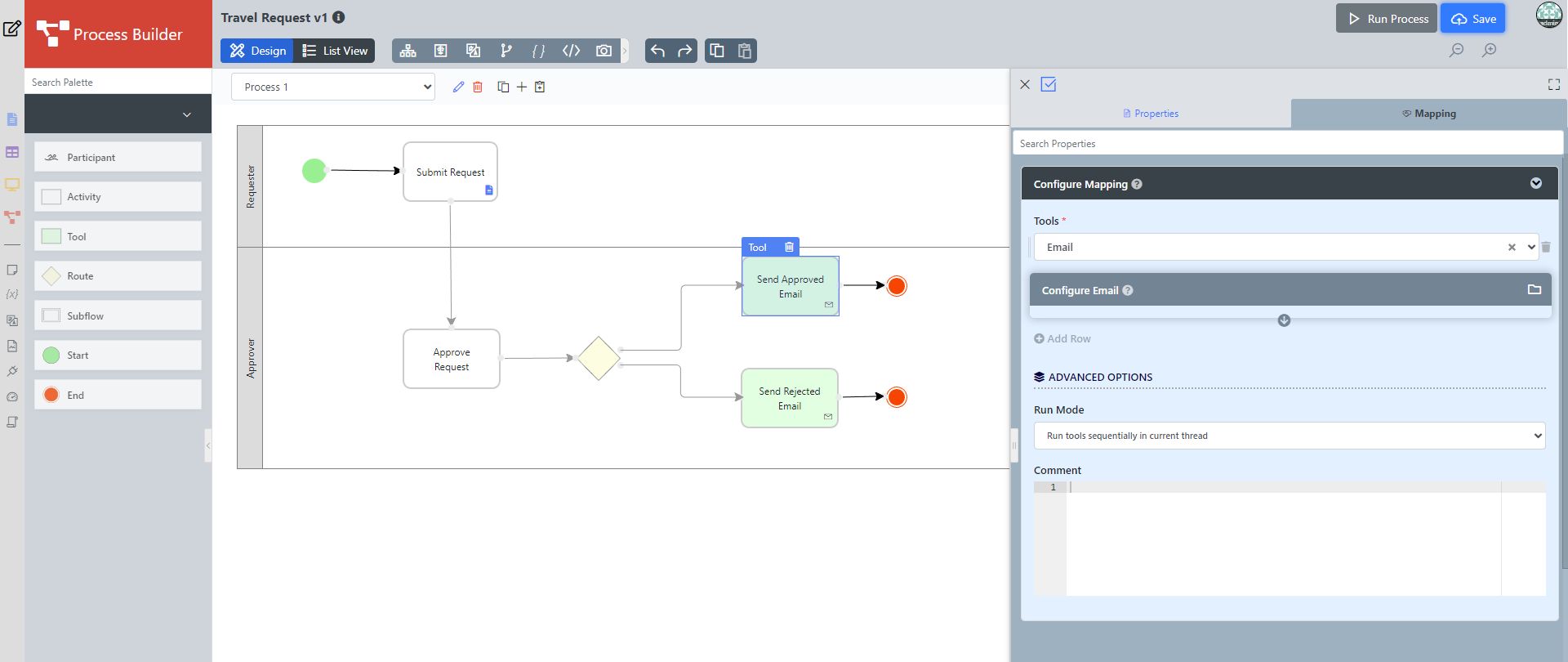
In the Map Tools to Plugins, you can map tools defined in the process to plugins. For each tool, select a Plugin and perform the necessary configuration.
Thai ใน Map Tools to Plugins คุณสามารถแมปเครื่องมือที่กำหนดไว้ในกระบวนการเพื่อปลั๊กอิน สำหรับแต่ละเครื่องมือให้เลือกปลั๊กอินและดำเนินการกำหนดค่าที่จำเป็น 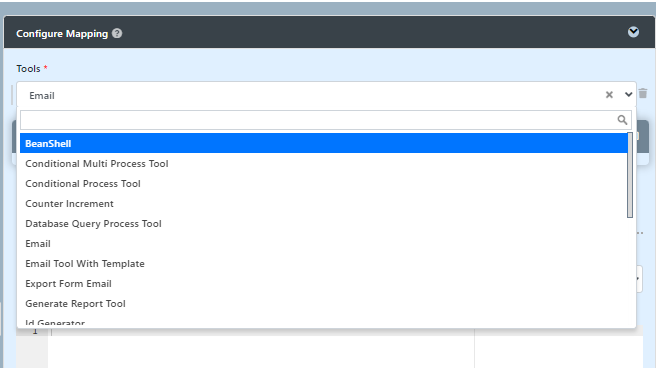
- Another approach is by clicking on the list view button then choose choosing a tool then click clicking on a mapping tools tool to the plugin.
Mapping Routes to Plugins
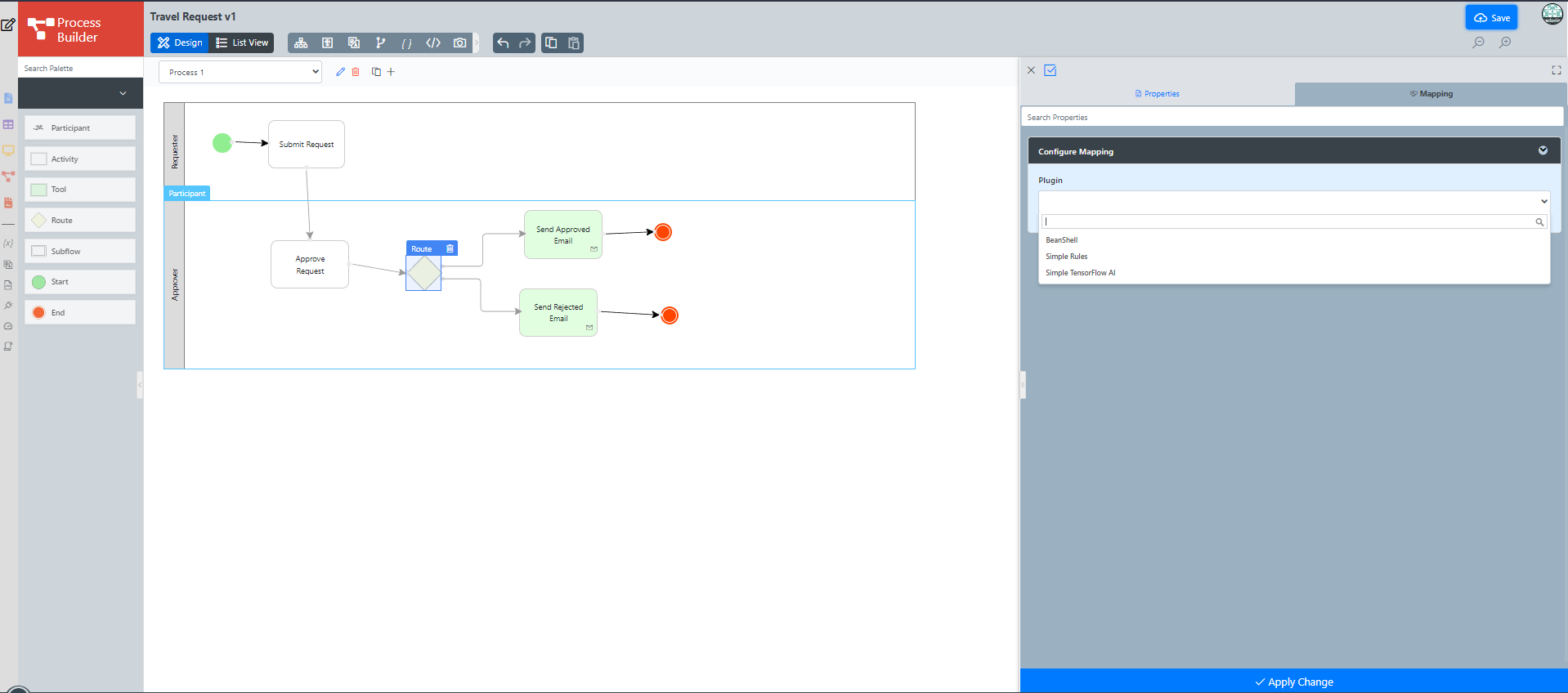
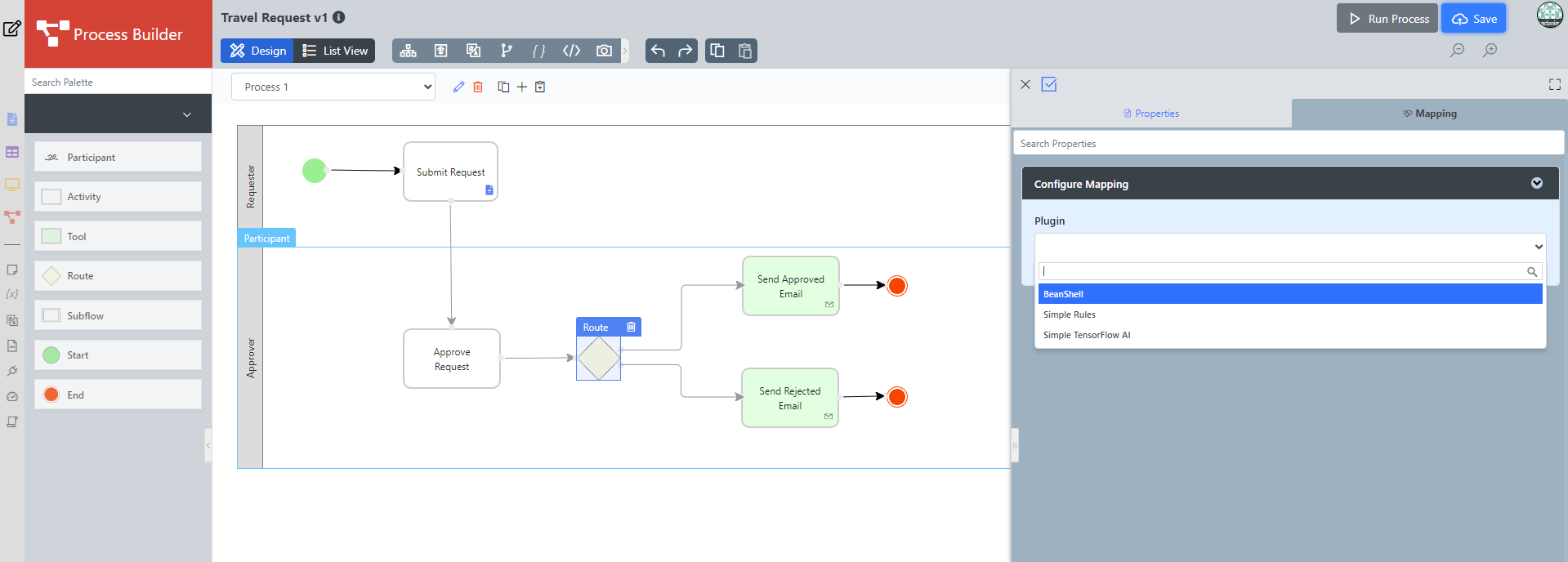
To handle routing (for example approval conditions), use Routes in combination with workflow variables. To create a workflow variable, click on Design Process to access the Process Builder. Double-click on the process name in the Navigator to bring up the process dialog. Click on the first small icon under the Workflow variable heading, and key in the ID of the variable e.g. status.
Thai ในการจัดการการจัดเส้นทาง (ตัวอย่างเช่นเงื่อนไขการอนุมัติ) ให้ใช้ Routes ร่วมกับตัวแปรเวิร์กโฟลว์ ในการสร้างตัวแปรเวิร์กโฟลว์คลิกที่ Design Process เพื่อเข้าถึง Process Builder ดับเบิลคลิกที่ชื่อกระบวนการใน Navigator เพื่อเปิดกล่องโต้ตอบกระบวนการ คลิกที่ไอคอนเล็ก ๆ แรกใต้ส่วนหัวตัวแปร Workflow และพิมพ์ ID ของตัวแปรเช่น สถานะ.
Info title Routes Learn more about Process Routes .
Thai เรียนรู้เพิ่มเติมเกี่ยวกับ Process Routes .
Another way is by click clicking on the list view then choosing a route, then clicking on a specific route if multiple routes are available.
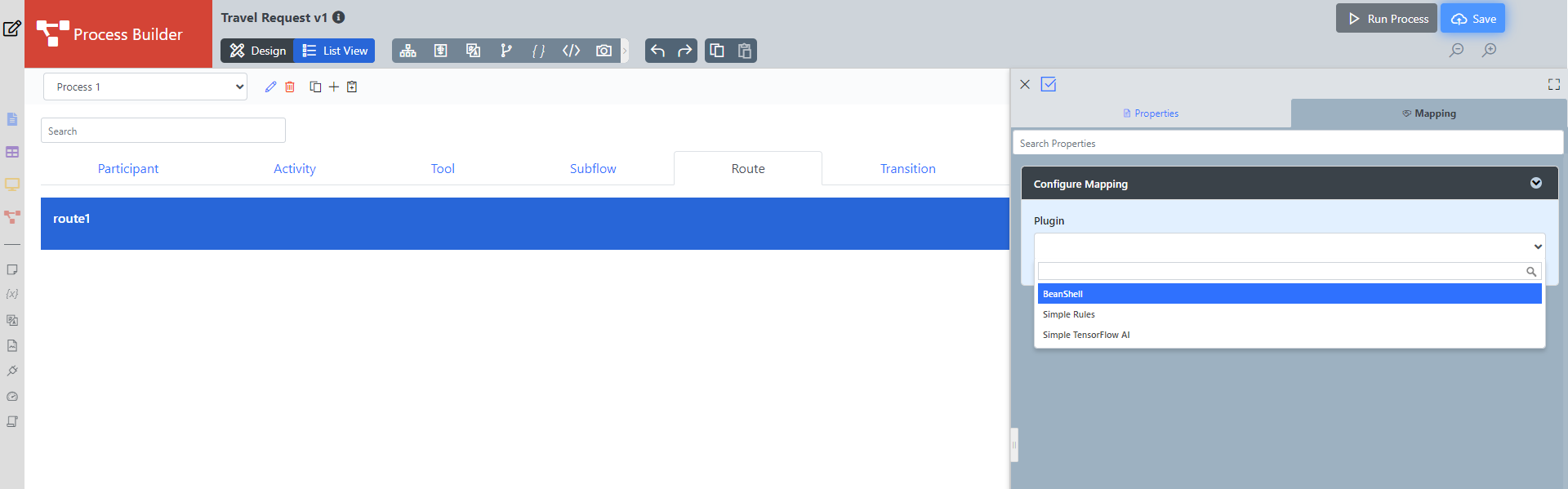
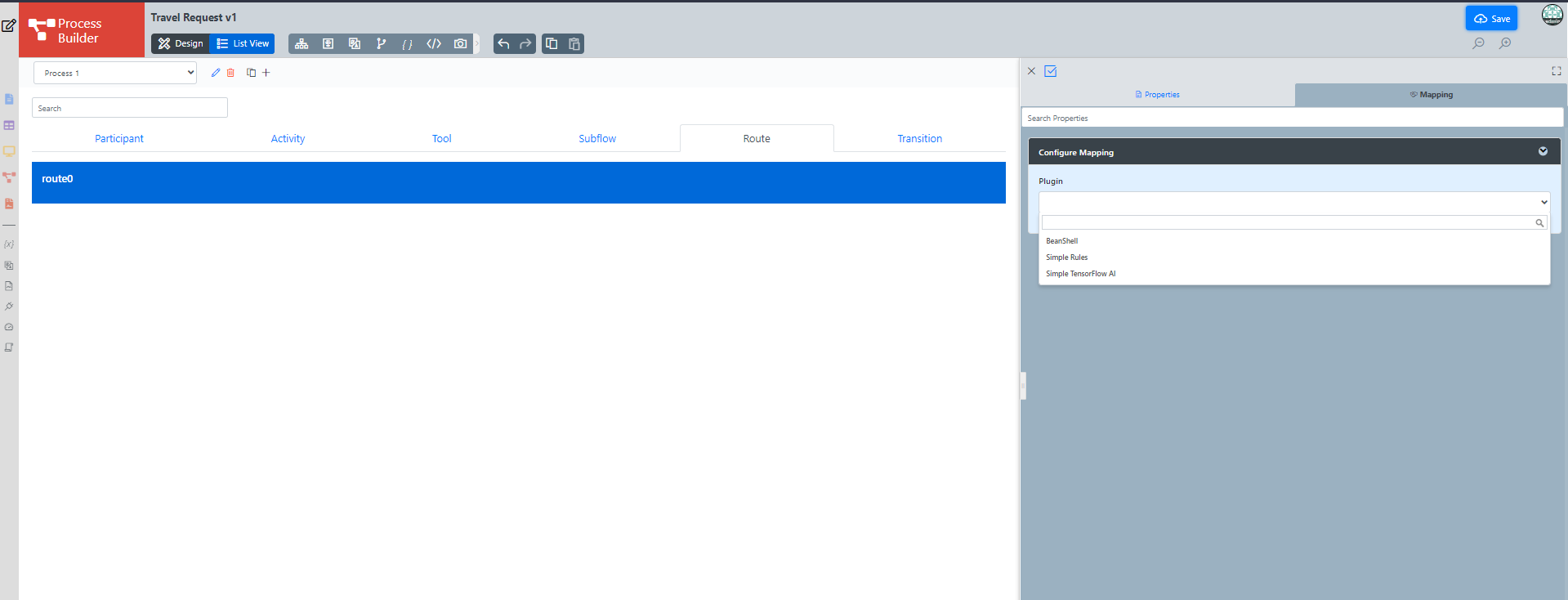
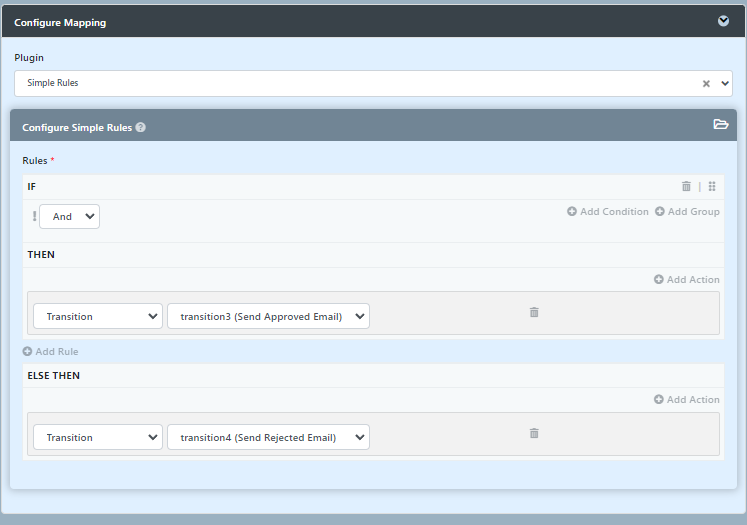
In the plugin configuration, click on Add Rule and then click Add Condition. Set the Variable field to status and set the Value field to Approved. The variable status is referring to the workflow variable.
Thai ในการกำหนดค่าปลั๊กอินให้คลิกที่ Add Rule แล้วคลิก Add Condition ตั้งค่าฟิลด์ตัวแปรเป็นสถานะและตั้งค่าฟิลด์เป็นอนุมัติ สถานะตัวแปรอ้างถึงตัวแปรเวิร์กโฟลว์
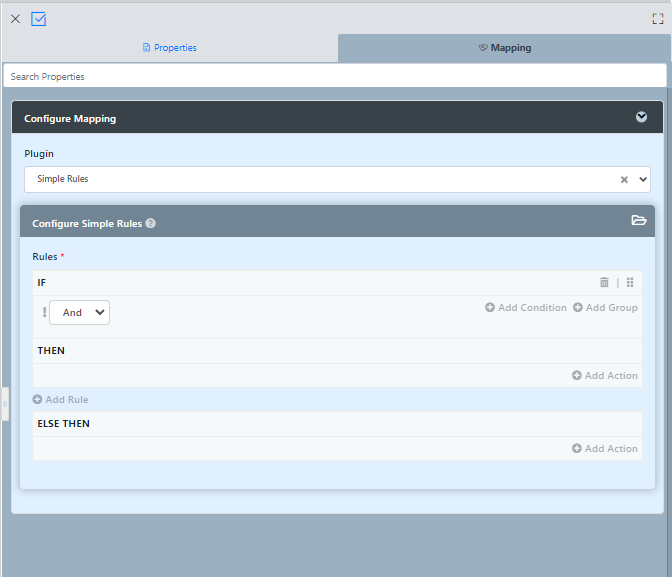
In the THEN rule, click on Add Action and set Type to Transition Transition, and set Transition to transition3 (Send Approved Email). This means that this transition will occur if the value of status is "Approved".
Thai จากนั้นคลิกที่ Add Action และตั้งค่า Type เป็น Transition และการตั้งค่า Transition ไปสู่ transition3 (ส่งอีเมลที่ได้รับอนุมัติ) ซึ่งหมายความว่าการเปลี่ยนแปลงนี้จะเกิดขึ้นหากค่าสถานะเป็น "อนุมัติ"
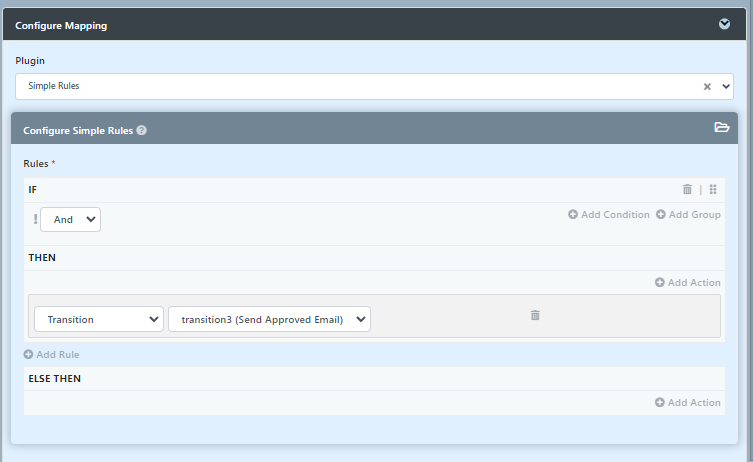
In the ELSE THEN rule, Set the Type to Transition and set Transition to transition4 (Send Rejected Email) to indicate that it is the default path to take when other conditions are not met. An example of a simple routing process is as shown below:
Thai ในกฎ ELSE THEN ให้ตั้งค่า Type เป็น Transition และตั้งค่า Transition เป็น transition4 (ส่งอีเมลที่ถูกปฏิเสธ) เพื่อระบุว่าเป็นเส้นทางเริ่มต้นที่จะใช้เมื่อไม่ตรงตามเงื่อนไขอื่น ๆ ตัวอย่างของกระบวนการผลิตอย่างง่ายดังแสดงด้านล่าง:
...
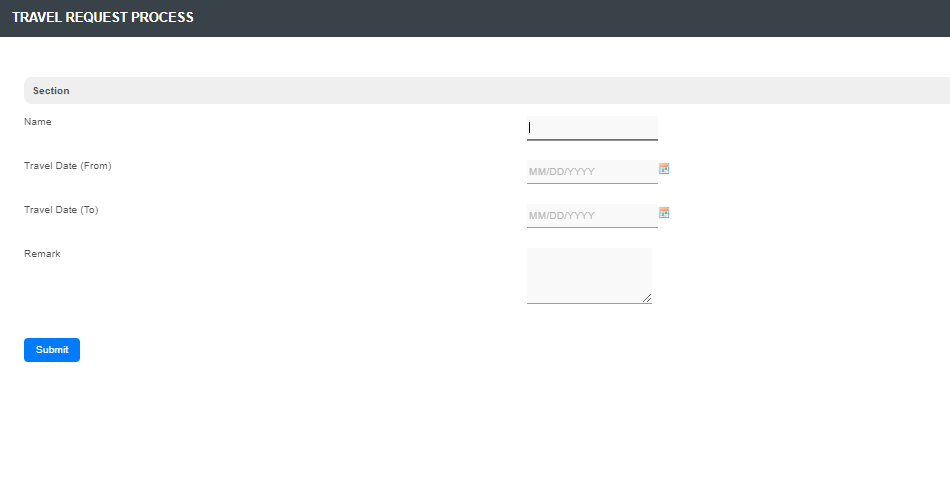
To perform a test run on a process, click on the Run Process button along button at the top of the App design process page.
Thai เพื่อทำการทดสอบการทำงานกับกระบวนการคลิกที่ปุ่ม Run Process ที่ด้านบนของหน้ากระบวนการออกแบบแอป
or from the app composer click on the button beside the process name.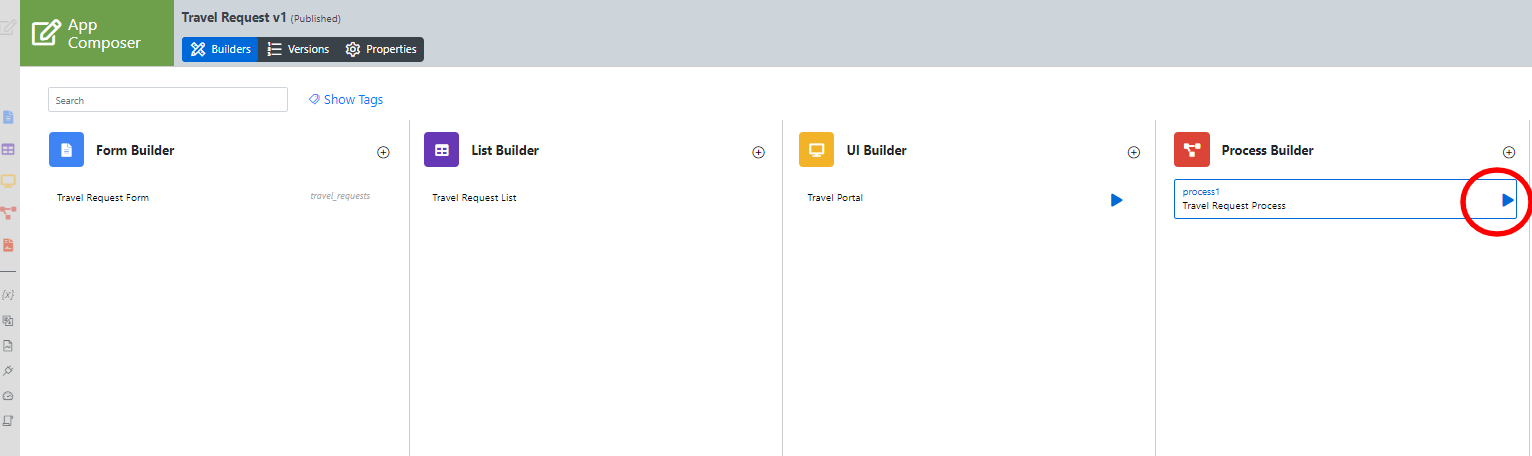
Incorporating the Process into the UI
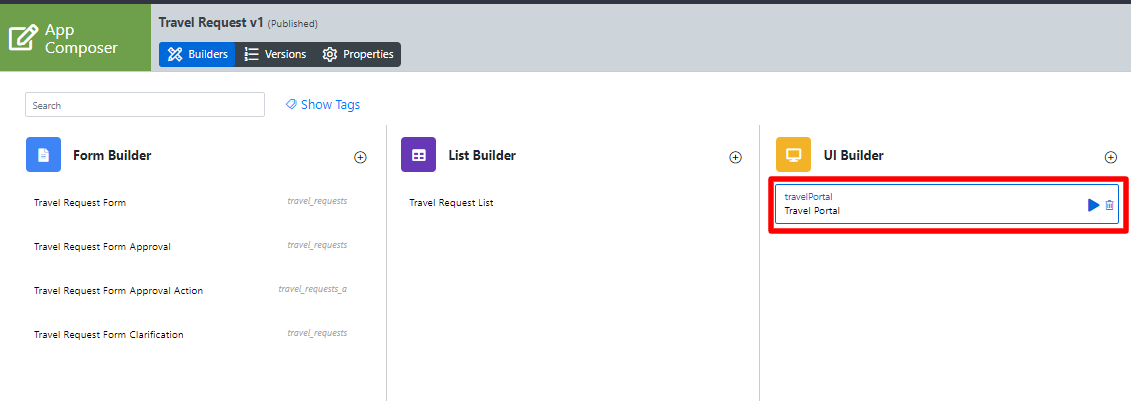
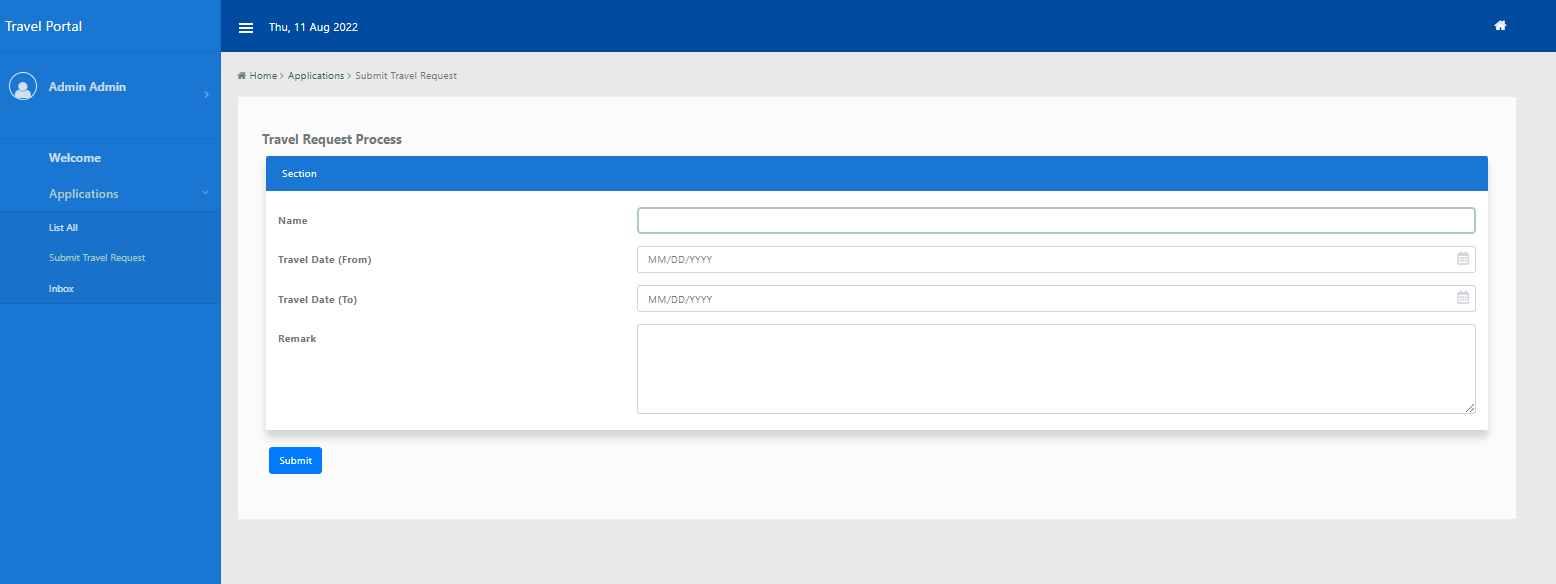
In the On the App Composer page, click on the name of an existing UI to launch the UI Builder.
Thai ในหน้า App Composer ให้คลิกที่ชื่อของ UI ที่มีอยู่เพื่อเรียกใช้ UI Builder
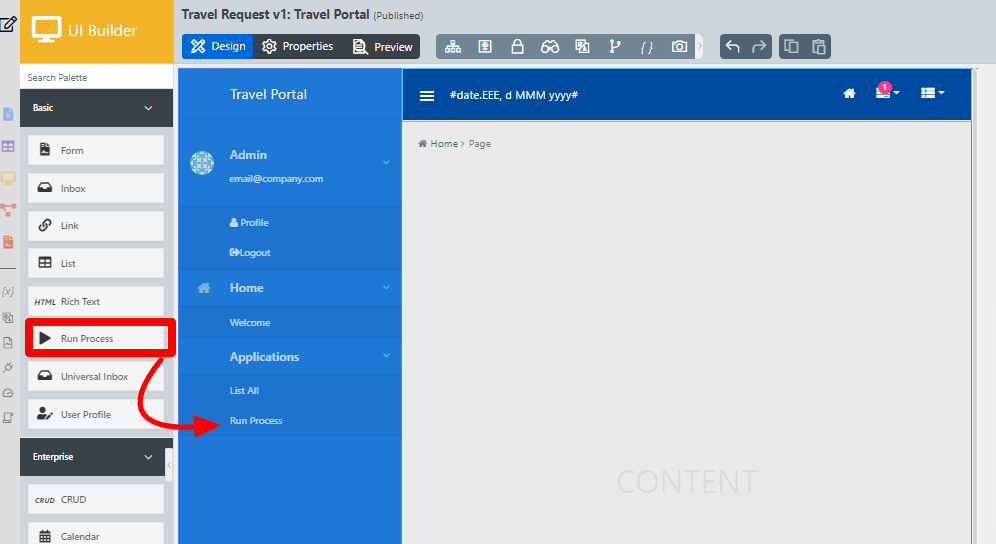
Drag a Run Process element into a menu category. This menu element allows the user to start a process from the userview.
Thai ลากองค์ประกอบ Run Process ในหมวดหมู่เมนู องค์ประกอบเมนูนี้ช่วยให้ผู้ใช้สามารถเริ่มกระบวนการจาก userview
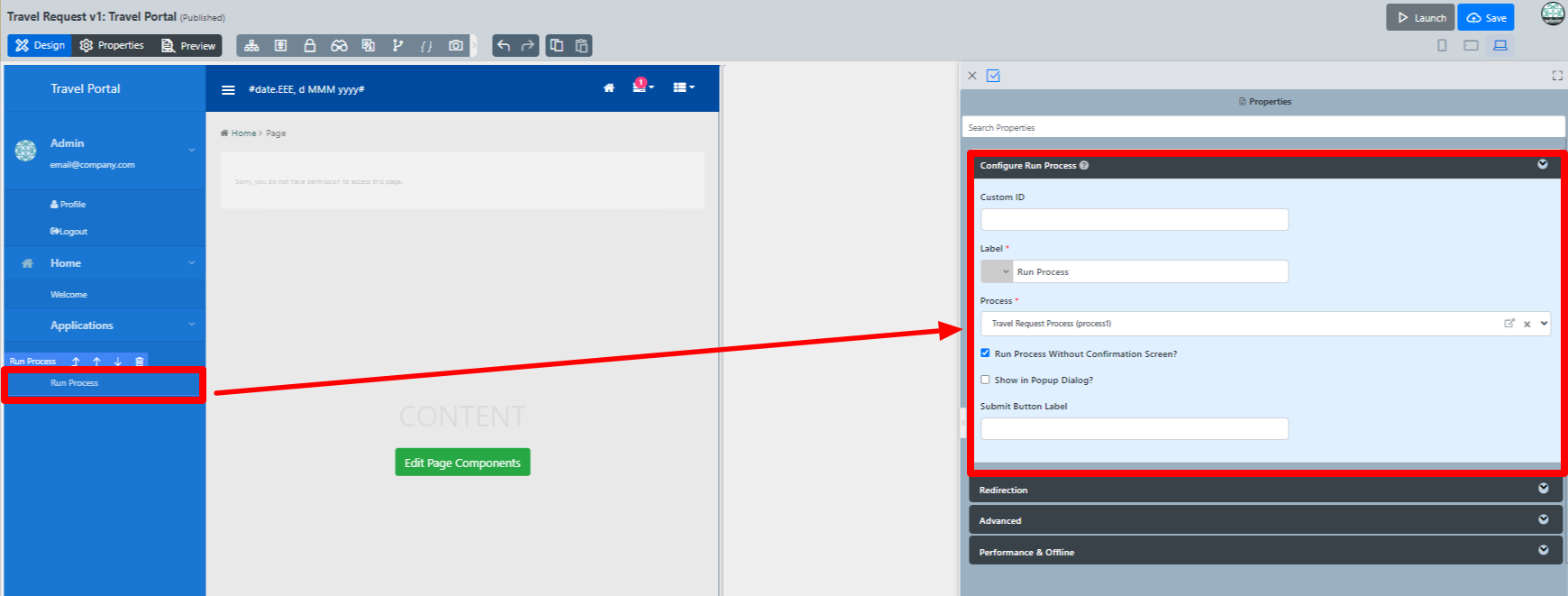
Click on Properties of the Run Process element and select the process to run.
Thai คลิกที่คุณสมบัติขององค์ประกอบเรียกใช้กระบวนการและเลือกกระบวนการที่จะเรียกใช้
Drag an Inbox element into a menu category. This menu element provides the user with an inbox to manage their assigned workflow tasks.
Thai ลากองค์ประกอบ Inbox ลงในหมวดหมู่เมนู องค์ประกอบเมนูนี้จัดเตรียมกล่องจดหมายเข้าของผู้ใช้เพื่อจัดการงานจากเวิร์กโฟลว์
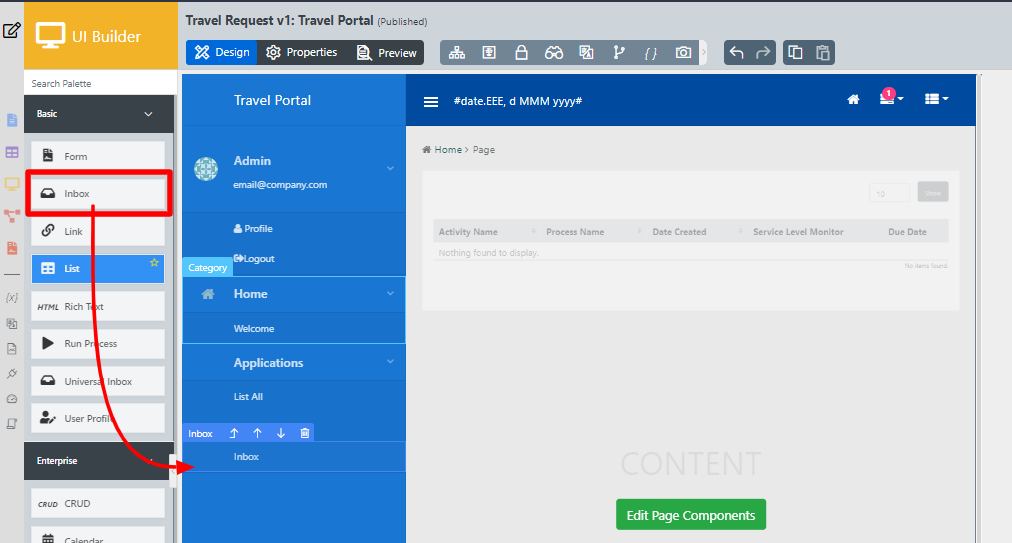
Save the UI, and you will be able to run and perform assigned tasks in the published UI.
Thai บันทึก UI และคุณจะสามารถเรียกใช้และทำงานที่ได้รับมอบหมายใน UI ที่เผยแพร่
...
- Subflows (Subprocesses)
- Start a Process from External Page
- Sending Reminder Repetitively
- Process thumbnails not showing
- Process Deadlines, Exceptions and SLAs
- Demonstration Multiple Approval App For Joget DX
- Multiple Approval v2 (Thread safe)
- Duplicate Process
- Advanced Participant Mapping
...