| Info | ||||
|---|---|---|---|---|
| ||||
|
| Widget Connector | ||||
|---|---|---|---|---|
|
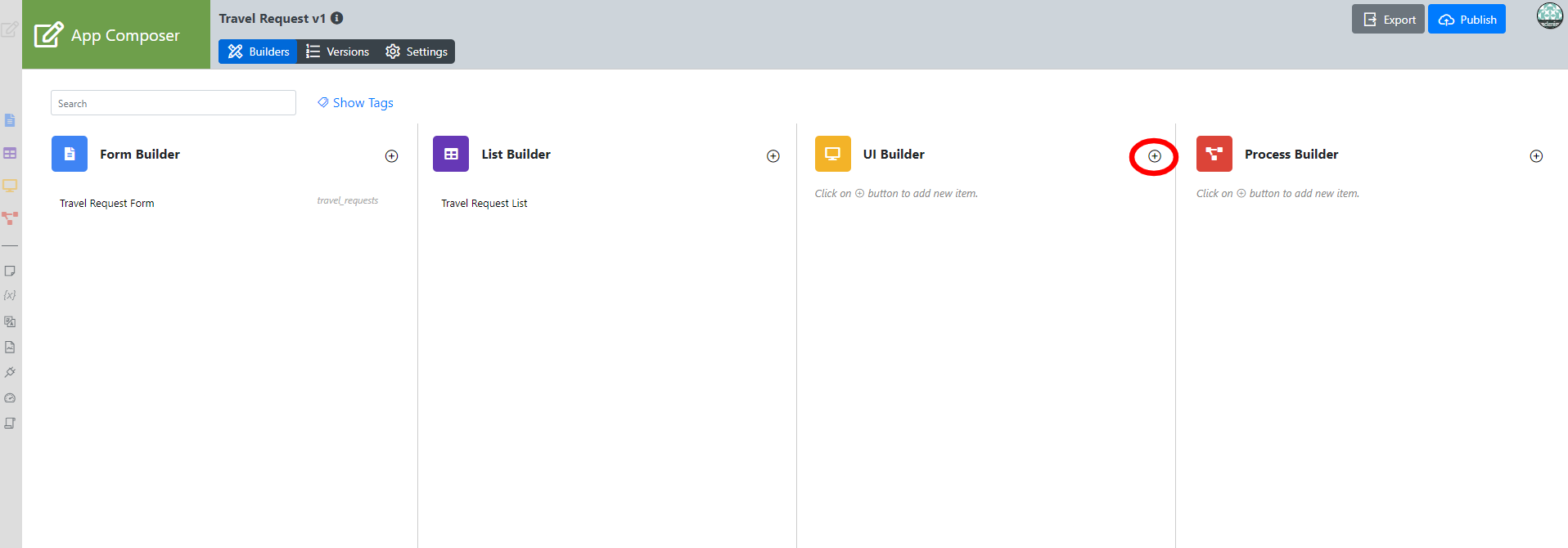
In the Design App page, click on the Create New UI button along the top.
Thai ในหน้า Design App คลิกที่ปุ่ม Create New UI ที่ด้านบน
Key in the details of the new UI and click on the Save button.
Thai ป้อนรายละเอียดของ UI ใหม่แล้วคลิกปุ่ม Save
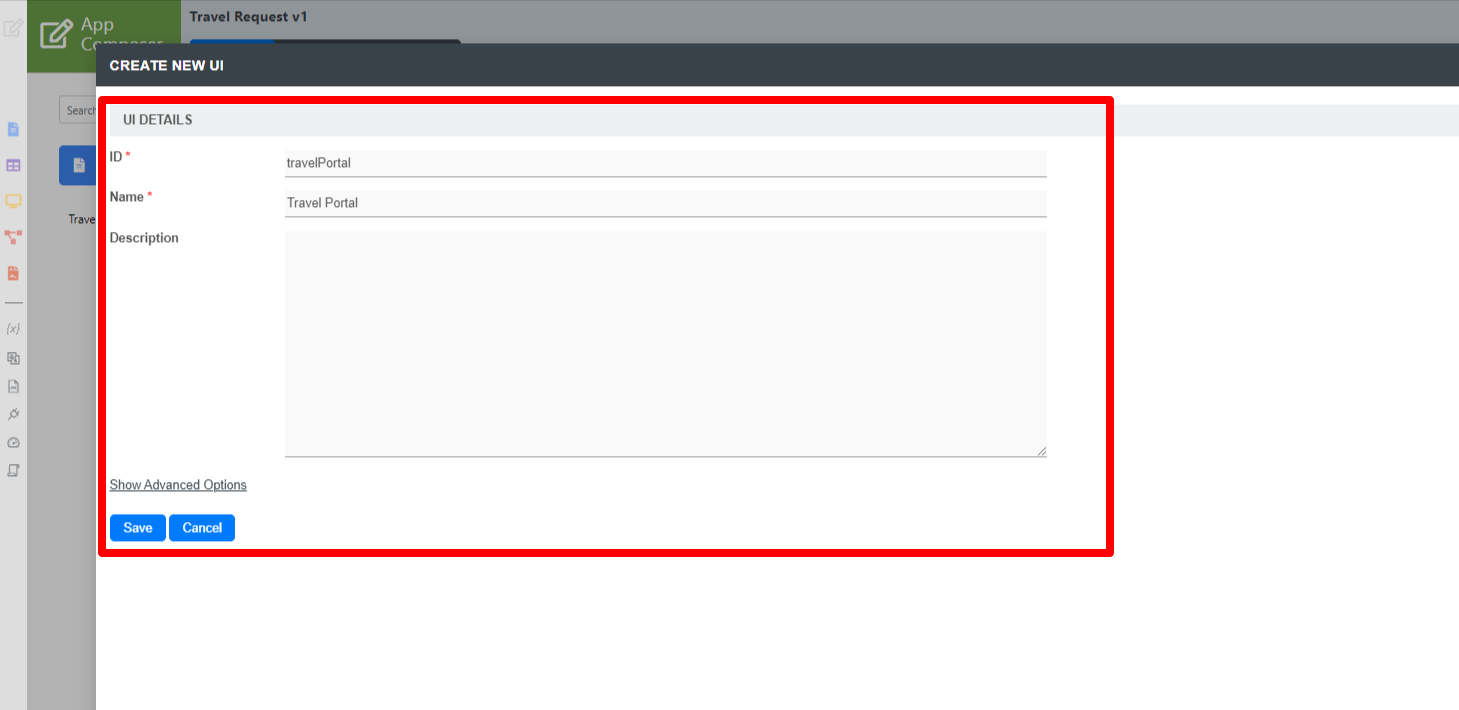
Name Description ID Unique ID to represent this entity.
Thai ID ที่ไม่ซ้ำเพื่อแสดงถึงเอกลักษณ์
Info title Naming convention A standard naming convention is highly recommended to be used across the development of your App to maintain consistency and ease maintenance works.
Camel case naming convention is recommended for this field.
Example: travelPortal
Thai ขอแนะนำให้ใช้แบบแผนการตั้งชื่อมาตรฐานในการพัฒนาแอพของคุณเพื่อรักษาความสม่ำเสมอและความสะดวกในการบำรุงรักษา แนะนำให้ใช้หลักการตั้งชื่อเคสสำหรับฟิลด์นี้ ตัวอย่าง: travelPortal
Info title Important Note The ID declared here would be part of the eventual URL seen by the end users. Try to choose something short and meaningful.
Thai ID ที่ประกาศที่นี่จะเป็นส่วนหนึ่งของ URL สุดท้ายที่ผู้ใช้ปลายทางเห็น พยายามเลือกสิ่งที่สั้นและมีความหมาย
Name Name to represent this entity.
Thai ชื่อที่ใช้แทนเอกลักษณ์Info title Example Travel Portal
Info title Important Note The name declared here would be the UI name seen by the end users. Try to choose something short and meaningful.
Thai ชื่อที่ประกาศที่นี่จะเป็นชื่อผู้ใช้ UI ที่ผู้ใช้ปลายทางเห็น พยายามเลือกสิ่งที่สั้นและมีความหมาย
Description Entity description. (OPTIONAL)
Thai คำอธิบาย (ไม่จำเป็น)Duplicate UI from With the above information filled up, one can choose to clone the design from existing UI entity.
Thai เราสามารถเลือกโคลนการตั้งค่าข้อมูลที่สมบูรณ์จาก UI เดิมที่มีอยู่
Click on Save to save the UI and launch the UI Builder in a new window. If your browser blocks the popup, click on the form name to launch it.
Thai คลิกที่ Save เพื่อบันทึก UI และเปิดใช้งาน UI Builder ในหน้าต่างใหม่ หากเบราว์เซอร์ของคุณบล็อกป๊อปอัปให้คลิกที่ชื่อฟอร์มเพื่อเปิดใช้งาน
The first step in the UI Builder is the Design UI page. On the left is the palette containing available menu elements. In the middle is the canvas containing the UI header, footer and one or more menu categories.
Thai ขั้นตอนแรกใน Design UI คือหน้าออกแบบ UI ด้านซ้ายเป็นจานสีที่มีองค์ประกอบเมนูที่มีอยู่ ตรงกลางคือผืนผ้าใบที่มีส่วนหัว UI ส่วนท้ายและอีกหนึ่งหมวดหมู่เมนู
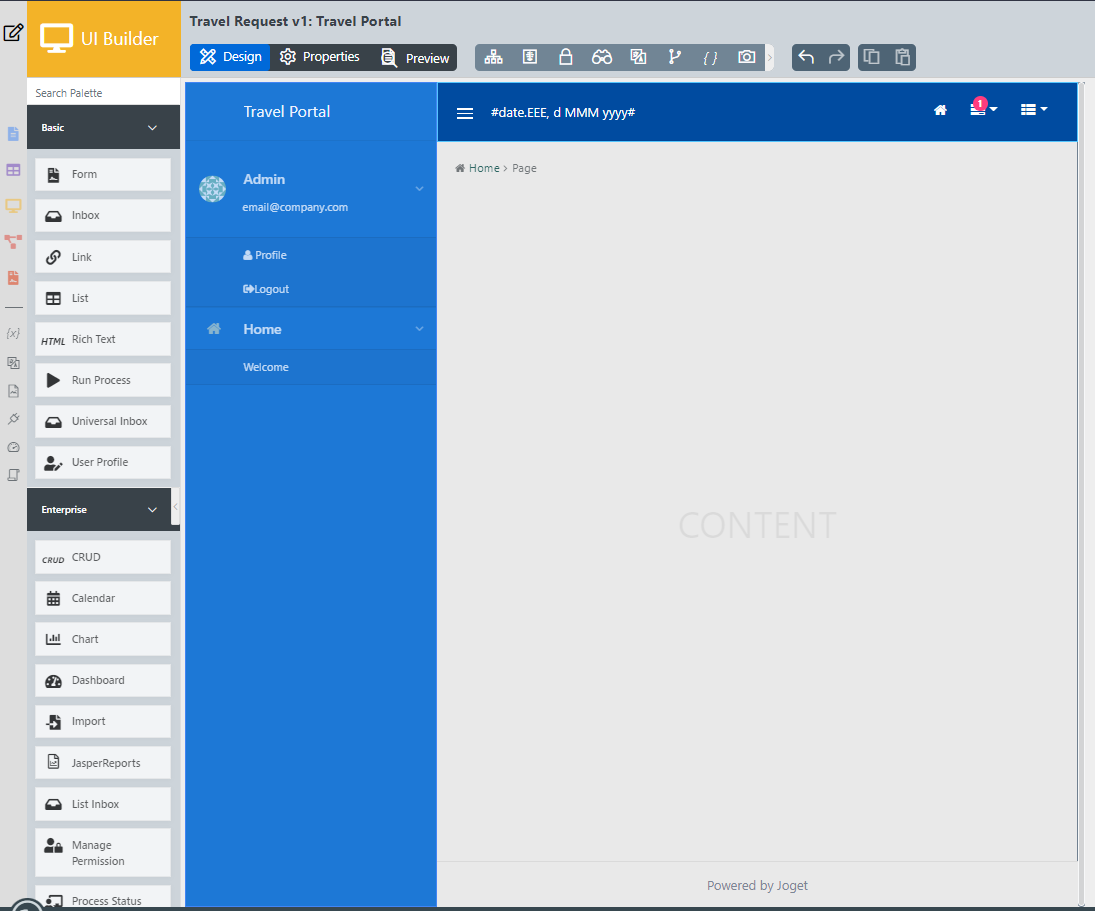
When you hover over the canvas Menu, a button will appear giving you the option to Add Category.
Thai เมื่อคุณลากเมาส์เหนือเมนู ปุ่มจะปรากฏขึ้นเพื่อให้คุณมีตัวเลือกในการ Add Category
You can click any category name to edit it, and drag categories up and down.
Thai คุณสามารถคลิกชื่อหมวดหมู่เพื่อแก้ไขและลากหมวดหมู่ขึ้นและลง Drag menu elements from the palette into any category.
Thai ลากองค์ประกอบเมนูจากจานสีลงในหมวดหมู่ใดก็ได้
Click on any category or menu element to see the available options, and to open the properties on the right side.
Thai เลื่อนเมาส์ไปที่หมวดหมู่หรือองค์ประกอบเมนูเพื่อดูตัวเลือกที่มี 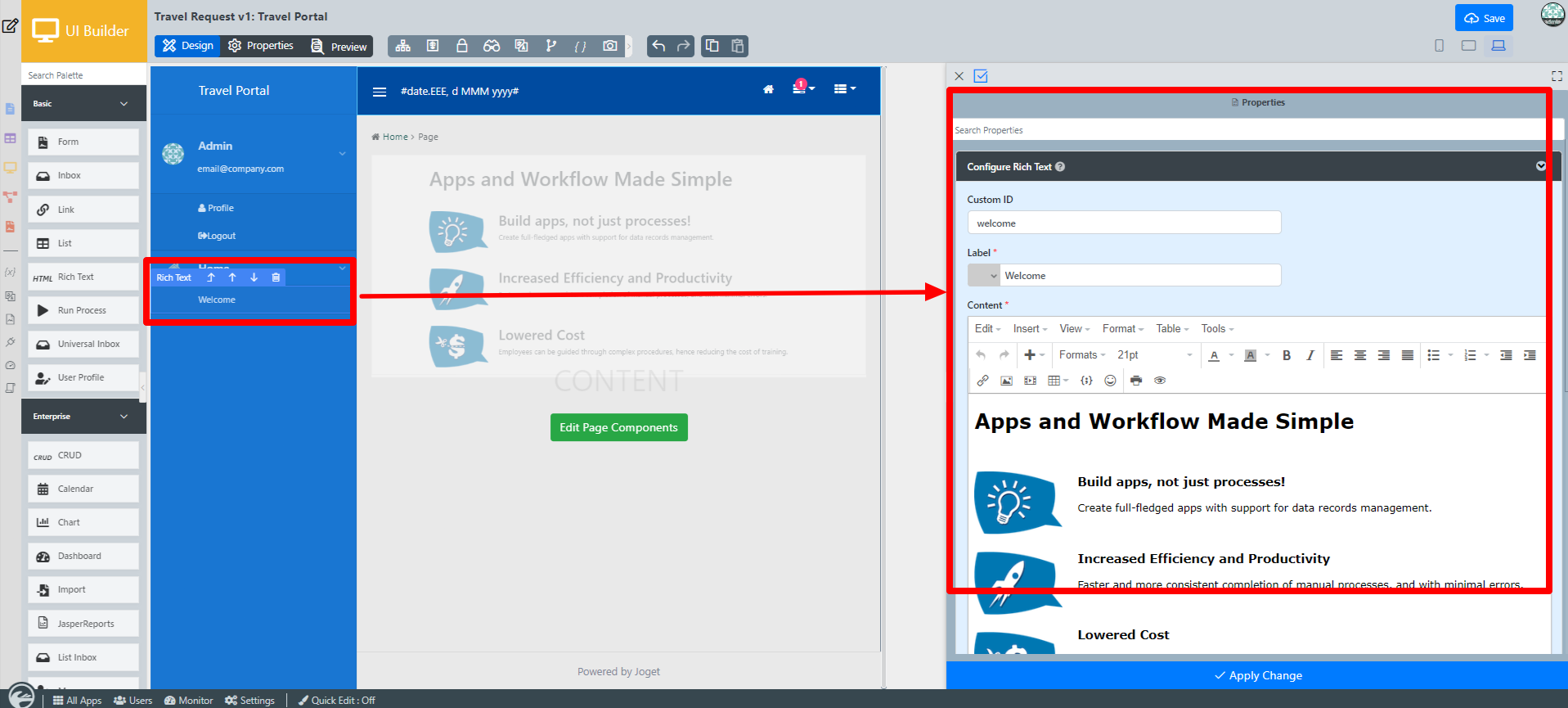
At any time, you may preview the UI by clicking on the large Preview button at the top.
Thai คุณสามารถดูตัวอย่าง UI ได้ตลอดเวลาโดยคลิกที่ปุ่ม Preview ขนาดใหญ่ที่ด้านบน
Once you have finished designing the UI , click on the large Save button at the top and you will receive confirmation that the UI is saved. You may then continue to design the UI , or close the UI Builder window.
Thai เมื่อคุณออกแบบ UI เสร็จแล้วให้คลิกที่ปุ่ม Save ขนาดใหญ่ที่ด้านบนและคุณจะได้รับการยืนยันว่า UI นั้นถูกบันทึกไว้ จากนั้นคุณสามารถออกแบบ UI ต่อไปหรือปิดหน้าต่างตัวสร้าง UI
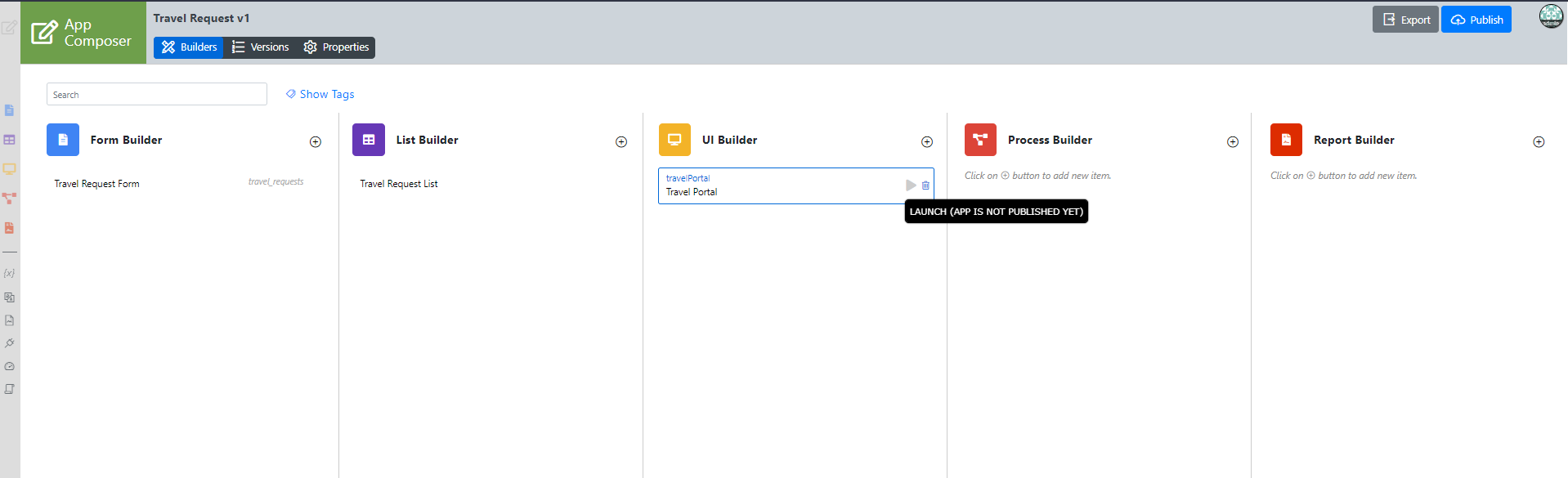
Before an UI can be accessed by a normal user, the app needs to be published. To do that, click on the Publish button on the top right of the app composer page the click okay.
Thai ก่อนที่ผู้ใช้ทั่วไปจะสามารถเข้าถึง UI แอปจะต้องมีการเผยแพร่ หากต้องการทำเช่นนั้นให้คลิกที่ลิงก์ Not Published หรือ Versions ทางด้านซ้ายในหน้าออกแบบแอพ
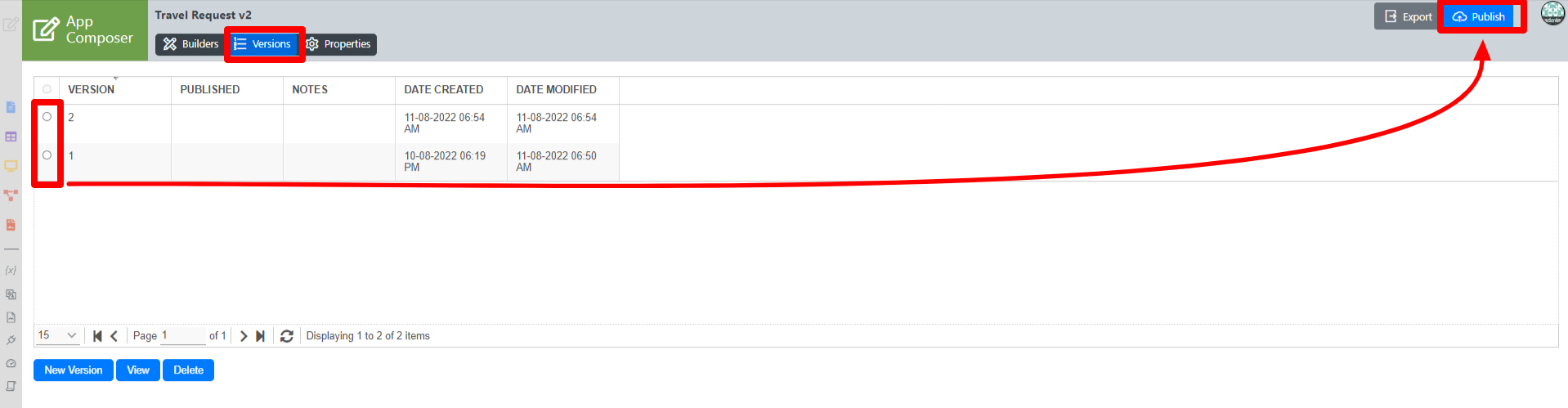
Another method to publish the application or a version of the application is by going to Versions on the top left then select any version then click on the Publish button on the top right.
Thai ป๊อปอัปแสดงแอปทุกเวอร์ชัน เลือกปุ่มตัวเลือกถัดจากรุ่นล่าสุดและคลิกที่ปุ่มเผยแพร่ เมื่อมีการเผยแพร่แอพพลิเคชั่น UIs จะพร้อมใช้งานใน App Center
...