| Table of Contents |
|---|
Introduction
This article discusses a way to display different login pages by passing parameters set on the URL. The requirement that will be used as an example is to have two different URLs of the same login page to display for admin users and non-admin users. This article will be using a CRM app as an example.
How To
Setting parameters on the URL

Figure 1: Login page URL with the parameters set for admin view.

Figure 2: Login page URL with the parameters set for non-admin view.
...
- page=login
- user=admin or user=non
The logic to display different login pages based on parameters
To have different results based on the parameters, write a JavaScript code into the UI Builder > Settings > Configure Layout > Advanced, scroll down until the Custom JavaScript section.
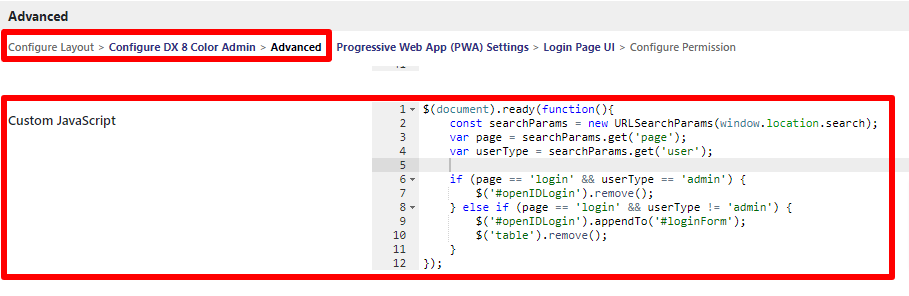
Figure 3: Custom JavaScript section on UI Builder Advanced Settings.
...
This script takes in the parameters - if it is is a login page and and the user type type is "admin", then then remove the openID login button. Else if the type is is not "admin", then then move the openID login button button and remove remove the login form.
A Custom CSS is also written for the cloud login button to keeps its styling after moving the element:
| Code Block | ||
|---|---|---|
| ||
#openIDLogin {
    background: blue;
    padding: 10px 20px;
    border-radius: 3px;
    text-align: left;
    display: block;
    width: fit-content;
    color: white;
    margin: auto;
}
#icon {
padding-right: 20px;
} |
Results
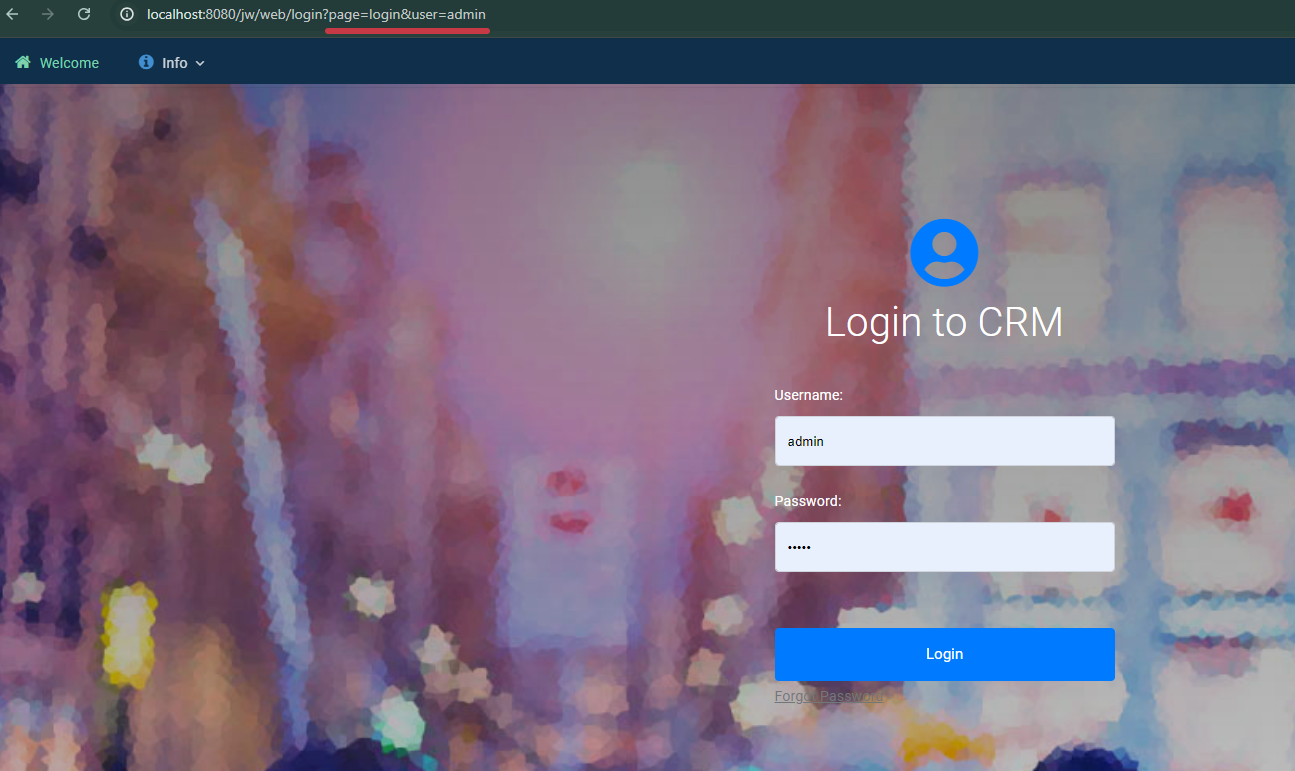
Figure 4: Admin login page, with username and password fields displayed.
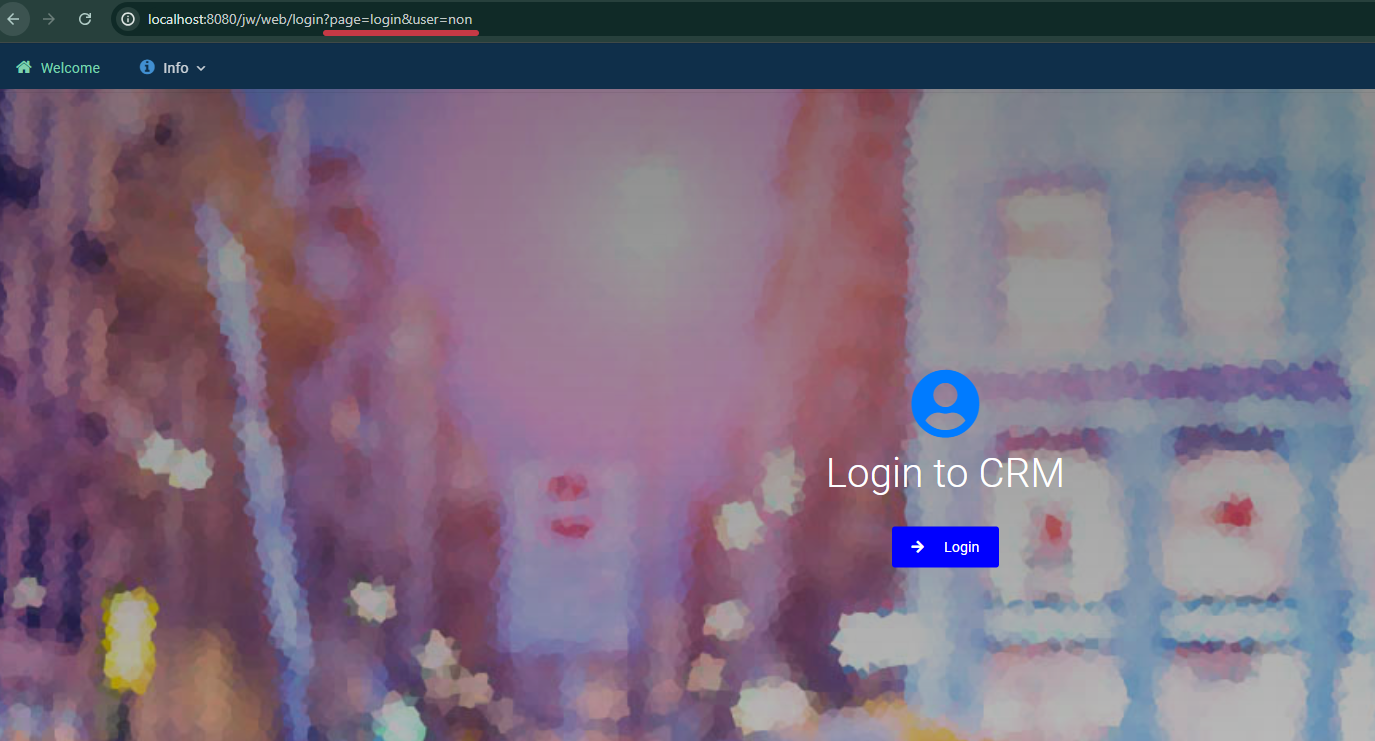
Figure 5: Non-admin login page, with only the cloud login button displayed.
...