Introduction
The Signature is a special element with canvas to collect the user's input by scribbling/sketching on it
Get Started
The easiest way to see how the Signature works are to create a new app. Here are the steps:
- Start the Joget Server and open the App Center.
- Log in as admin and click on the pencil icon on the Expenses Claim to open the App Composer (see Figure 1).
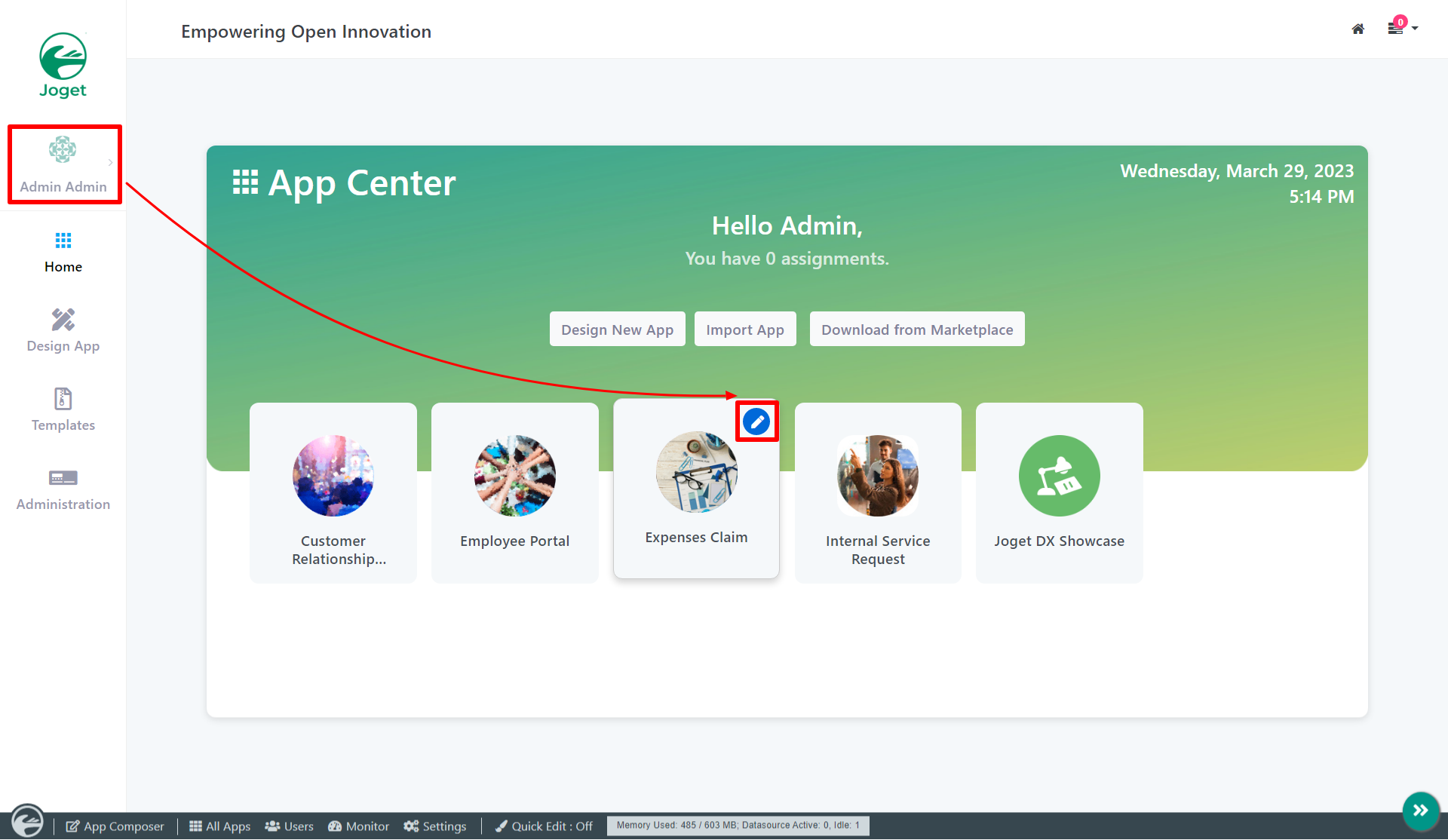
Figure 1 - Click on the Create New Form button and fill up the Form Details as follows (see Figure 2):
- Form ID: signature
- Form Name: Signature
- Table Name: j_expense_claim
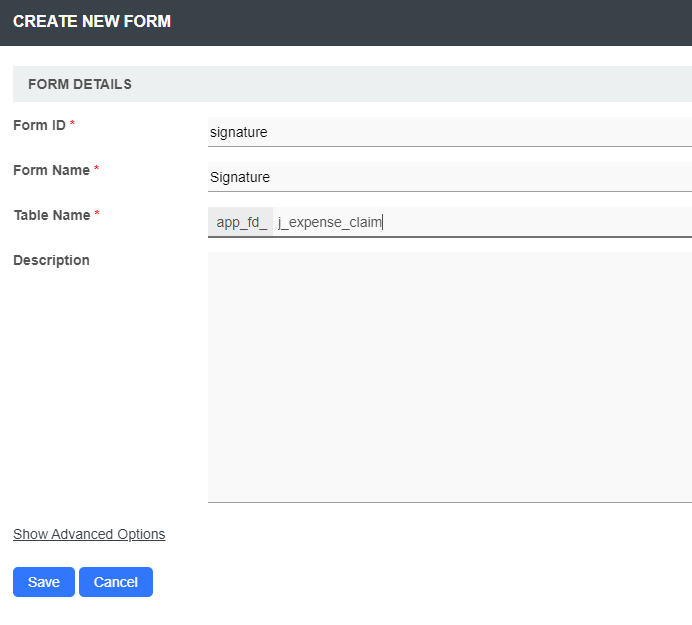
Figure 2 - Drag and drop a Signature element onto the canvas.
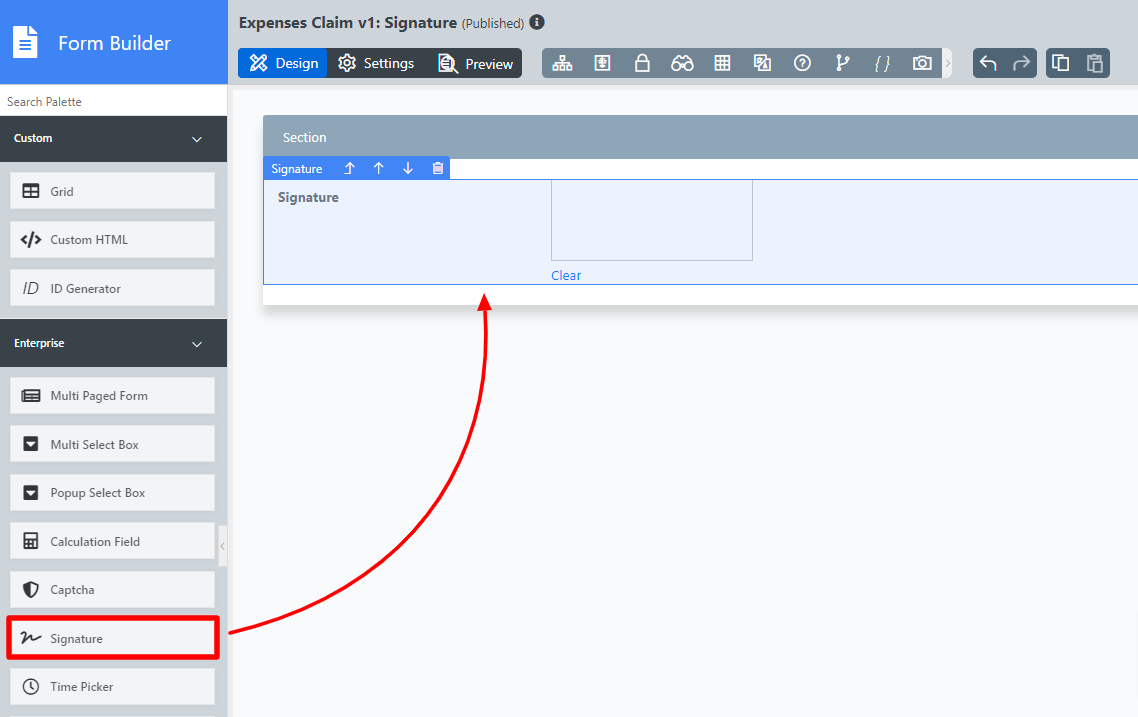
Figure 3 - Click on Preview, and try drawing in the Signature field.
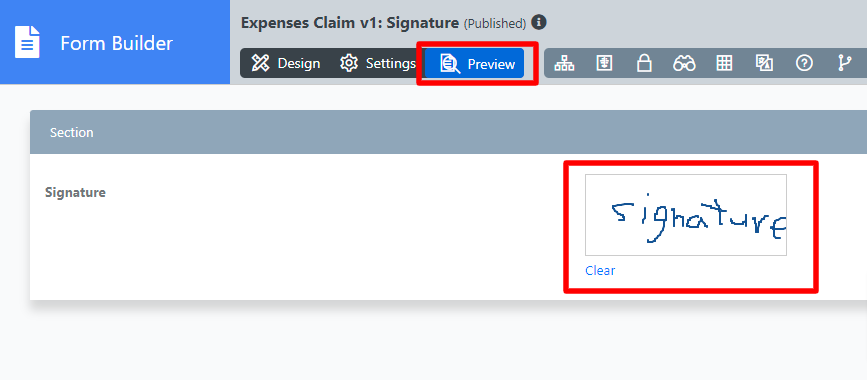
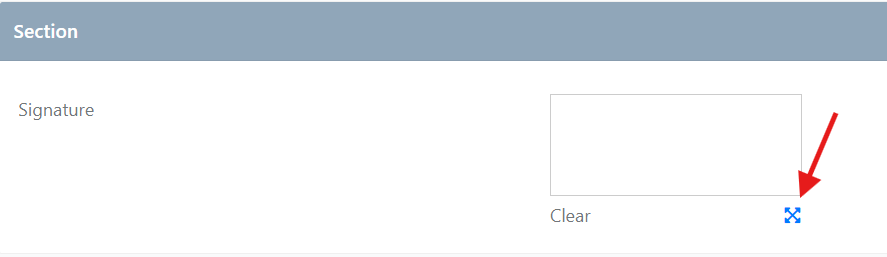
Figure 4 - New Feature
This is a new feature for Joget DX version 8.1 onwards.
- Support switch to full screen mode for signing
- Clickable button to toggle to full screen mode and click the same button to return to the original size.
Signature Properties
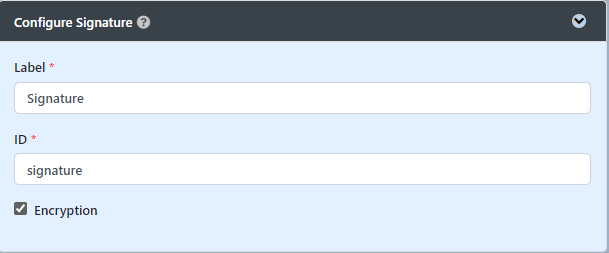
Configure Signature
| Name | Description |
|---|---|
| Label | Element Label to be displayed to the end-user. |
| ID | Element ID (By declaring as "signature", a corresponding database table column "c_signature" will be created) Please see Form Element for more information about defining the ID and list of reserved IDs. |
| Encryption | Determines if the value should be encrypted upon saving into the database. |
Advanced Options
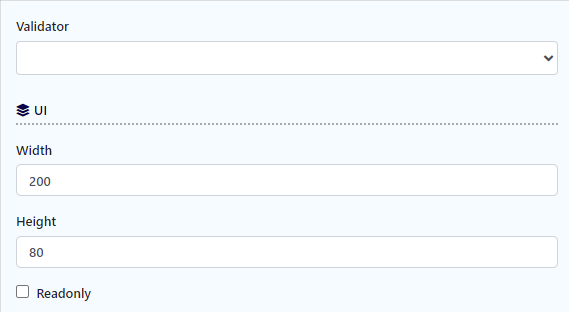
UI
| Name | Description |
|---|---|
| Validator | Attach a Validator plugin to validate the input value. Please see Form Validator. When will validation takes place? Validation will take place whenever a form is submitted except when it is submitted as "Save as Draft". Available Options:
|
| Width | Width of the element in character. Example 300px |
| Height | Height of the element in character. Example 300px |
| Readonly | Determines if the element is editable. |