Introduction
- Users cannot edit their profile.
- Admin cannot use @"Admin Bar > Users > Setup User"@ to edit user information.
- Only records with password equal NULL will sync to your LDAP directory.
If the user wants to change his password, recommended is to change it in LDAP/AD.
- If there's a new user in LDAP, it will be created in Joget user database. If a user from LDAP does not exist anymore in LDAP but exists in Joget, then the user will get disabled/inactive in Joget, and it will never be deleted.
- If LDAP user is deleted from AD, it will not delete the record in dir_user
- Upon sync, related local user record will be set to inactive
- If local user record is deleted instead but still exist in AD, it will just be re-imported again upon next sync
Sync LDAP Properties
Configuring Sync LDAP
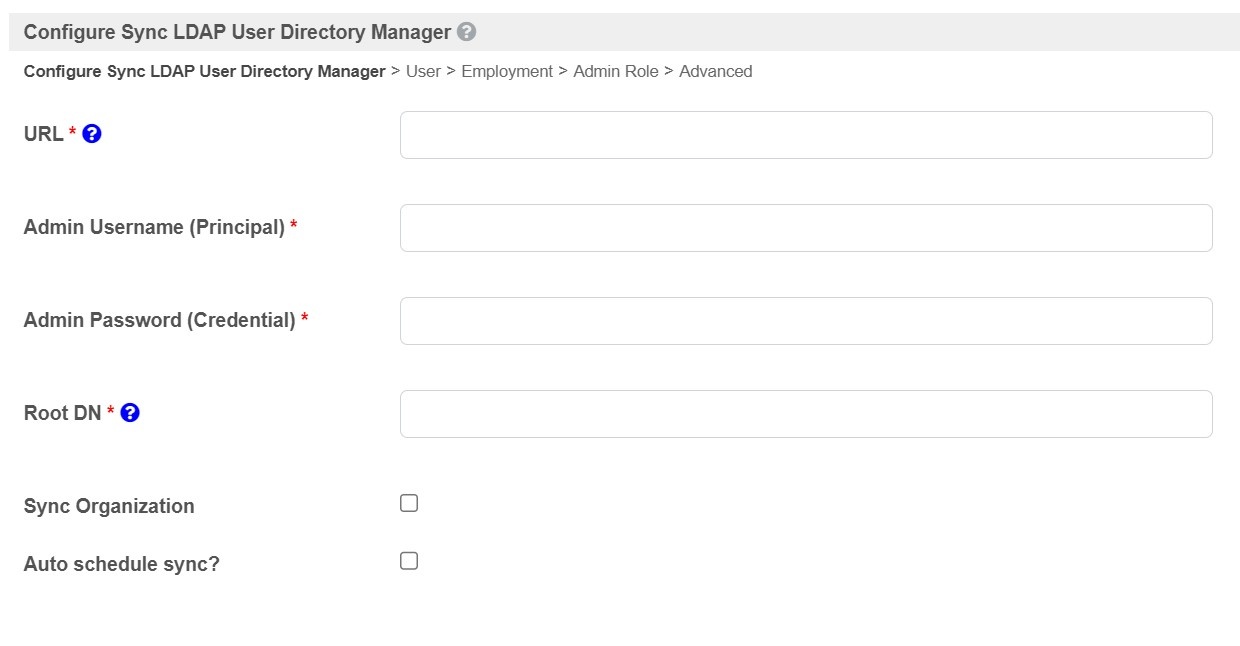
Figure 1: Configure Sync LDAP
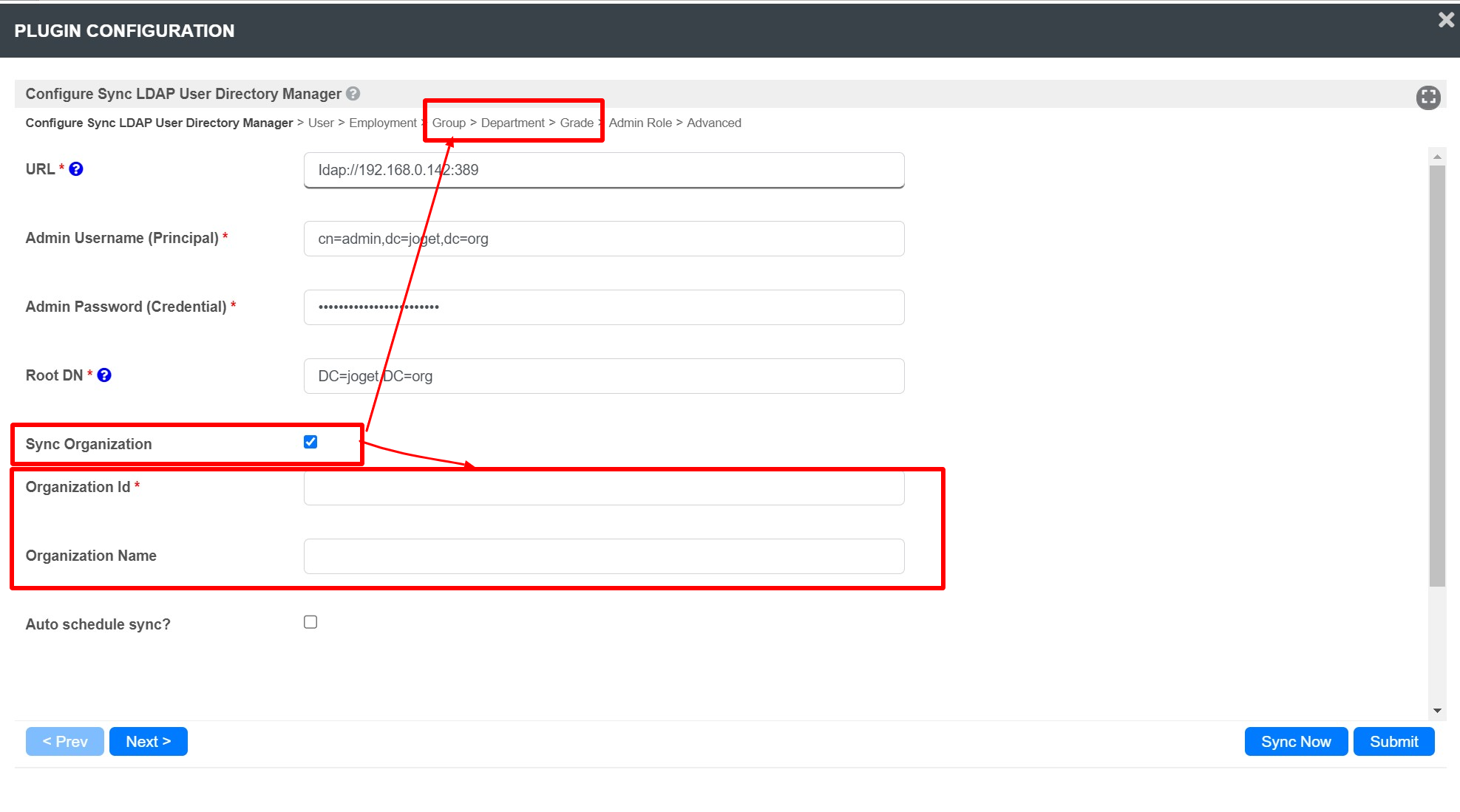
Figure 2: Sync Organization Enabled
| Name | Description / Sample Value | ||||||
|---|---|---|---|---|---|---|---|
| URL | |||||||
Admin Username (Principal) | cn=admin,dc=joget,dc=org | ||||||
Admin Password (Credential) | Input the admin password for your LDAP/AD. | ||||||
| Root DN | Set the root DB, for example "eg. DC=Joget,DC=org". | ||||||
| Sync Organization | Perform synchronization not just to user objects, but to the whole organizational structure including Group, Department, Grade as well. By enabling this feature, you will need to configure the following as well.
Please refer to documentation for setting up Group, Department, and Grade in LDAP Directory Manager. User Management If there's a new user in LDAP, it will be created in Joget user database. If a user from LDAP does not exist anymore in LDAP but exists in Joget, then the user will get disabled in Joget, and it will never be deleted. | ||||||
| Auto schedule sync? | Clicking this checkbox to automatically sync your LDAP on a schedule, will display additional options as follows:
|
User
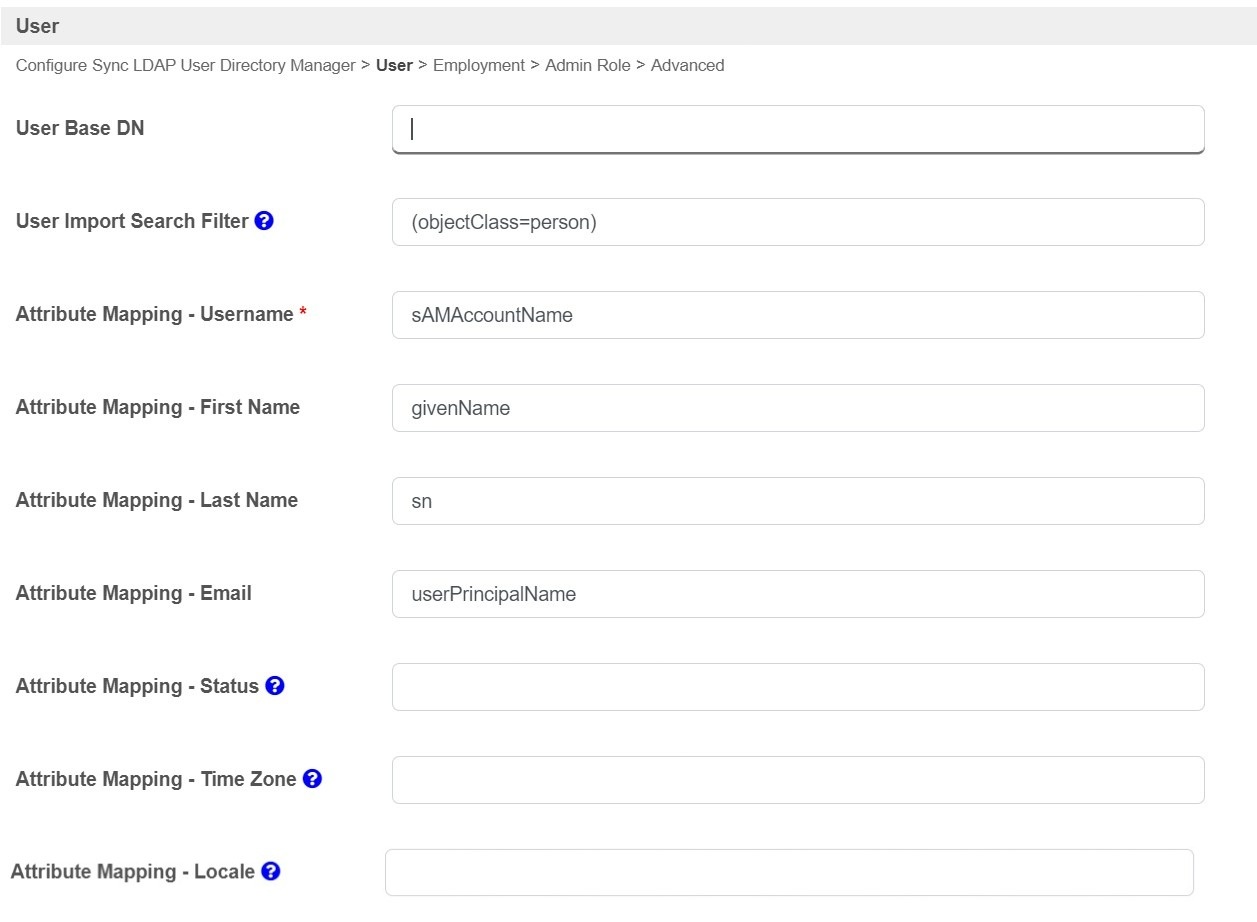
Figure 2: User Properties
| Name | Description / Sample Value |
|---|---|
| User Base DN | Set the user base DN property. Tips If you set the "User Base DN" to your LDAP Root DN, it means that the search will start from the Root DN until it finds all the results that matched the search filter. So, setting the "User Base DN" precisely is very important as it will decide where the search is starting from. It will save all the unnecessary search between the Root DN to your "User Base DN". Root DN DC=joget,DC=org Under the Root DN, you have the following DN: DC=HR,DC=joget,DC=org DC=Product Department,DC=joget,DC=org DC=Operation,DC=joget,DC=org DC=Users,DC=joget,DC=org If your users are all under "DC=Users, DC=joget,DC=org", you should set this to "User Base DN". |
| User Import Search Filter | (objectClass=person) Tips Value (&(objectClass=person)(|(cn=admin)(cn=cat)(cn=jack)(cn=john)(cn=jackie))) This mean all the LDAP entries which have "objectClass" attribute equals to "person" and "cn" attribute equals to either "admin", "cat", "jack", "john" or "jackie" are Joget users. So, when a login is performed by "admin", the search filter will add additional filter and become "(&(&(objectClass=person)(|(cn=admin)(cn=cat)(cn=jack)(cn=john)(cn=jackie)))(cn=admin))". You will notice an extra (cn=admin) is added to the search filter to make sure it return only the "admin" user. User License User license determines on how many eventual users (sorted alphabetically) from your LDAP/AD can log in into the system. You can make use of this attribute to control amount of users returned from your LDAP. For the trial license, there is a 3-user limitation: if you would like to perform tests on several test users, you will need to remove all the other users until your test user can be in the top 3 spots in the user list. More details at LDAP Directory Manager#ConfiguringTheUserImportSearchFilter. |
Attribute Mapping - Username | cn |
Attribute Mapping - First Name | givenName |
Attribute Mapping - Last Name | sn |
Attribute Mapping - Email | |
Attribute Mapping - Status | status |
Attribute Mapping - Time Zone | 8 |
Attribute Mapping - Locale | en_US |
Employment
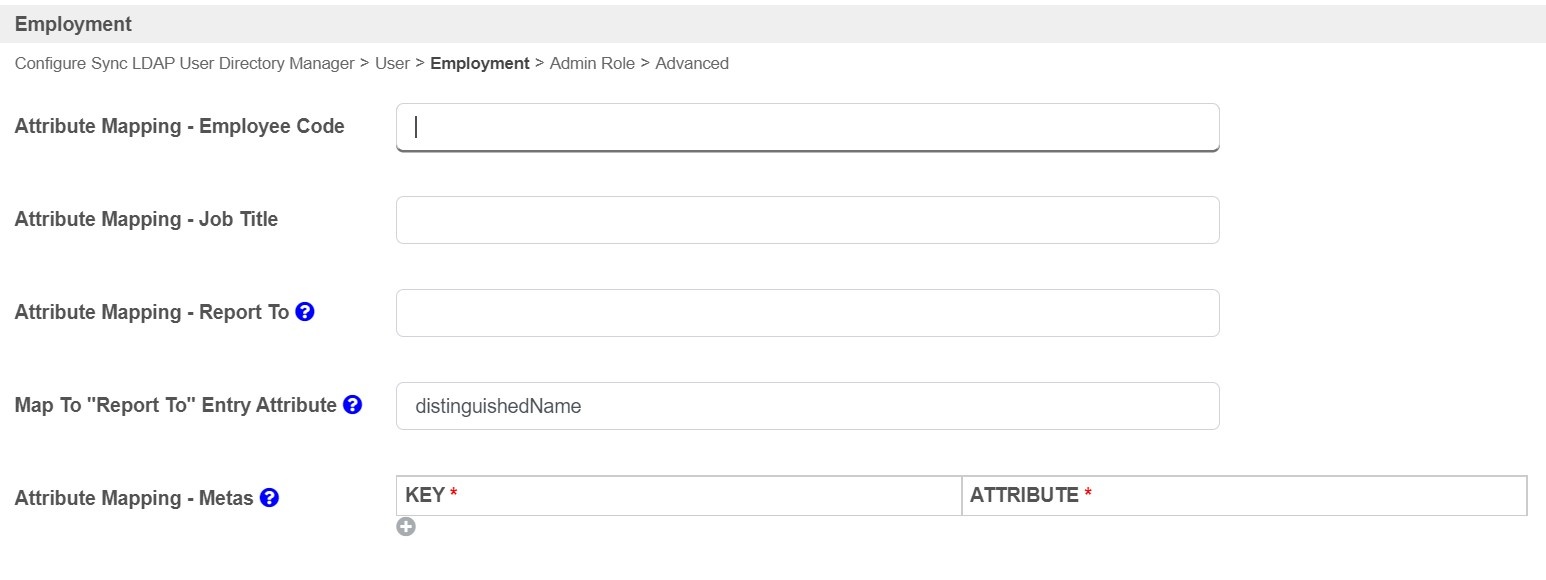
Figure 3: Employment Properties
| Name | Description / Sample Value |
|---|---|
| Attribute Mapping - Employee Code | employeeCode |
| Attribute Mapping - Job Title | jobTitle |
| Attribute Mapping - Report To | Use this if an LDAP user that a user reports to is kept in LDAP user entry. eg. manager |
| Map To "Report To" Entry Attribute | Used together with "Attribute Mapping - Report To". eg. distinguishedName |
| Attribute Mapping - Metas | Additional attributes to retrieve using #user.USERNAME.meta.KEY# or #currentUser.meta.KEY# |
Admin Role
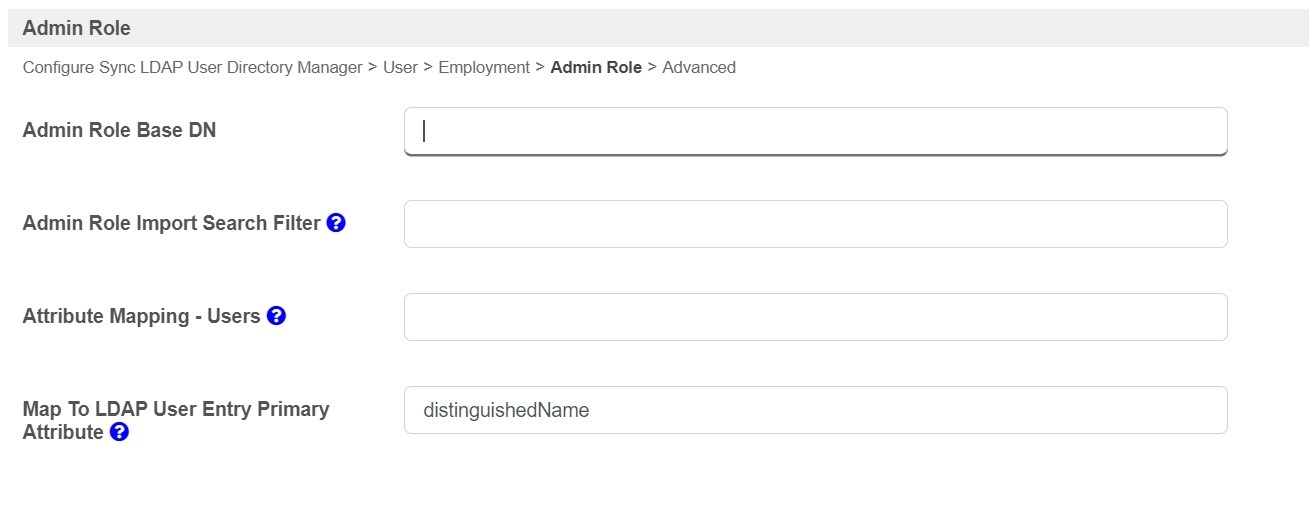
Figure 4: Admin Role Properties
| Name | Description / Sample Value |
|---|---|
| Admin Role Base DN | Set the Admin Role Base DN |
| Admin Role Import Search Filter | eg. (objectClass=group) |
| Attribute Mapping - Users | Use this if the admin role of user(s) is kept in LDAP entry. eg. member |
| Map To LDAP User Entry Primary Attribute | Map To LDAP User Entry Primary Attribute |
Advance
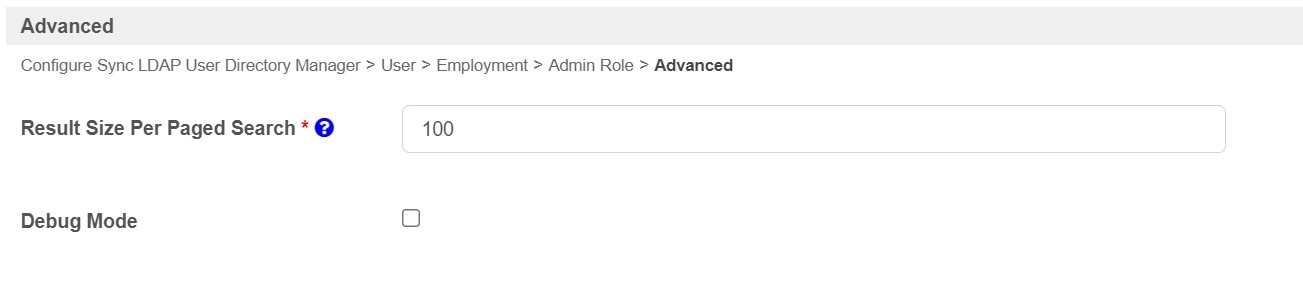
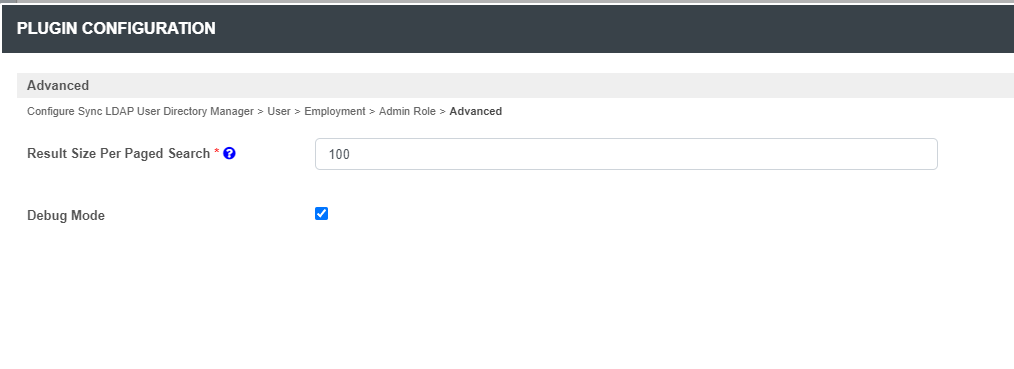
Figure 5: Advance Properties
| Name | Description / Sample Value |
|---|---|
Result Size Per Paged Search | 100 |
| Debug Mode | Checked Tips The Debug Mode is highly recommended to be turned on when configuring the LDAP plugin for the first time. |
Related Documentation
Security Enhanced Directory Manager