Introduction
This article demonstrates on how to add a password visibility toggle, allowing users to see what they typed on the password field.
Implementation
1. Add "Custom HTML" to form
On Form Builder, add a Custom HTML to the form with the relevant password field.
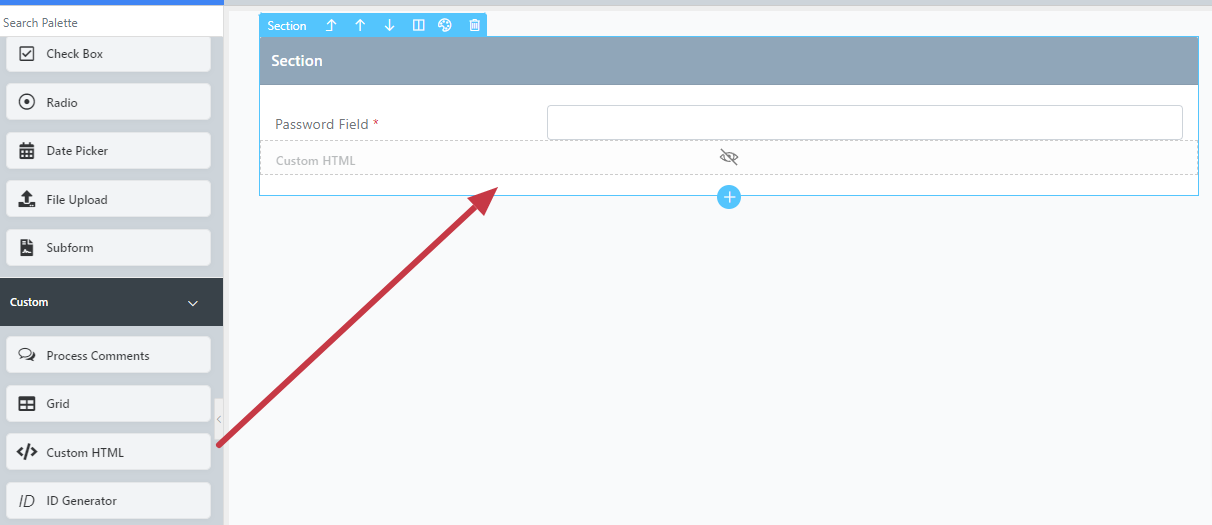
Figure 1: Custom HTML on Form Builder
2. Add the script
The following script implements the feature of the visibility toggle:
<script>
$(document).ready(function() {
    // Locate the password field and wrap it with a container for the icon
    var passwordField = $("input[name='password']"); // Modify "password" to the relevant password field id
    passwordField.wrap('<div class="password-container" style="position: relative;"></div>');

    // Append the eye icon inside the field (use FontAwesome or any other icon library)
    passwordField.after('<i id="togglePassword" class="fa fa-eye" style="position: absolute; right: 10px; top: 50%; transform: translateY(-50%); cursor: pointer;"></i>');

    // Toggle the password visibility when the eye icon is clicked
    $('#togglePassword').on('click', function() {
        if (passwordField.attr("type") === "password") {
            passwordField.attr("type", "text");
            $(this).removeClass("fa-eye").addClass("fa-eye-slash"); // Change icon to 'eye-slash'
        } else {
            passwordField.attr("type", "password");
            $(this).removeClass("fa-eye-slash").addClass("fa-eye"); // Change back to 'eye'
        }
    });
});
</script>
Results

Figure 2: Password field with visibility turned off

Figure 3: Password field with visibility turned on