Figure 1 : Adding a Text Field to the Form
First, add a Text Field element to the form and put "country" as field ID.Next, add a Custom HTML element to the form and copy the following script into the Custom HTML property.
<script>
var countries= [
  {"label": 'Afghanistan', "code": 'AF'},
  {"label": 'Åland Islands', "code": 'AX'},
  {"label": 'Ecuador', "code": 'EC'},
  {"label": 'Egypt', "code": 'EG'},
  {"label": 'El Salvador', "code": 'SV'},
  {"label": 'Equatorial Guinea', "code": 'GQ'},
  {"label": 'Eritrea', "code": 'ER'},
  {"label": 'Estonia', "code": 'EE'},
  {"label": 'Ethiopia', "code": 'ET'},
  {"label": 'Falkland Islands (Malvinas)', "code": 'FK'},
  {"label": 'Faroe Islands', "code": 'FO'},
  {"label": 'Fiji', "code": 'FJ'},
  {"label": 'Finland', "code": 'FI'},
  {"label": 'France', "code": 'FR'},
  {"label": 'Saudi Arabia', "code": 'SA'},
];

$( "#country" ).autocomplete({
    source: countries,
    select: function (event, ui) {
        $("#countries").val(ui.item.code);
    }
});
</script>
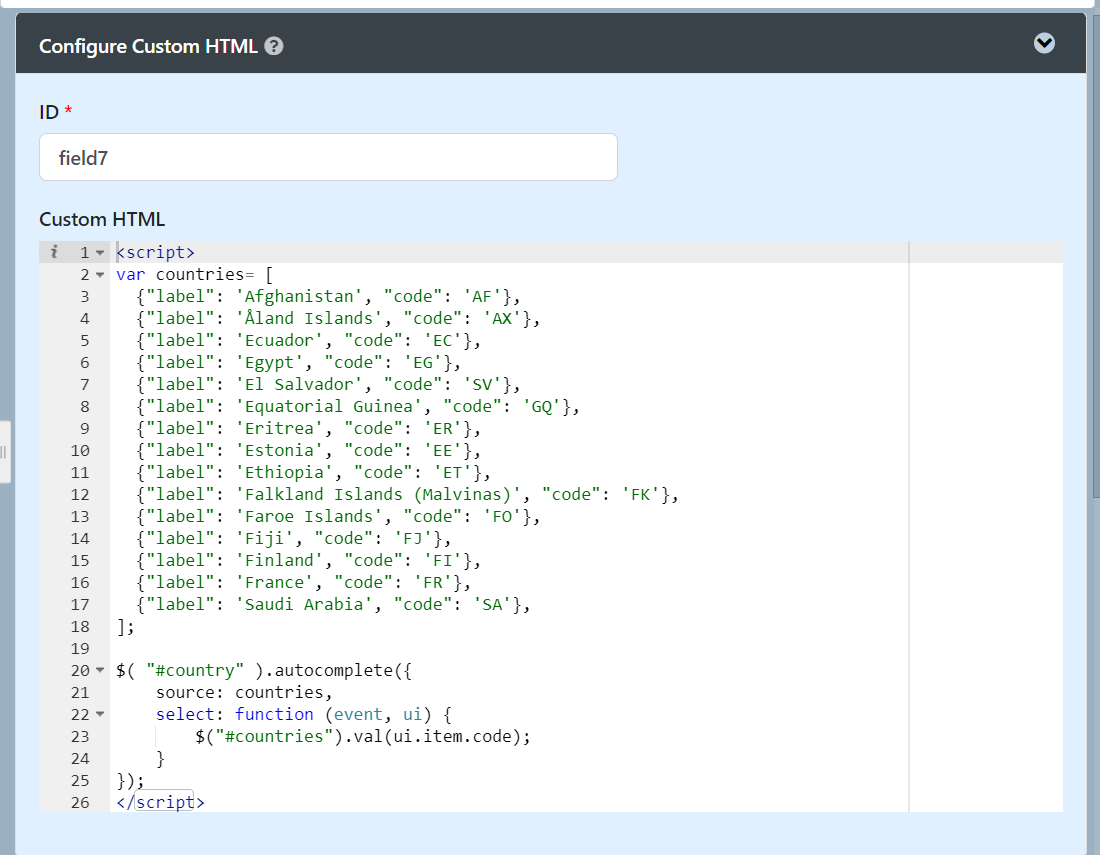
Figure 2 : Adding a Custom HTML Script to the Form
1. By default, the js library file of jQuery and jQueryUI is included in the Joget form.
2. The "country" in "[name$=country]" in the code must be the same with that in your Field ID.
After adding the script, click on Preview in Form Builder. Type "kua"; the text field will appear like this:
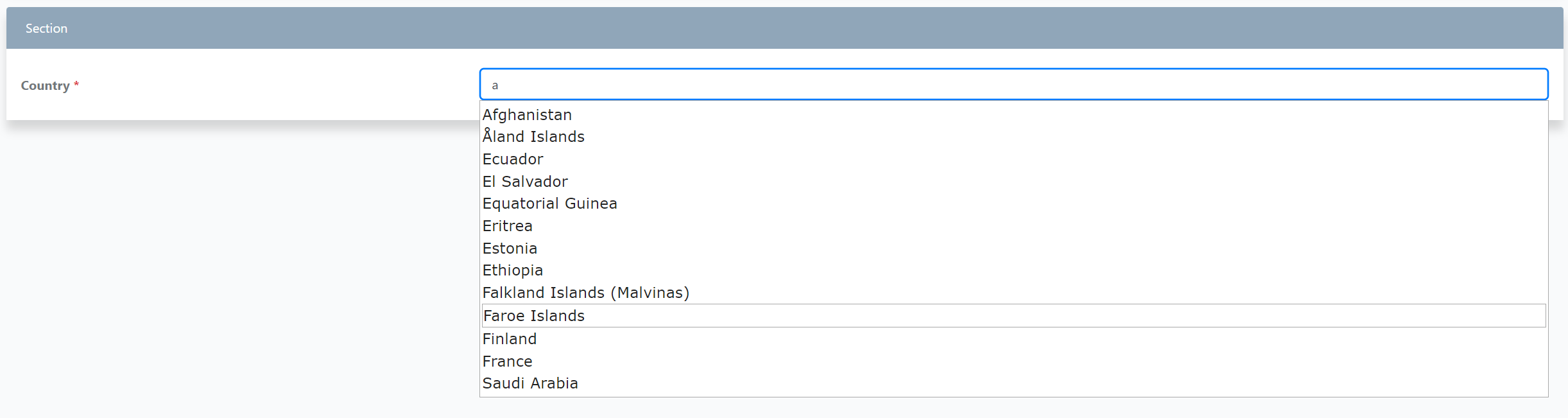
Figure 3 : Preview and Check Autocomplete Field