Introduction
Generate CRUD function will generate a UI CRUD Menu item and append it in a new UI category into an existing UI .
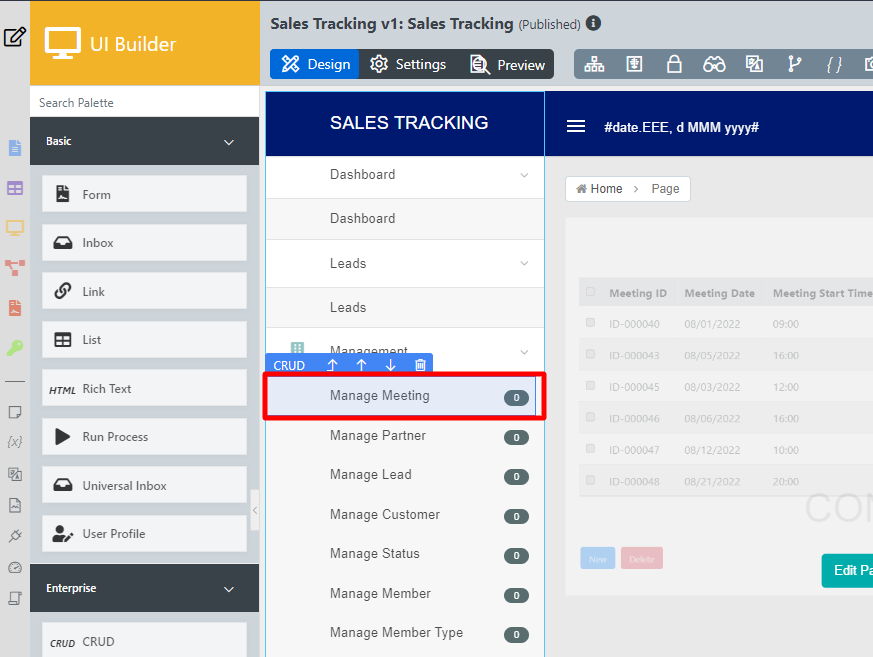
Figure 1: Example of UI category created from Generate CRUD
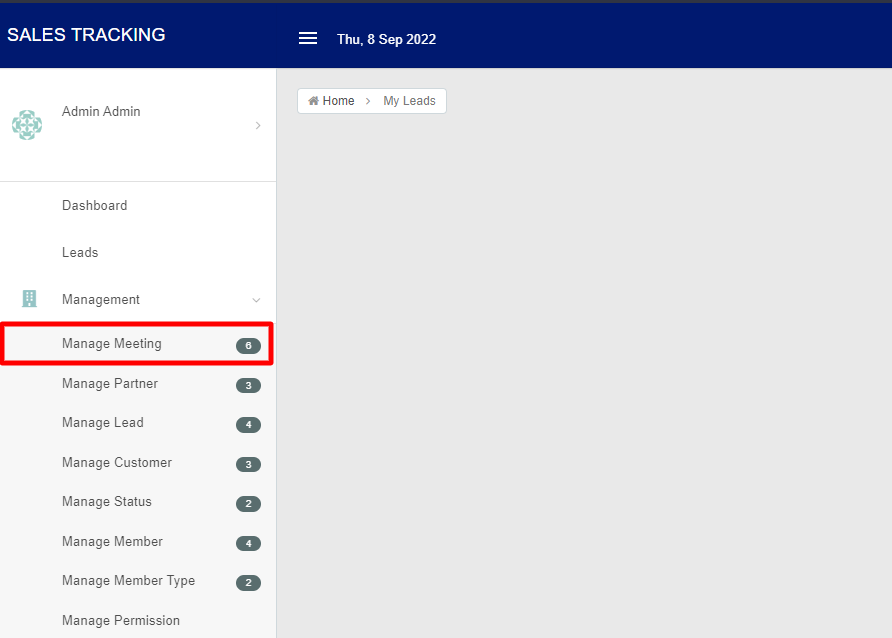
Figure 2: Example of CRUD UI Menu created from Generate CRUD
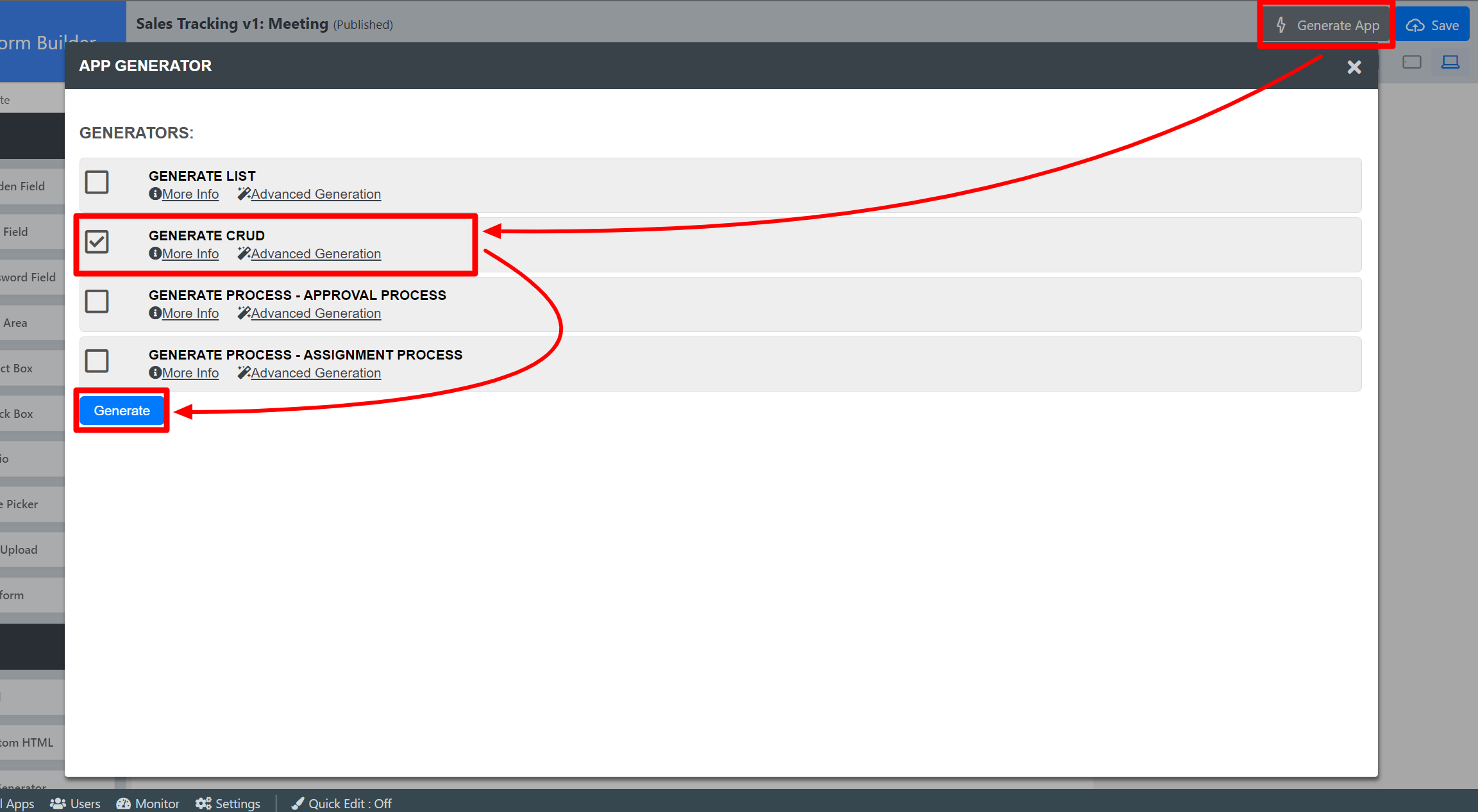
Figure 3: Screenshot showing Generate CRUD plugin in Generate App function
Generate CRUD Properties
Options
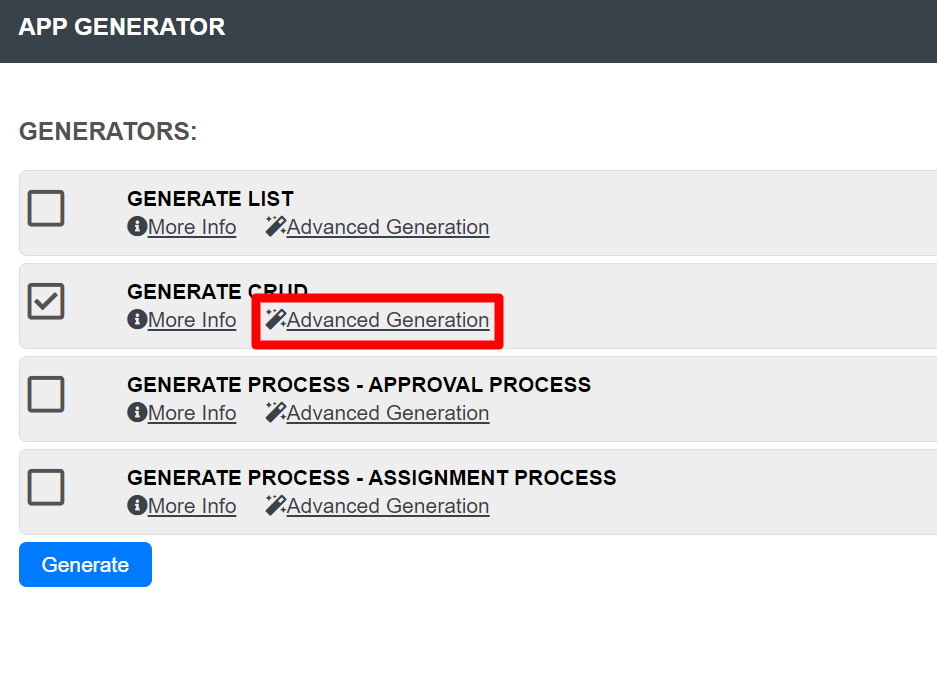
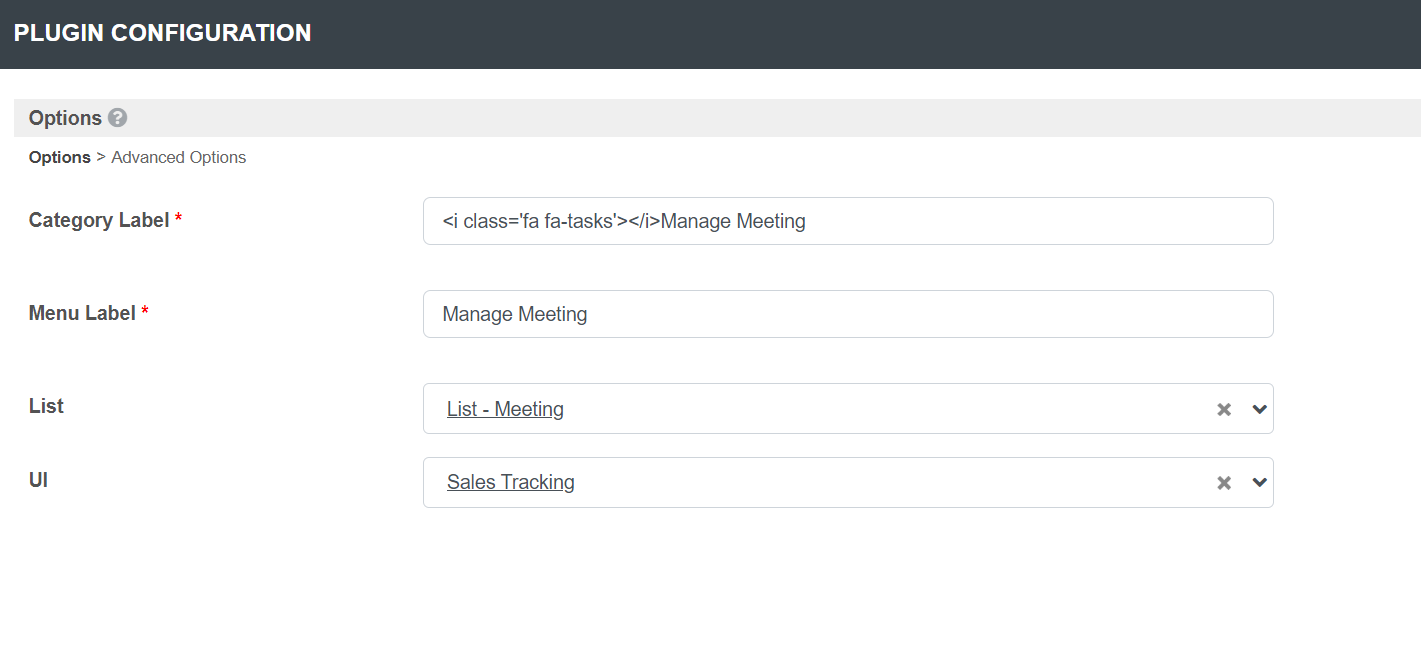
Click Advanced Generation under Generate CRUD to access the CRUD Options page.
| Name | Description |
|---|---|
| Category Label | Category label of the new UI category to be appended into the target UI below. |
| Menu Label | CRUD menu label. |
| List | Choose an existing List to associate it with the new CRUD menu item. If this is left empty, Create New List Options will be available in Advanced Options |
| UI | Choose a UI to append the new UI category into. If this is left empty, Create New UI Options will be available in Advanced Options |
Advanced Options
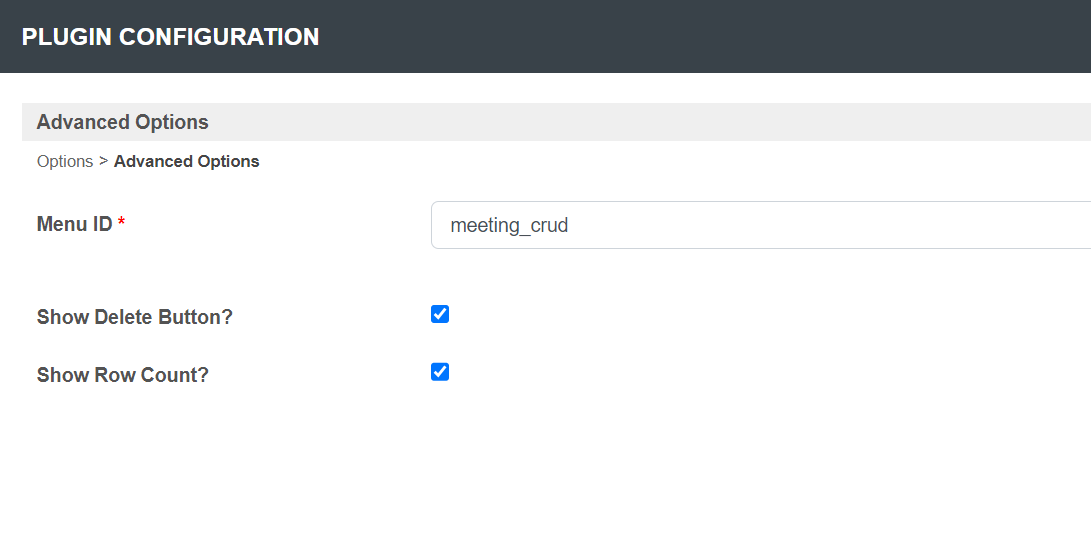
| Name | Description |
|---|---|
| Menu ID | CRUD UI menu Custom ID |
| Show Delete Button? | Customize CRUD behavior to show the delete button. |
| Show Row Count? | Customize CRUD behavior to show the row count. |
Create New List Options
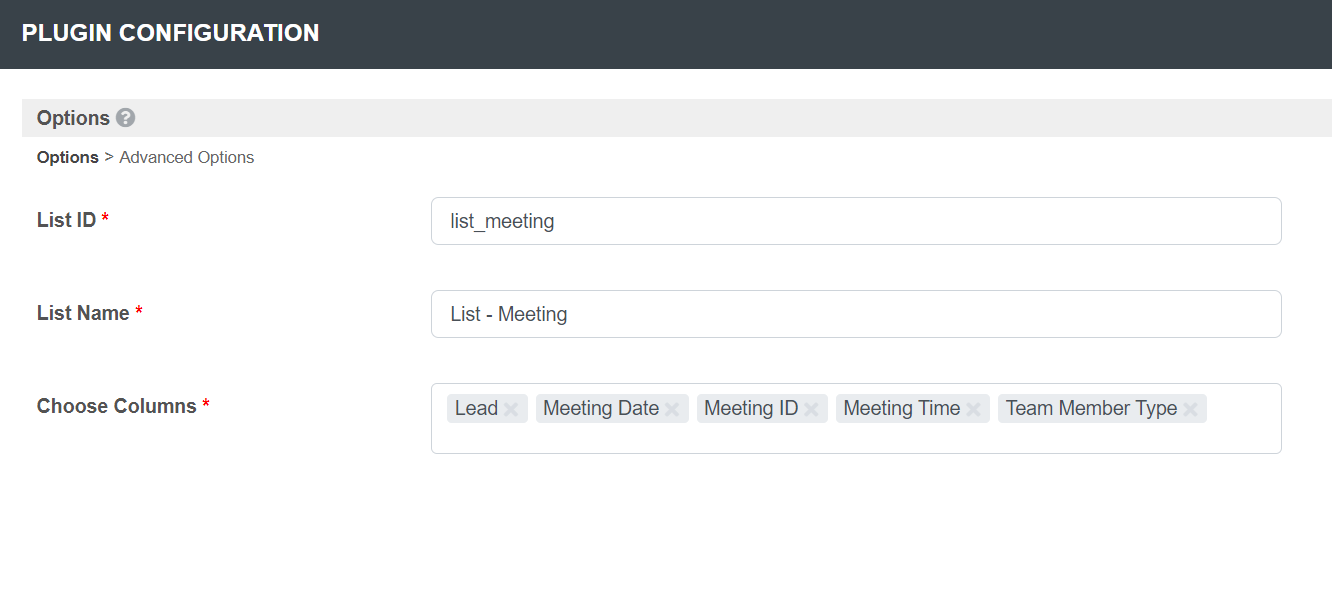
Click Advanced Generation under Generate List to access the List Options page.
| Name | Description |
|---|---|
| List ID | List ID |
| List Name | List Name |
| Choose Columns | Select Columns to be displayed in List. Auto Complete enabled. Type column name to display filtered selection. |
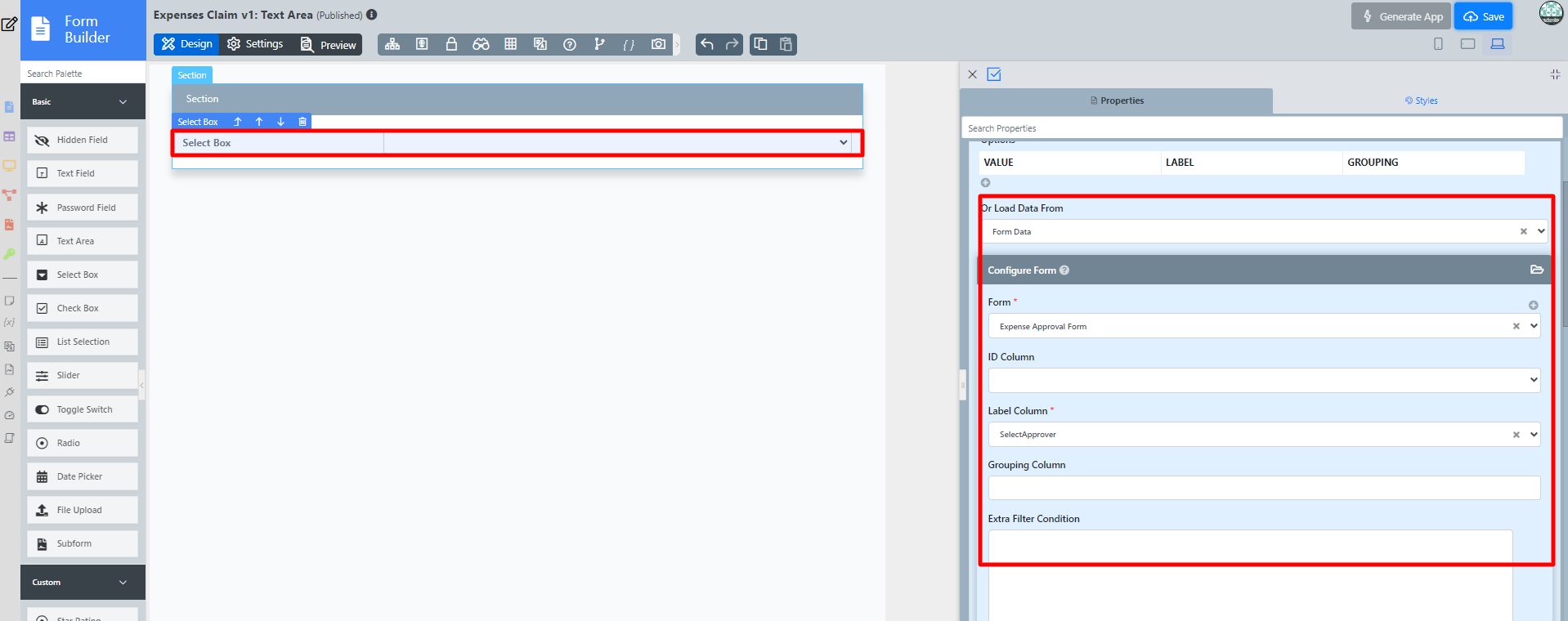
Figure 4: Example of a form formatter for a form element.
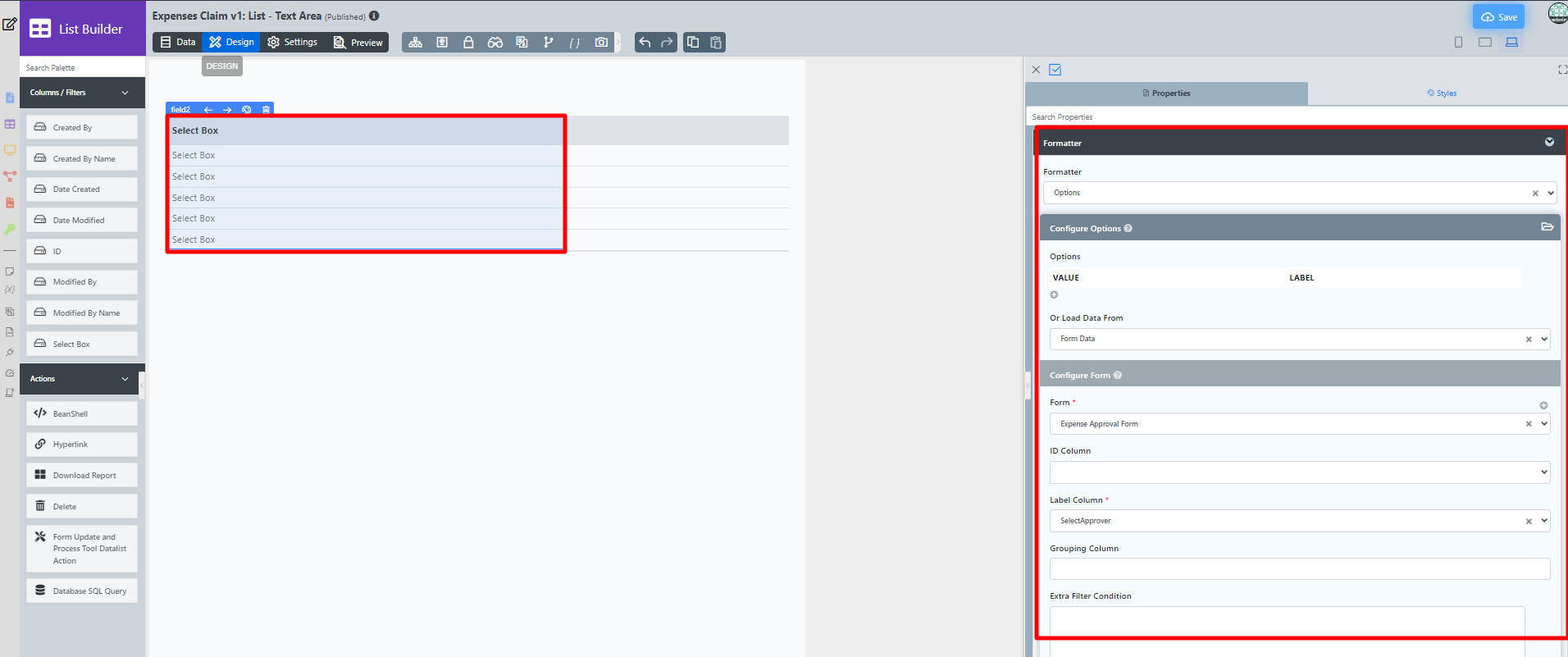
Figure 5: Example of a list column with the same formatter from form when generated.
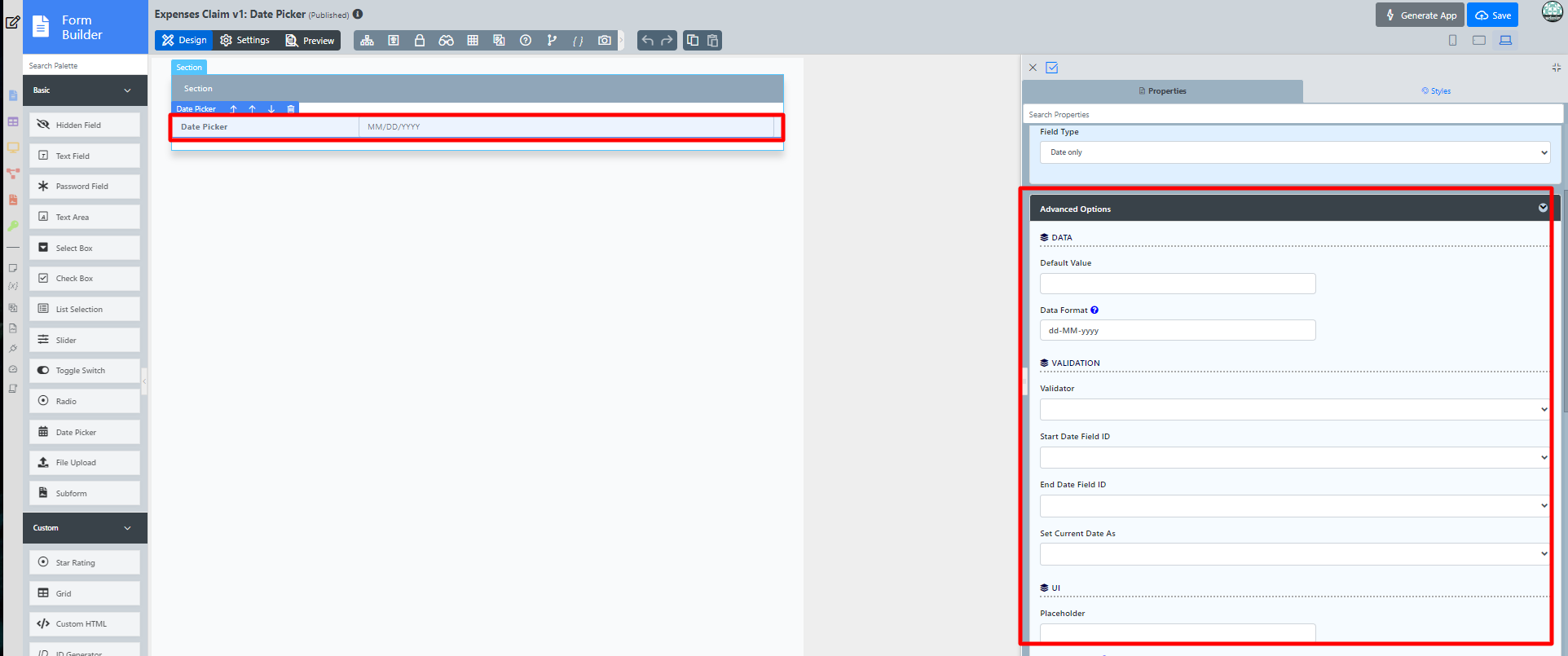
Figure 6: Example of a form formatter for another form element.
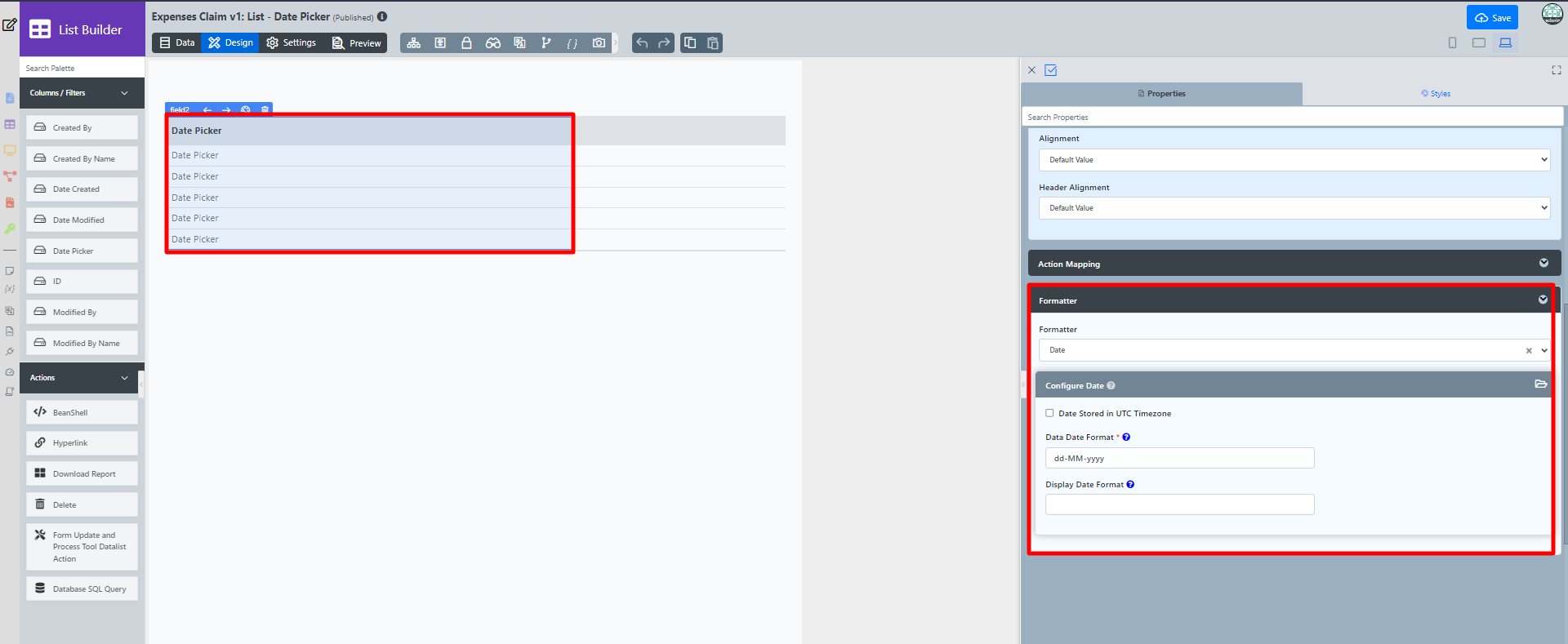
Figure 7: Example of a list column with the same formatter from form when generated.
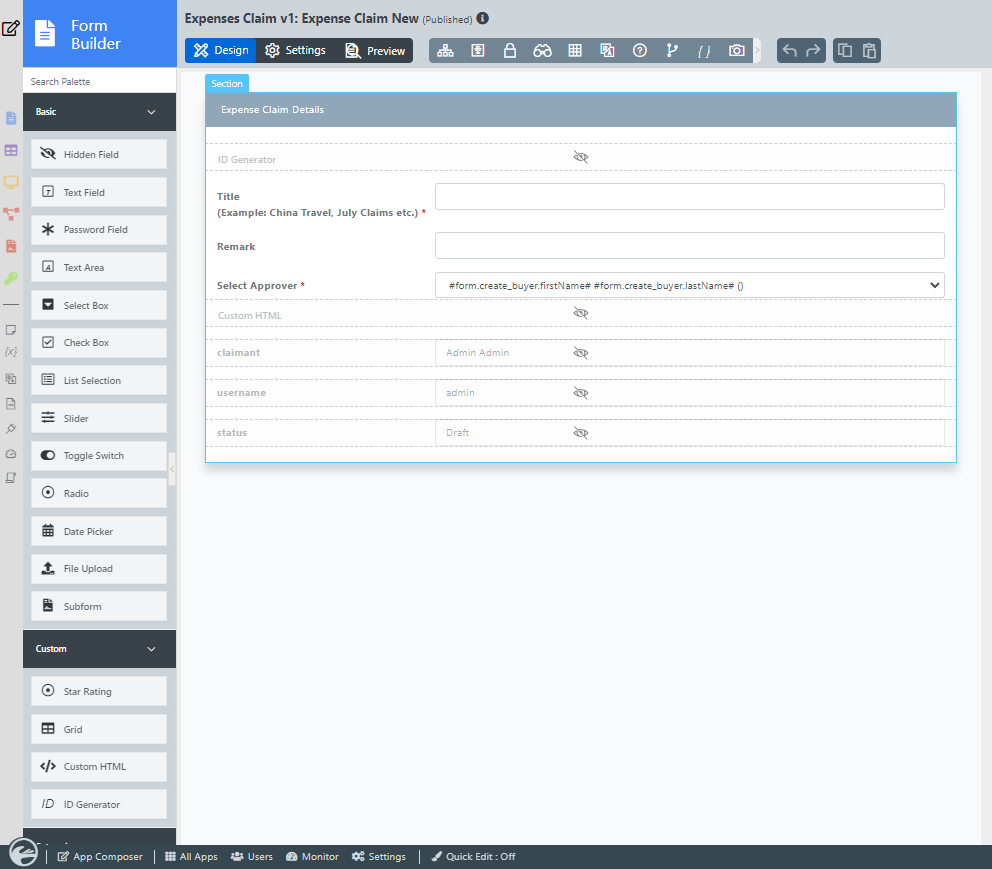
Figure 8: Sample form design
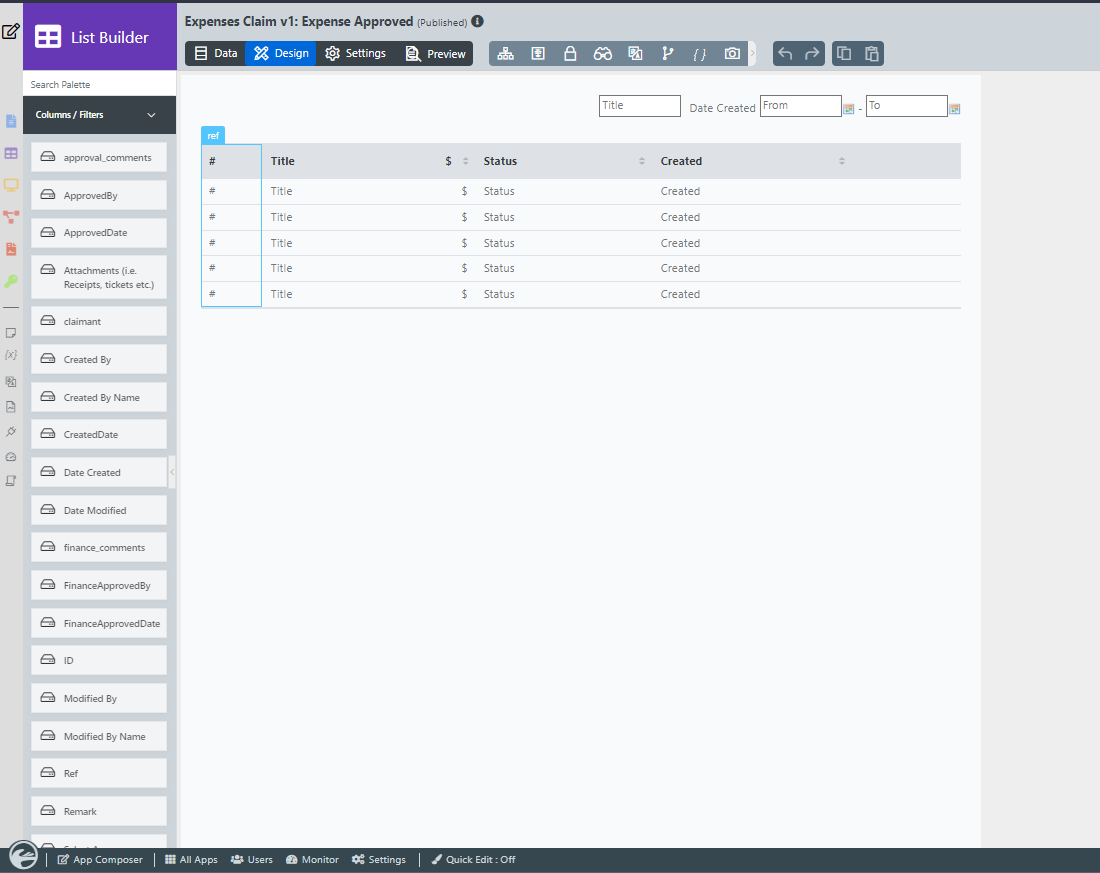
Figure 9: Screenshot showing the resultant List created by the plugin.
Create New List Options
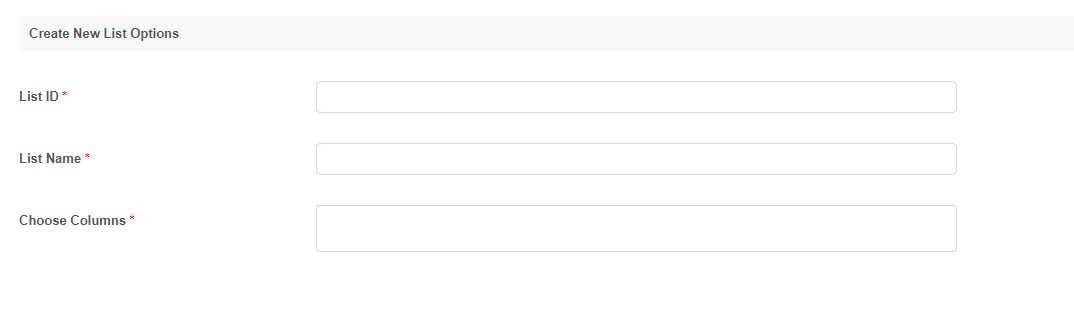
Name | Description |
|---|---|
| List ID | List ID |
| List Name | List Name |
| Choose Columns | Choose Columns |
How to use Generate CRUD