Introduction
- Holidays
- Working Hours
- Working Days
Configure Office Working Hours
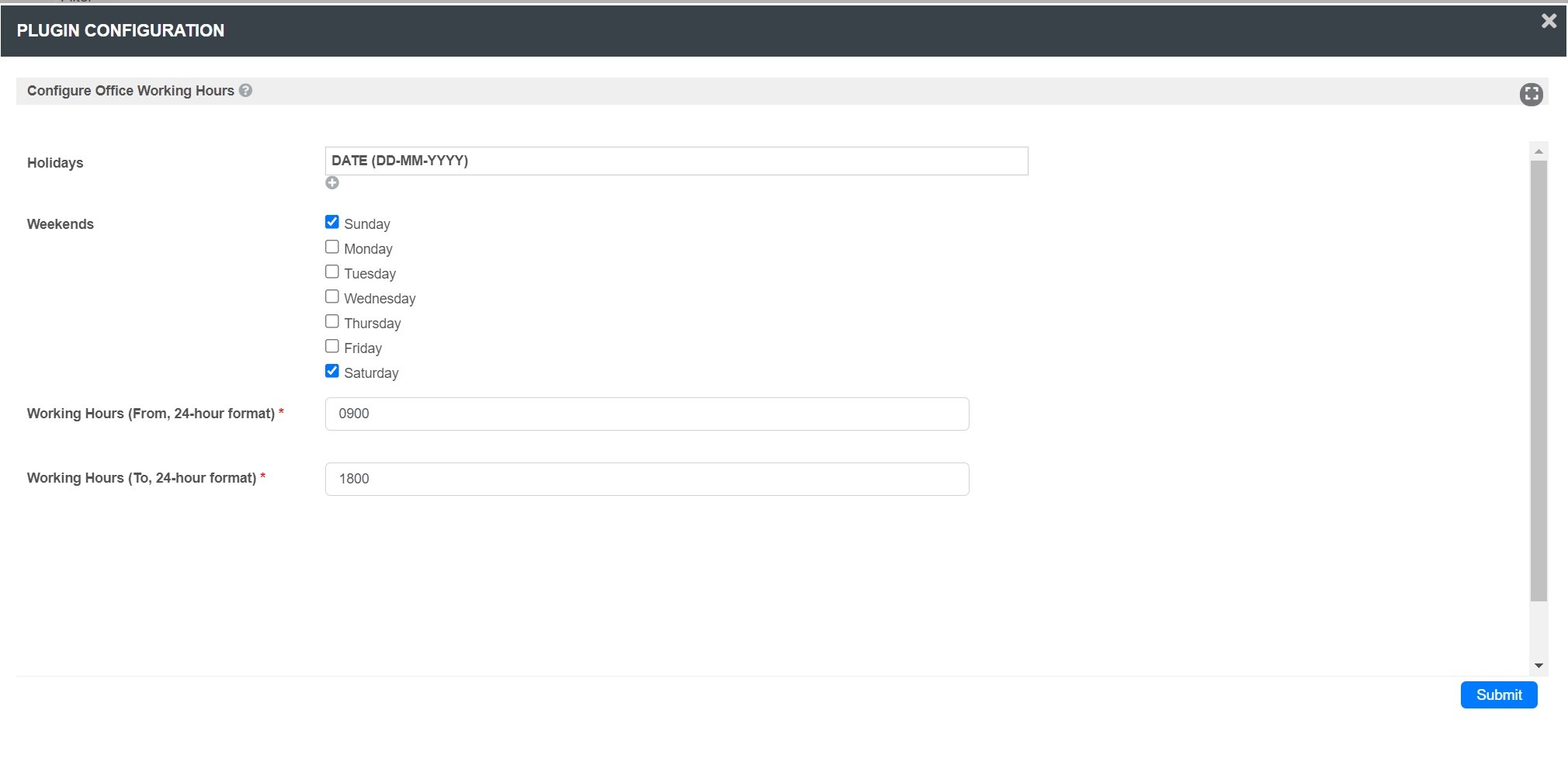
Figure 1: Office Working Hour Deadline Properties
| Name | Description |
|---|---|
| Holidays | Define holidays in this grid in "DD-MM-YYYY" format. |
| Weekends | Check the weekend days where applicable. |
| Working Hours (From, 24-hour format) | Define your working hours in 24 hours format without a colon sign in between. |
| Working Hours (To, 24-hour format) | Define your working hours in 24 hours format without a colon sign in between. |
Example Deadline/SLA Due Calculation
Properties & Export → Set Plugin Default Properties → Office Working Hour Deadline
Figure 2: Sample Configurations on Office Working Hours plugin
As shown in figure above, the working hours set are from 9am to 6pm every weekday.
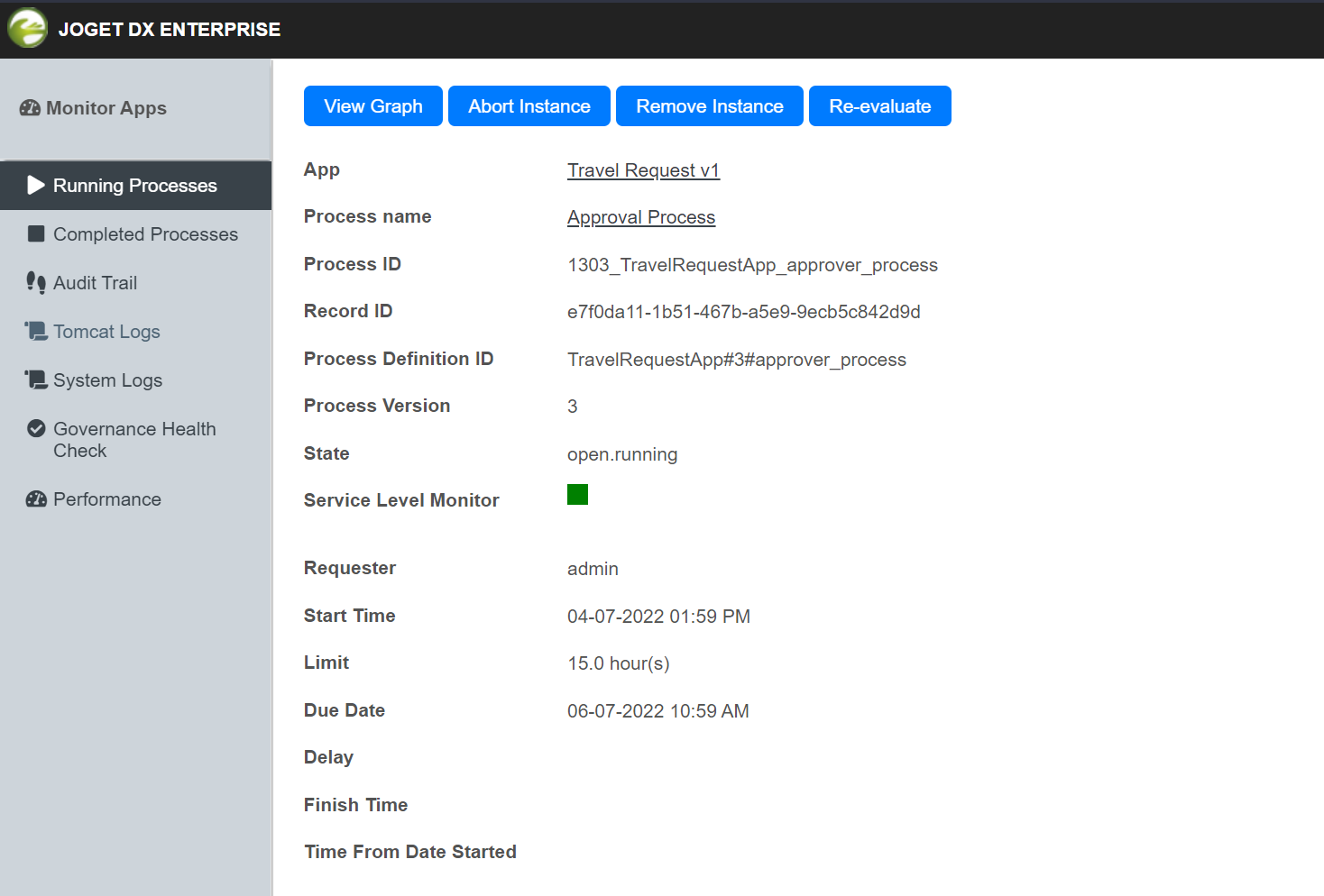
Figure 3: Sample process instance details view
A process instance is started on 1:59pm on 04 July. According to the process design, the process has a SLA of 15.0 hours.
With the Office Working Deadline plugin activated, the due date would not be a mere 1:59pm + 15 hours. It will be 1:59pm + 15working hours, which means it will start from 1:59pm till 6:00pm on 04july.
On 05 July, there's only 9 working hours. On 06 July, which is another new working day, we will get a 1 hour and 59 minutes from it Effectively, the due date would be on 06 July, 10:59am.
Related Documentation
Deadlines act as a timer which triggers an exception transition to another activity when a specified duration has elapsed.