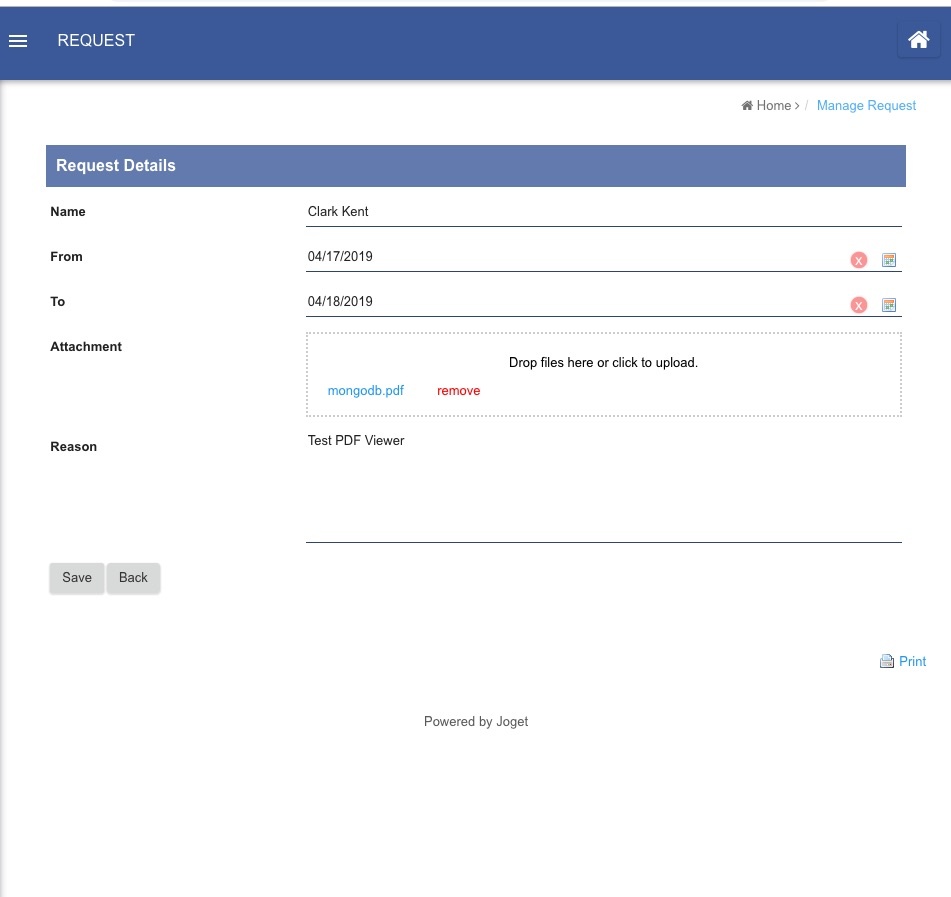
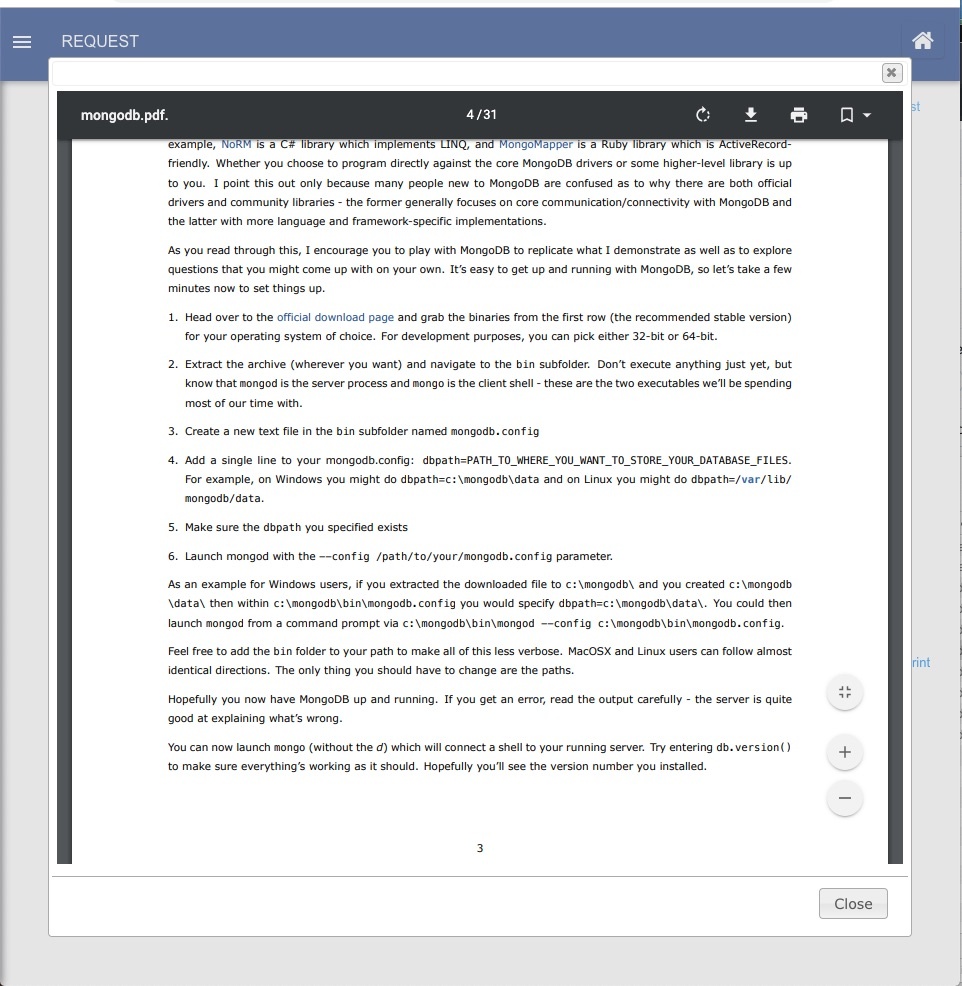
Clicking on "mongodb.pdf" in the file upload element will bring up the pop up dialog that will display the pdf file's content.
In any form that contains File Upload field, add a Custom HTML and put in the following code.
Ensure in File Upload properties, the "Download as attachment field" is unchecked.
<div id="pdfPreview" style="display:none;">
    <object
      data="pdfFilePath" type="application/pdf" width="100%" height="100%">
      <iframe src="pdfFilePath" width="100%" height="100%" style="border: none;">
        <p>Your browser does not support PDFs. <a href="pdfFilePath">Download the PDF</a>.</p>
      </iframe>
    </object>
</div>

<script type="text/javascript">
$(function(){
    $("ul.form-fileupload-value > li > a").click(function(e){
    	url = $(this).attr("href");
    	if(url.endsWith(".pdf.")){
    		e.preventDefault();
    		showPopupActionDialog(url);
        }
    });
});

function showPopupActionDialog(url){
    var wWidth = $(window).width();
    var dWidth = wWidth * 0.9;
    var wHeight = $(window).height();
    var dHeight = wHeight * 0.9;

    var previewObj = $( "#pdfPreview" ).clone().html(function(index,html){
        return html.replace(/pdfFilePath/g, url);
    });

    var inputDialog = $( previewObj ).dialog({
      autoOpen: true,
      height: dHeight,
      width: dWidth,
      modal: true,
      buttons: [
        {
          text: "Close",
          click: function() {
            inputDialog.dialog( "close" );
          }
        }
      ]
    });
}
</script>