Introduction
Process Version
New Process Instance will start based on the latest process version of the current published App version.
Run Process Properties
Configure Run Process
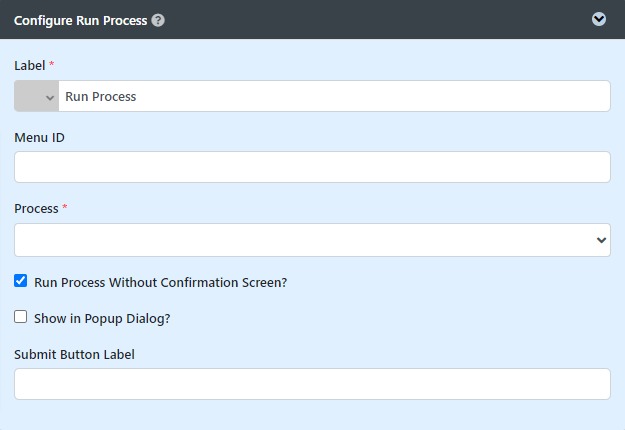
Figure 1: Run Process Properties
| Name | Description |
|---|---|
| Label | Menu label. Mandatory field. |
| Menu ID | Item link slug. Optional field. Unique field Value defined here must be unique to the rest of the UI Menus as the first matching name will be called upon. |
| Process | Process to start. Mandatory field. |
| Run process without confirmation screen? | If checked, the user will be prompted before proceeding to start the process instance. |
| Show in popup dialog? | If checked, the user will be presented with a popup dialog to run the process instance. |
| Submit Button Label | Label to be displayed on the submit button. |
Redirection
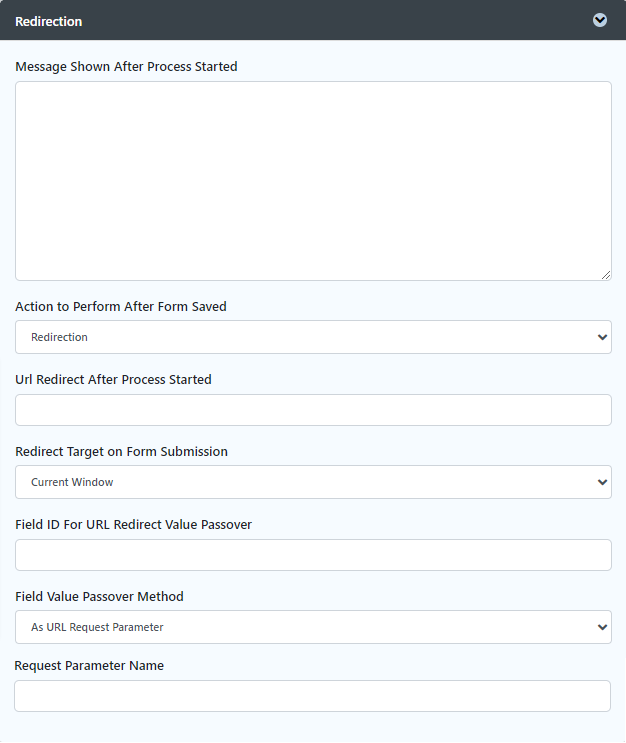
Figure 2: Run Process Properties - Redirection
| Name | Description | ||||||||||||||||
|---|---|---|---|---|---|---|---|---|---|---|---|---|---|---|---|---|---|
| Message shown after process started | The message shown after the process is started in text. | ||||||||||||||||
| Action to Perform After Form Saved |
|
Advanced

Figure 3: Run Process Properties - Advanced
| Name | Description |
|---|---|
| UI Key Name | If defined, the corresponding form element defined here will be populated with the UI key value. |
Performance & Offline
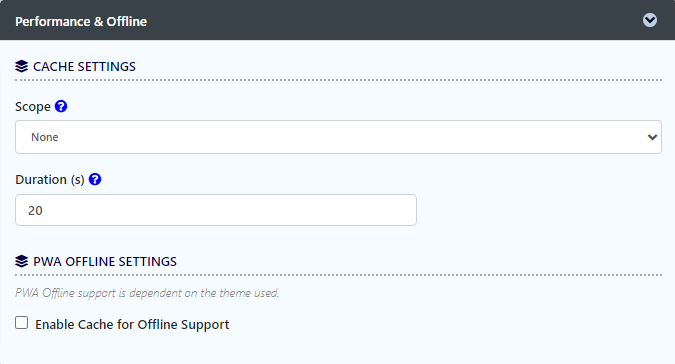
Figure 4: Run Process Properties - Performance & Offline Settings
Name | Description |
|---|---|
| Scope | Caching options are:
|
| Duration (s) | Duration in seconds to cache content defaults to 20 seconds if applicable. |
Read more at Performance Improvement with UI Caching.
PWA Offline Settings
Note: PWA Offline support is dependent on the theme used.
Name | Description |
|---|---|
| Enable cache for offline support | Check this to enable caching for offline support, usually set for use on mobile browsers. |
Read Progressive Web Application (PWA) for more information.