...
| Widget Connector | ||||
|---|---|---|---|---|
|
Step-by-Step Guide
In the App Center, click on All Apps.
Thai ใน App Center คลิกที่ All Apps.
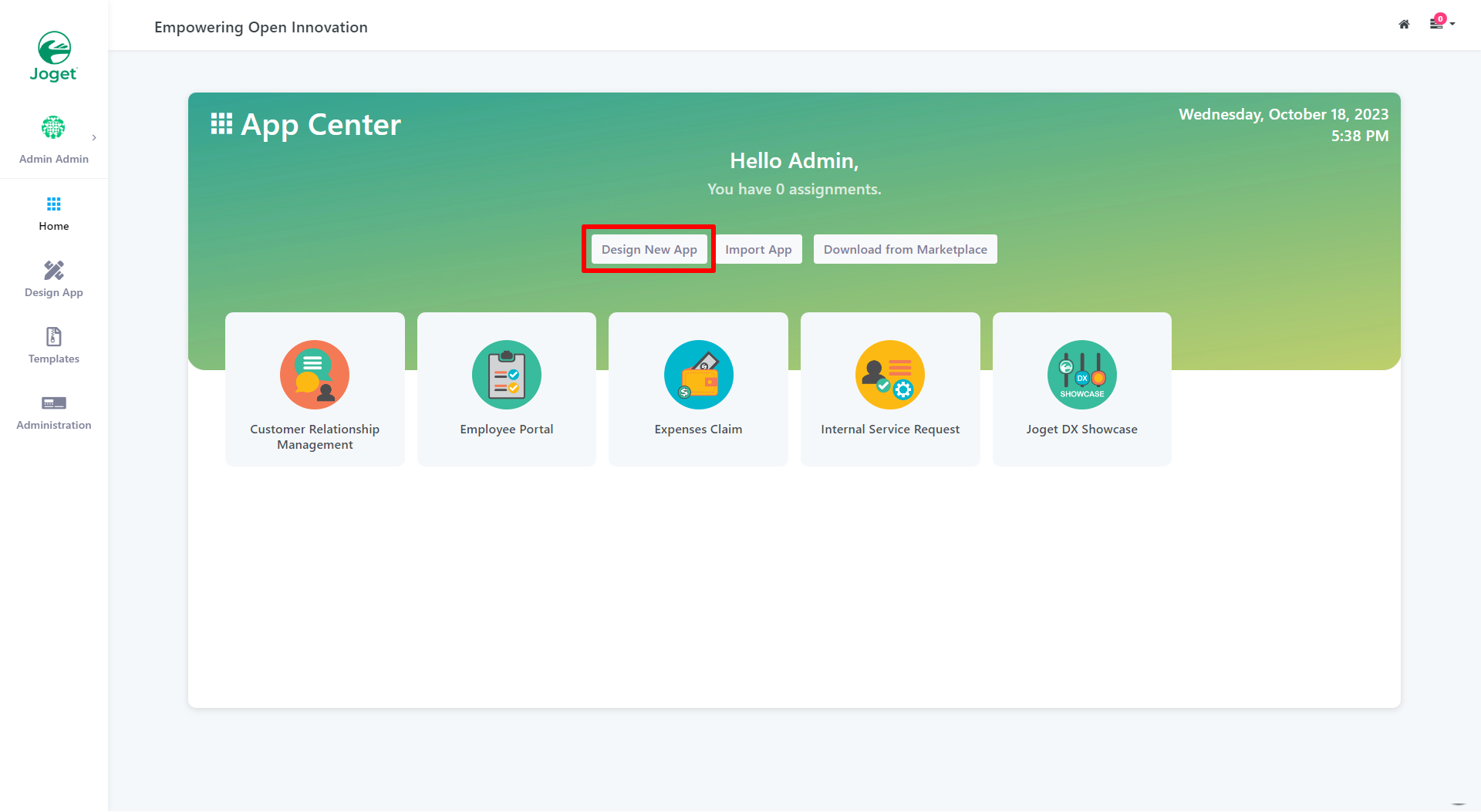
Figure 1: Design New App
In the Design App Page, click on the Create New App button.
Thai ในหน้า Design App Page, คลิกที่ปุ่ม Create New App.
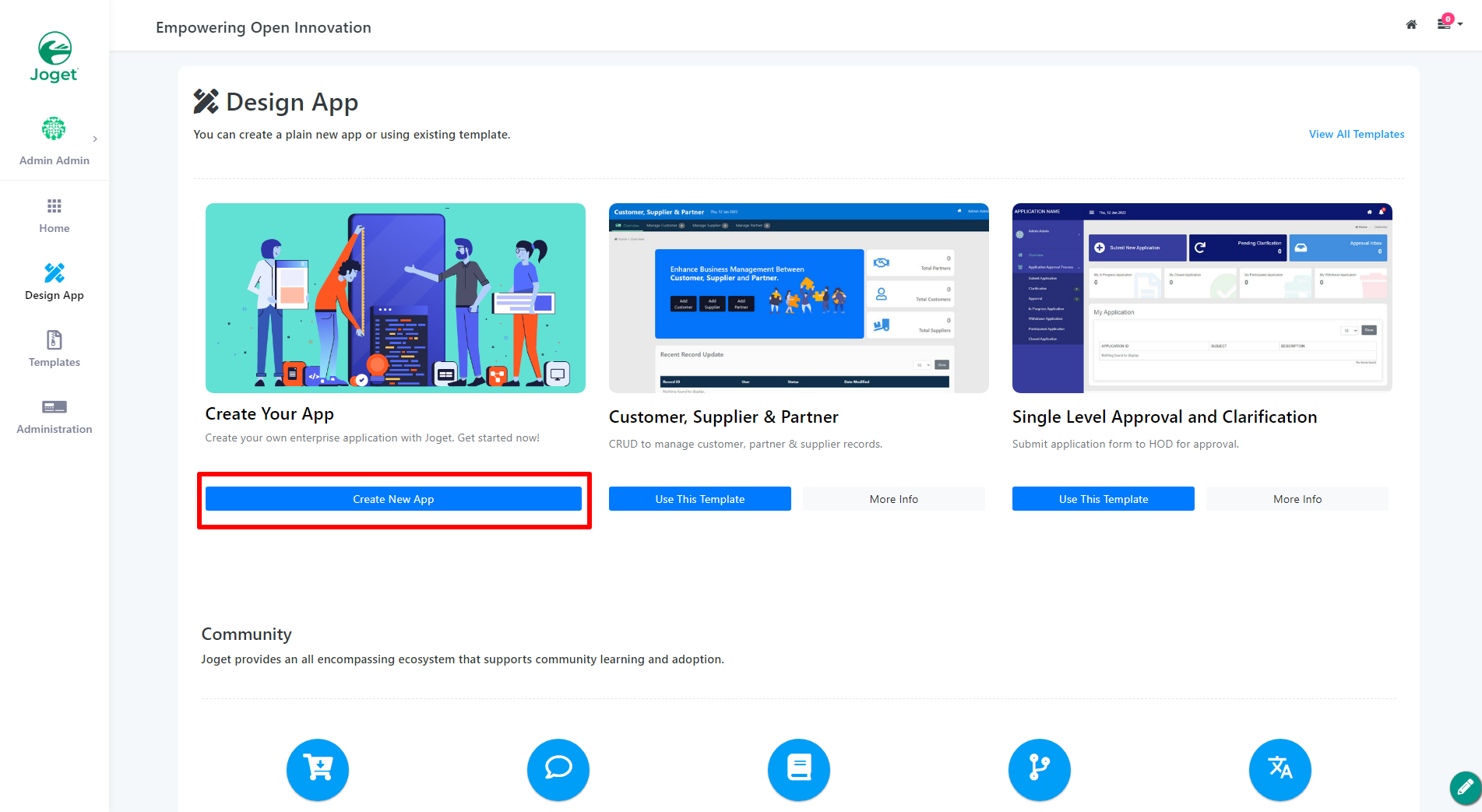
Figure 2: Create New App
Key in the details of the new app.
Thai ใส่รายละเอียดของแอปใหม่
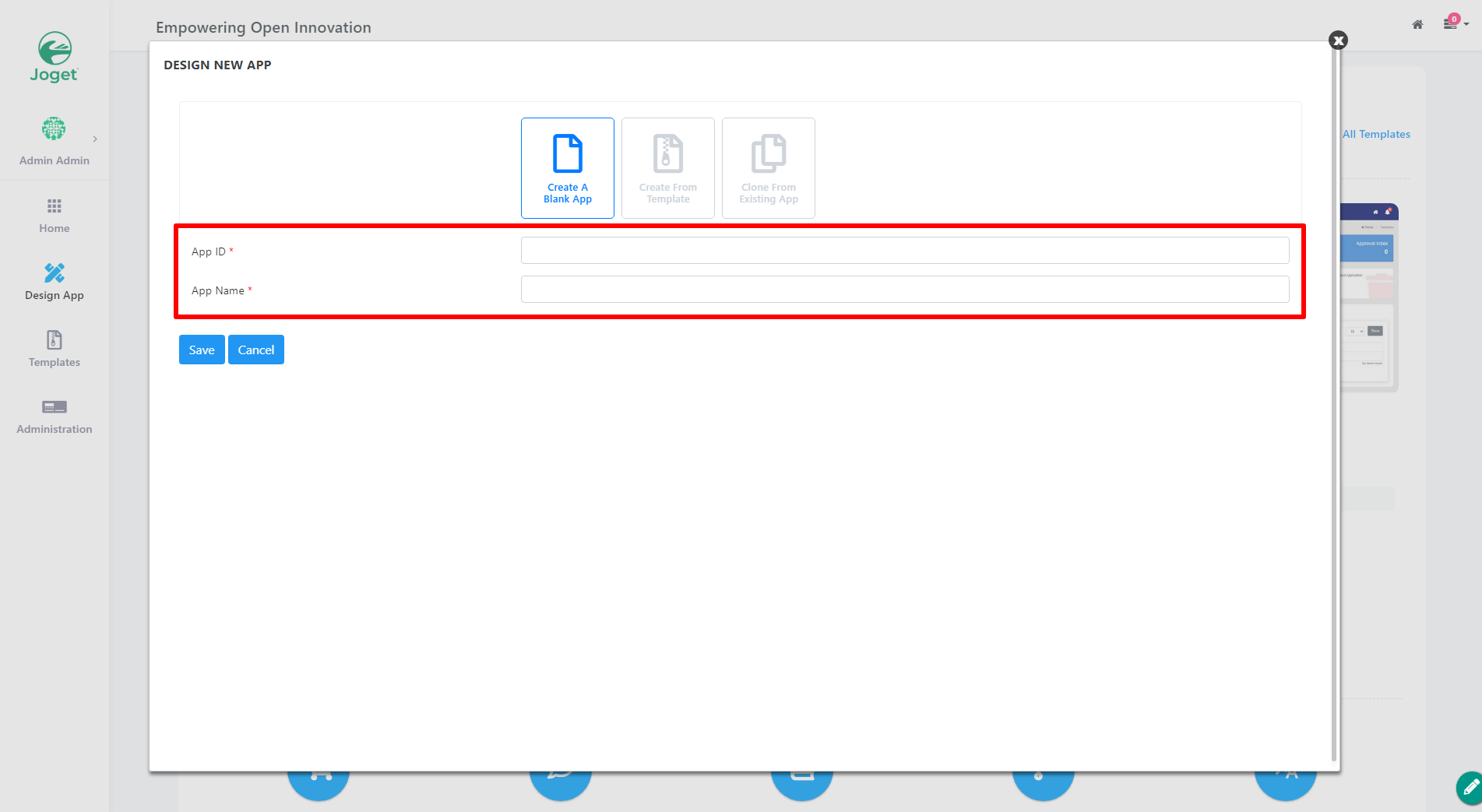
Figure 3: Enter App Details (Blank App)
| Name | Description | ||
|---|---|---|---|
| App ID | A short and unique ID for each app (no spaces) e.g. travelRequest
| ||
| App Name | A descriptive name e.g. Travel Request
|
| Info |
|---|
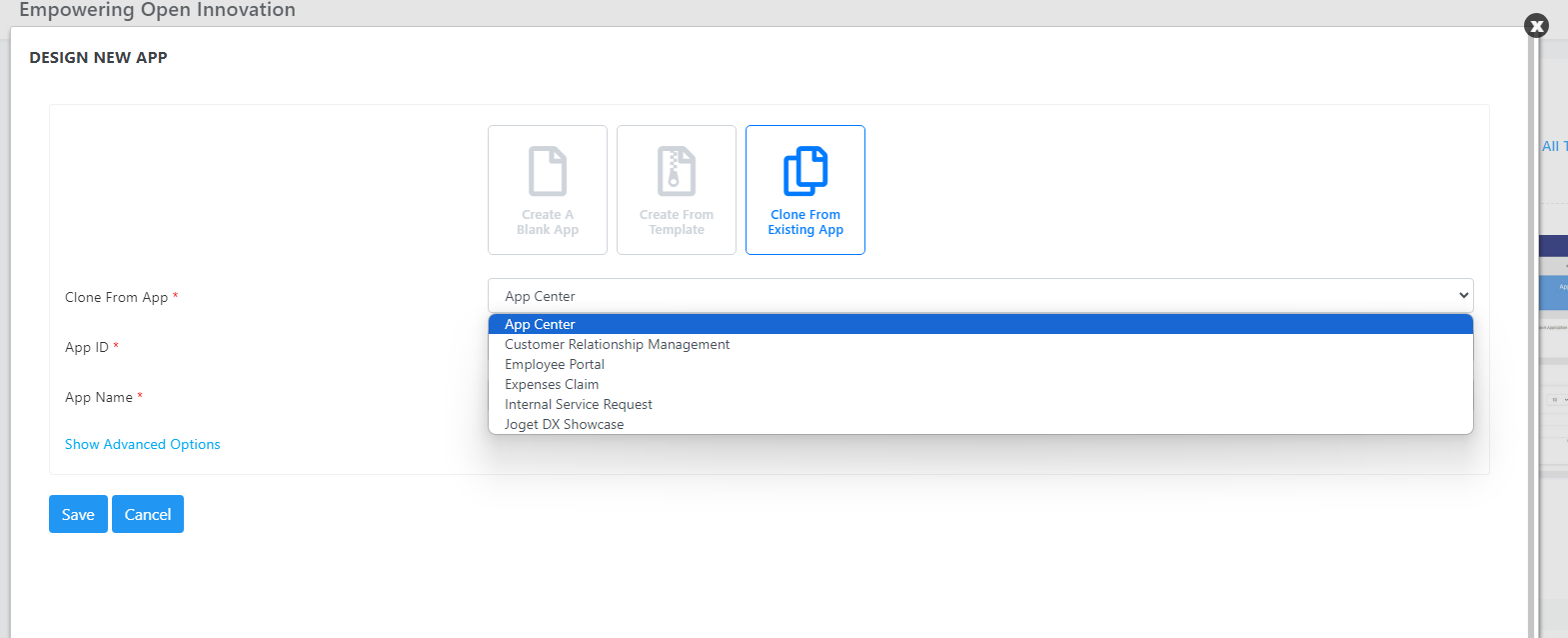
Optionally, one may also create a new App by using a template or cloning from existing App.
Figure 4: Enter App Details (From Template)
Figure 5: Enter App Details (Clone Exisiting) |
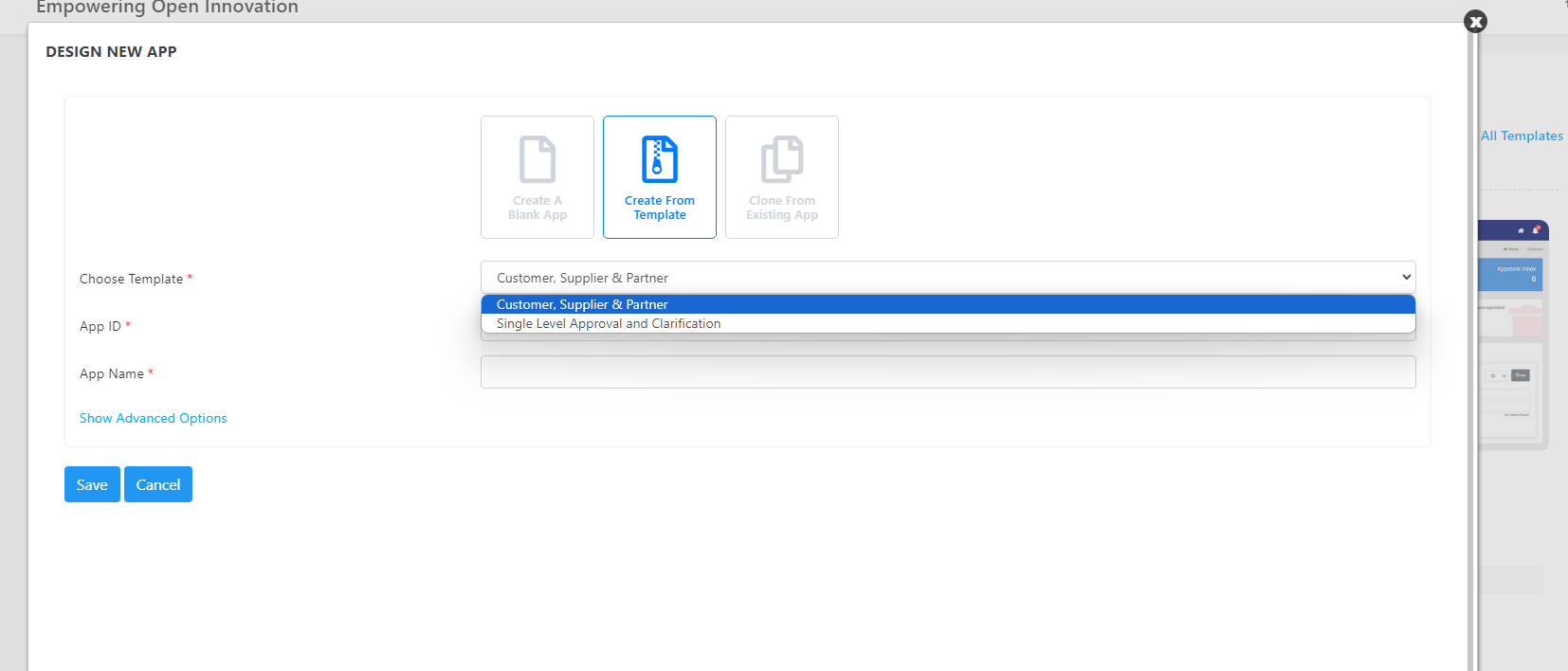
Click on Save. The app will be created and you will be prompted to the app composer page.
Thai คลิกที่ Save. แอปจะถูกสร้างและคุณจะได้รับคำพูดให้ไปยังหน้า App Composer.
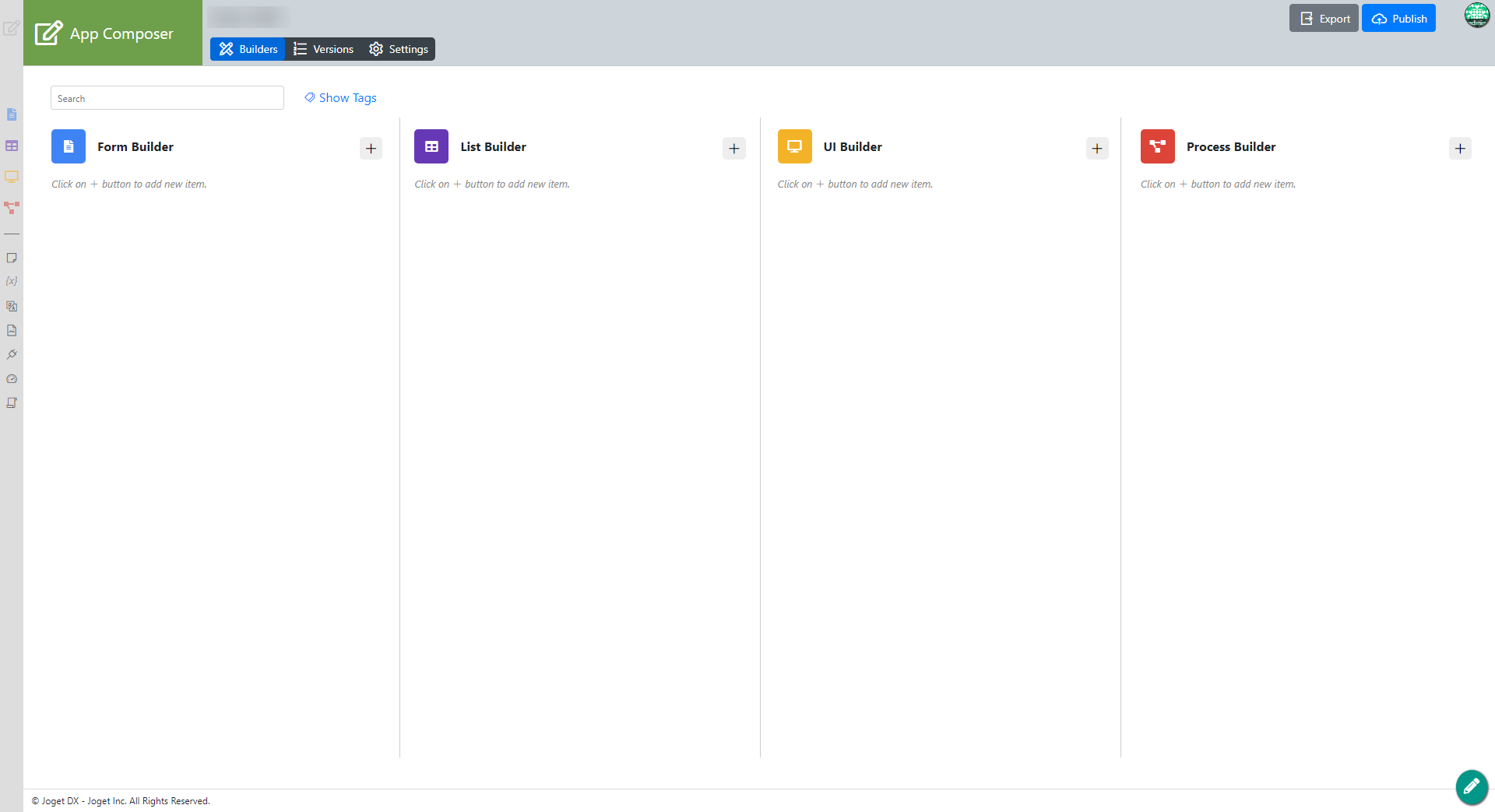
Figure 6: Save App